
Add and manage employees
Add a member of staff, fill in their job, pay and check-in details, keep their documents, print ID cards, and record when they leave.
HR → Employees is the record of everyone who works at the school: teachers, office staff, support staff, managers and drivers. A person has one employee record whatever their job. Teachers also get a teaching profile, described in the next guide.
The employee list
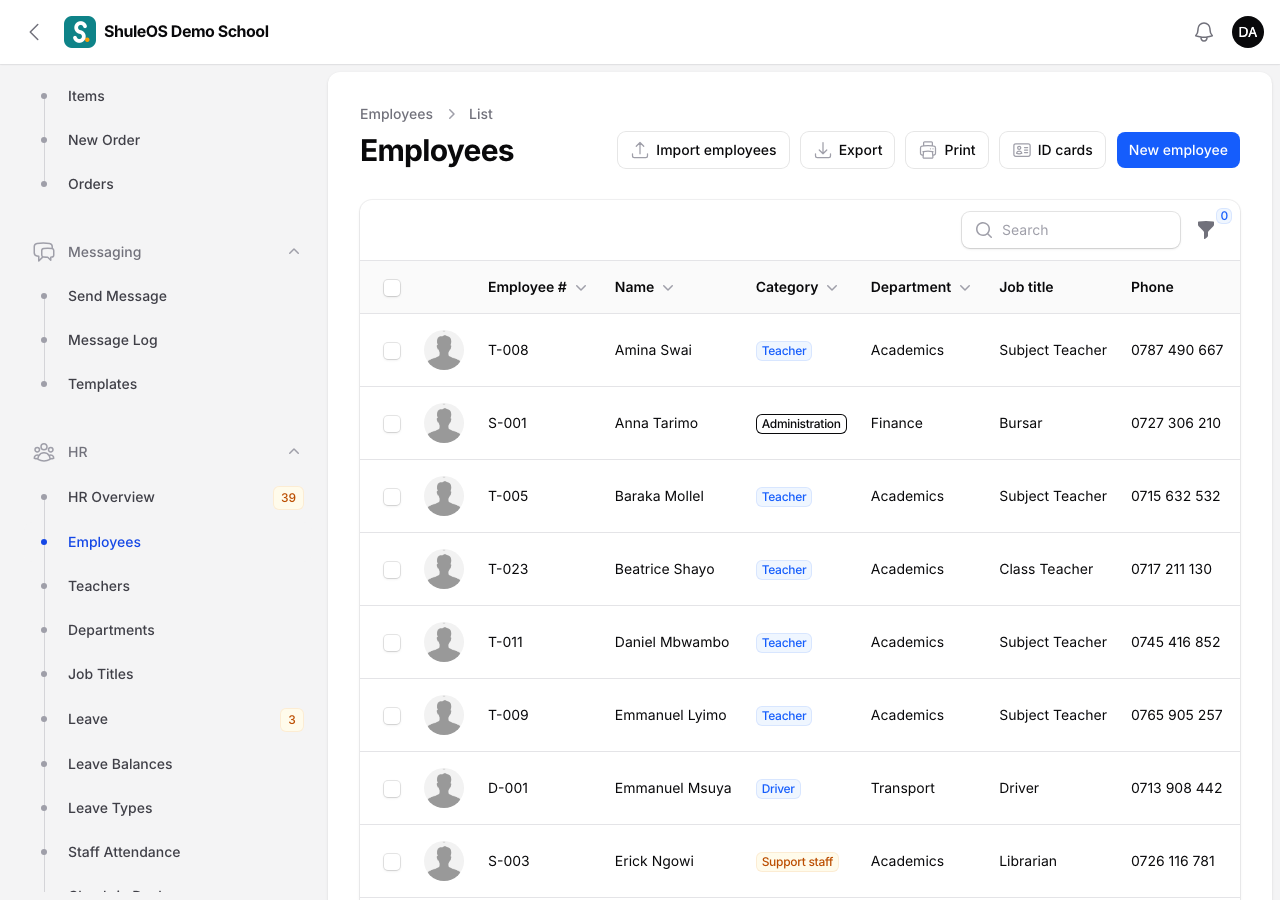
Each row shows the Employee #, Name, Category, Department, Job title, Phone, Contract and Status. Search by name or number, and use the filters:
- Category: Teacher, Administration, Support staff, Management or Driver.
- Department and Status.
- Contract ending in 60 days: shows fixed-term contracts about to end.
On the right of the top bar you find Import employees, Export (CSV or Excel), Print (the staff directory) and ID cards (see below).
Add an employee
-
Click New employee.
-
Fill in the form. It has five sections.

-
Click Create. The person is saved and you can add their salary and documents from their page.
Personal details
Photo (PNG, JPG or WebP, up to 2 MB), First name and Last name (required), Gender, Date of birth, Email, Phone and Address.
Once the person is saved, their page also has a Signature: upload a picture, or click Draw signature at the top of the page to draw it there and then with the mouse. It is used if this person is picked as Principal / Head Teacher in Settings.
Job
| Field | What to enter |
|---|---|
| Employee number | Required. Must be different for every person at your school ("Another employee already has this number."). |
| Category | Required. Teacher, Administration, Support staff, Management or Driver. Choosing Teacher also gives them a teaching profile so they can be given classes and subjects. Choosing Driver lets them be put on a school bus, and asks for their Driving licence number. A teacher stays a teacher: the category cannot be changed later. |
| Department and Job title | Pick from your lists, or type a new one and choose to create it. |
| Contract type | Permanent, Fixed-term contract, Part-time or Probation. |
| Date of joining | The first day. Payroll and attendance start from here. |
| Contract ends | For a fixed-term contract. Leave it empty for a permanent job. HR is warned before it ends. |
| Status | Active (the default), Inactive or On leave. |
Next of kin
The Name and Phone of someone to call in an emergency.
Pay details
Used for payroll and the bank payment file: Bank, Account number, NSSF number and TIN. Three switches decide the deductions: Pays NSSF (switch off for someone who is not an NSSF member), Pays PAYE (switch off for someone whose tax is not taken through payroll), and Has a HESLB loan (switch on for someone repaying a HESLB student loan, so the school's HESLB rate is taken from their basic pay).
Check-in PIN
Only shown to people allowed to manage staff attendance. Type a PIN of 4 to 6 digits so the person can check in and out at the staff check-in desk (see Staff attendance and the check-in desk). The PIN is never shown again. To change it, type a new one; to remove it switch on Remove the PIN. Two people cannot share a PIN: you see "A colleague already uses that PIN. Choose another."
The employee's page
Click a row to open the record. It has five tabs.
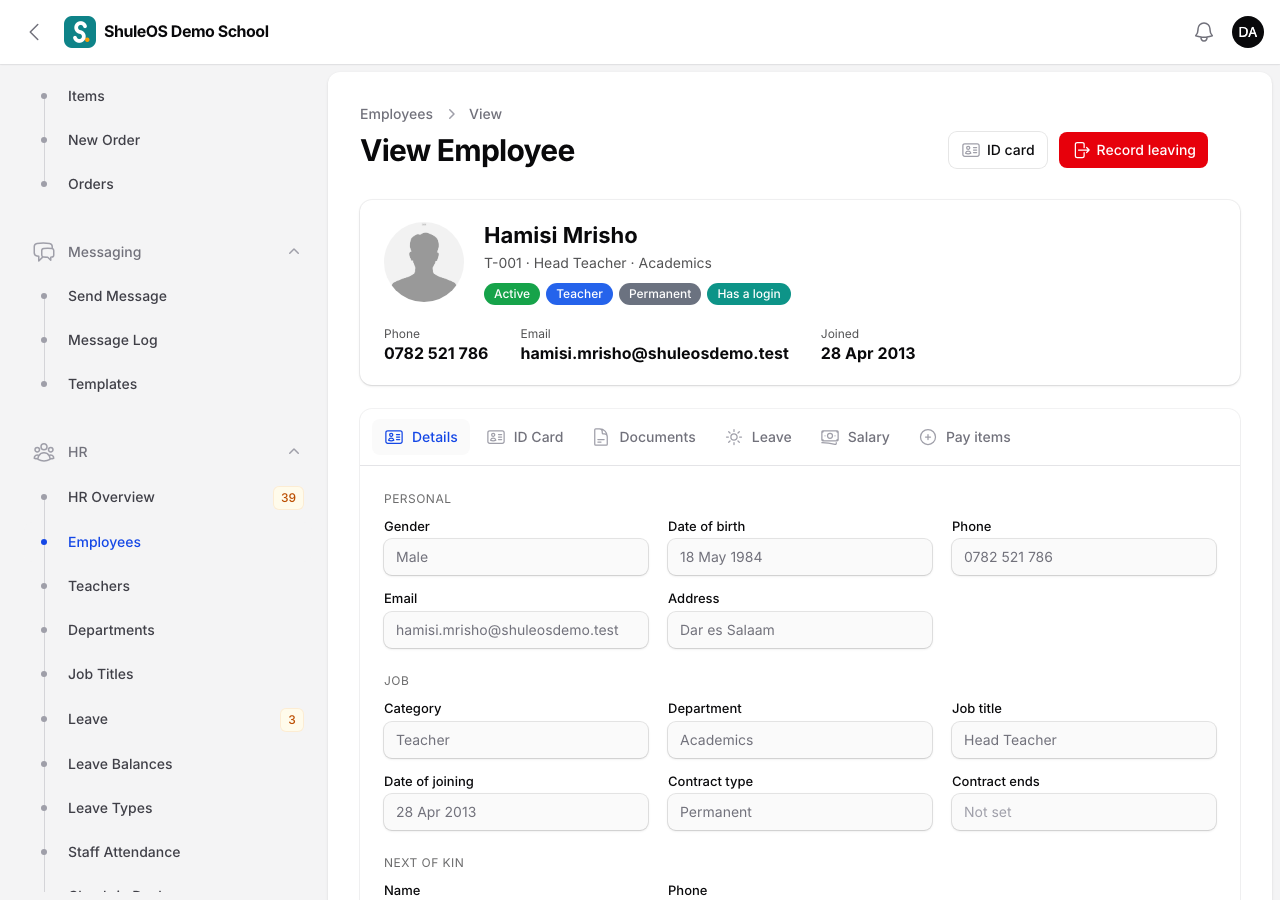
| Tab | What it holds |
|---|---|
| Details | Everything from the form above. |
| Documents | Contracts, certificates, ID copies. Click Add document, give it a Title, upload the file, and set Valid until if it expires. HR is warned before it does. Each row has a Download button. |
| Leave | Every leave request this person has made, with dates, days, status and who decided. |
| Salary | The basic monthly salary and its history. Click Set salary, enter the Basic salary (per month) and From (the first day it applies). Pay for earlier months keeps the earlier salary. |
| Pay items | Allowances and deductions for this person, such as a housing allowance or a loan repayment. Click Add pay item. See the Payroll guides. |
At the top of the page: ID card prints this person's card, Record leaving (below), and Edit.
Print staff ID cards
Click ID cards on the list, choose a Category (or leave it on Every active employee) and click Open PDF. To print cards for chosen people only, tick them in the list and use Print ID cards from the bulk actions. For one person, use ID card on their page.
The Print button beside it makes the staff directory: choose a category and department, or leave both on everyone, and click Open PDF.
When someone leaves
Do not delete the person. Record their leaving so the history stays:
-
Open the person and click Record leaving.

-
Enter the Last day at the school (it cannot be in the future, or before they joined), choose the Reason (Resigned, Contract ended, Retired, Dismissed, Deceased or Other), add a note if you wish, and confirm.
What happens: the person becomes Inactive with the date and reason, their login is switched off, their check-in PIN is removed, and any leave they had booked after that day is cancelled. Their pay, leave and attendance history is kept, and payroll pays them up to their last day. ShuleOS also lists any classes and subjects they still teach, so you can give them to someone else (see Class teachers and subject teachers).
To bring someone back, open them and click Reinstate. They become active and their login works again. Their check-in PIN must be set again.
Import employees
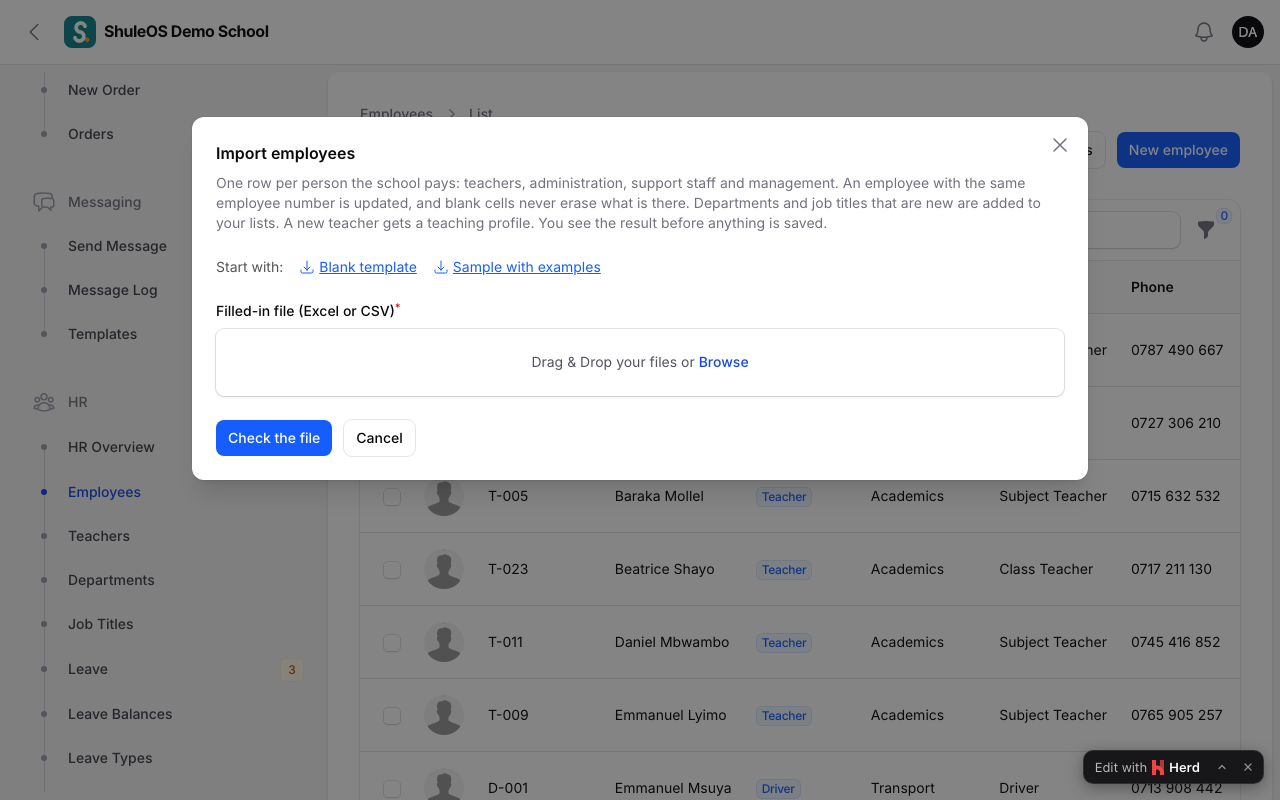
Click Import employees, download the Blank template or the Sample with examples, fill in one row per person, upload it and check the preview before you save.
If something goes wrong
| What you see | What it means and what to do |
|---|---|
| "Another employee already has this number." | Choose a different Employee number, or search the list: the person may already be there. |
| The Category field is greyed out | The person is a teacher. A teacher stays a teacher. |
| A person cannot sign in after you reinstated them | Check Account → Users: they need a login linked to their employee record. |
| Recording leaving is refused because of the person's login | ShuleOS will not switch off your own login, or the only login that can manage users. Give another login a role that can manage users first. |
Related guides
- HR setup: departments, job titles and leave typesThe three short lists you set up before adding staff, so each employee can be placed in a department, given a job title, and asked for the right kinds of leave.
- Teachers and their portal loginAdd a teacher with their teaching details, give them a login for the teacher portal, reset their password, and see who can sign in.
- Leave requests and leave balancesRecord and decide staff leave, see who is away, and check how many leave days each person has taken and has left.