
Staff attendance and the check-in desk
Record who came to work each day, either by marking the list or with a PIN at the check-in desk, and see the monthly report.
Staff attendance answers "who was at work on this day?" You can mark the list yourself, or let staff check in with a PIN at a check-in desk. Both end up in the same record and the same monthly report.
Two rules keep the numbers honest. A day nobody marked stays Not marked. It is never counted as absent on its own. And approved leave shows as On leave without anyone entering it.
Mark the day
HR → Staff Attendance shows one day at a time.
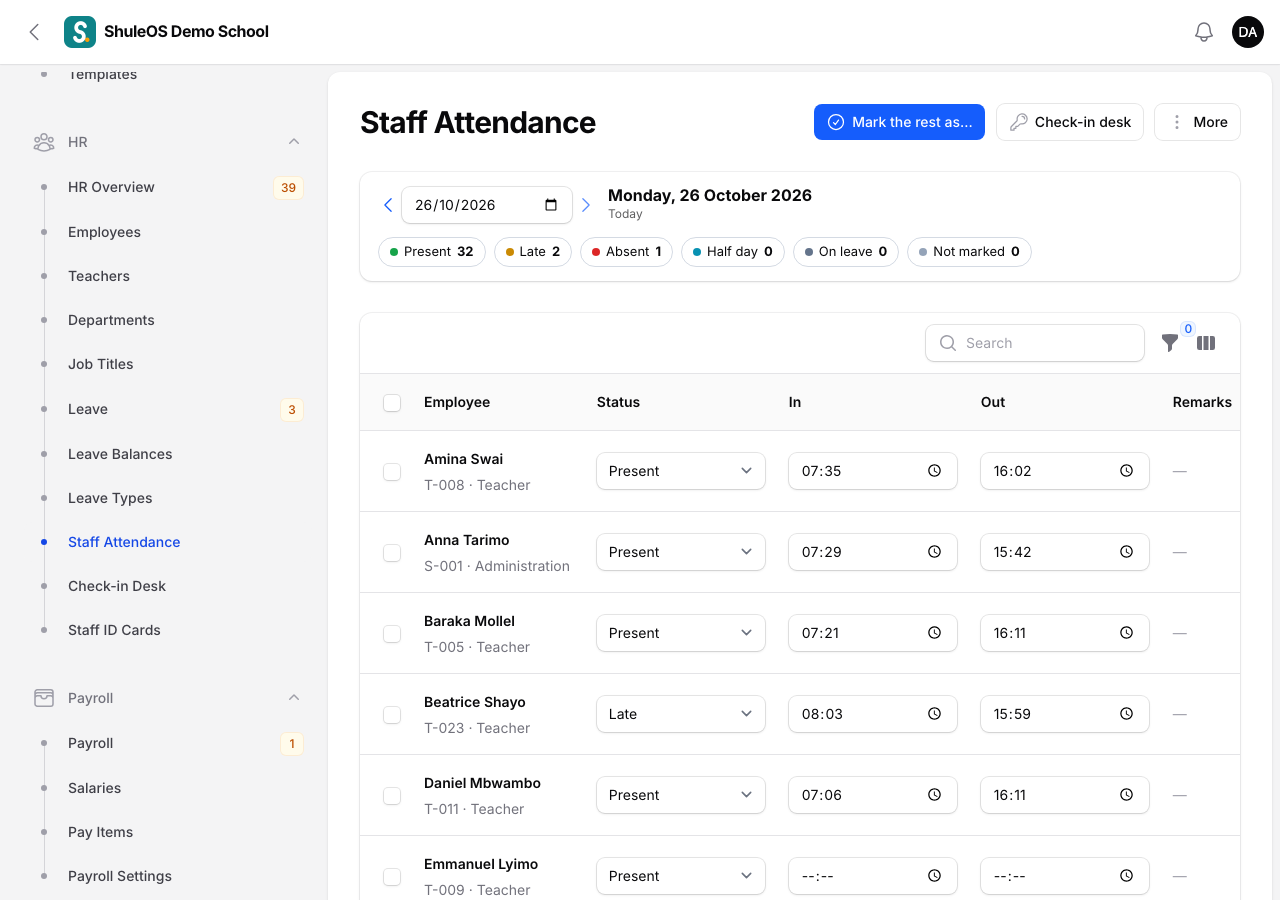
Each row has the Employee, a Status, the time In and Out, and Remarks. The statuses are Present, Late, Absent, Half day and On leave. Attendance cannot be marked for a day that has not come yet.
To mark quickly:
- Change the Status on a row, and enter the times if you want them.
- Tick several rows and use Mark selected as…. You see "Marked".
- Use Mark the rest as… and choose Present or Absent. Everyone not marked yet, and not on leave, is set to that. You see "12 employees marked".
Use the filters for Category, Department and Not marked yet to see who is left.
The top bar and the More menu also give you the Check-in desk, the Monthly report, Import attendance (a file, with a preview), Export (CSV), Export (Excel) and Print for the day.
Set the working day
Open More → Settings.
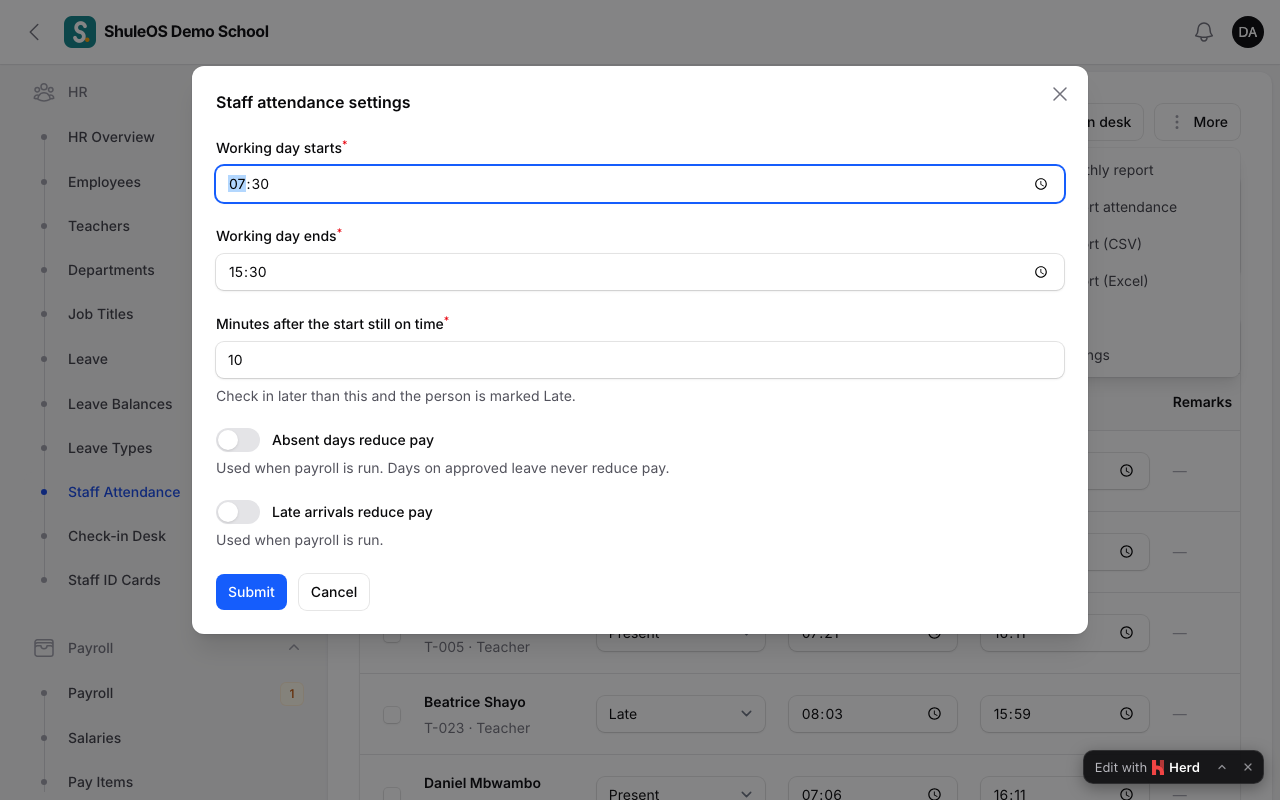
| Field | What it does |
|---|---|
| Working day starts and Working day ends | The hours staff are expected. |
| Minutes after the start still on time | Checking in later than this makes the person Late. |
| Absent days reduce pay | Payroll takes off pay for days marked absent. Days on approved leave never reduce pay. |
| Late arrivals reduce pay | Payroll takes off pay for late arrivals. |
| Late arrivals that count as one day | When late arrivals reduce pay, how many lates make one day's deduction (for example 3). |
Click Submit. You see "Settings saved".
The check-in desk
HR → Check-in Desk is a screen to leave open on the secretary's computer or a tablet at the gate.
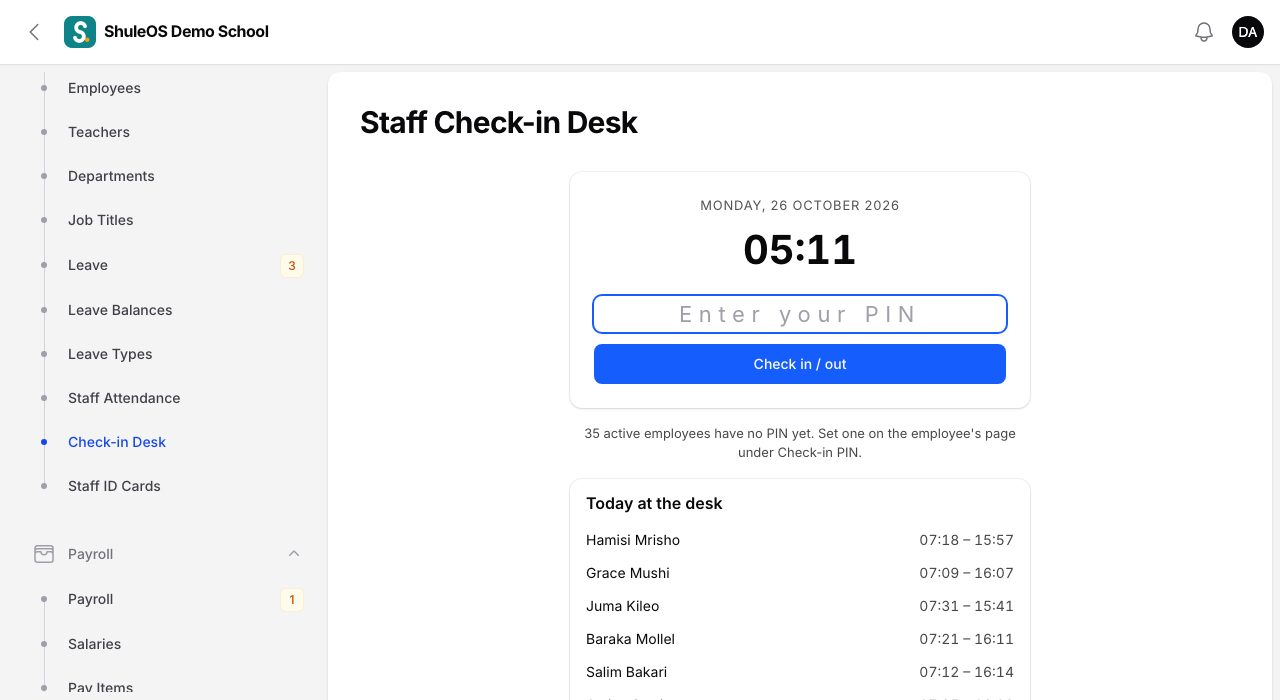
- Each person needs a check-in PIN of 4 to 6 digits. Set it on their employee page, under Check-in PIN (see Add and manage employees).
- The person types their PIN and taps Check in / out.
- The first time that day they are checked in, and marked Present, or Late if it is after the start time plus the grace minutes.
- The next time that day they are checked out and the time out is saved.
- A third time shows that they are already done for the day.
The desk tells the person their name and the result. Someone who is on approved leave, or has left the school, is told so instead. After several wrong PINs, the desk stops for a minute ("Too many wrong PINs. Wait a minute and try again."), so a PIN cannot be guessed.
Do not share PINs. Two people cannot have the same PIN. If someone forgets theirs, set a new one on their employee page.
The monthly report
HR → Staff Attendance Report (or Monthly report on the attendance page) shows one row per person for a month.

The columns are Present, Late, Half days, Absent, On leave, Not marked and Attendance (a percentage). The percentage counts present and late days (half a day for a half day) out of the days marked present, late, half day or absent. Leave and unmarked days are left out. Filter by Category, and use Export or Print.
If something goes wrong
| What you see | What it means and what to do |
|---|---|
| A person is missing from the list | Only active employees appear. A person who joined after that date is not counted for earlier days. |
| "Attendance cannot be marked for a day that has not come yet." | Pick today or an earlier day. |
| "The time out must be after the time in." | Correct the times on the row. |
| The desk says the PIN is unknown | The PIN is wrong, or none is set. Set one on the employee page. |
| Someone shows Not marked in the report | Nobody marked them and they did not check in. Mark the day, or use Mark the rest as…. |
Related guides
- Add and manage employeesAdd a member of staff, fill in their job, pay and check-in details, keep their documents, print ID cards, and record when they leave.
- Leave requests and leave balancesRecord and decide staff leave, see who is away, and check how many leave days each person has taken and has left.