
Periods and timetable
Set the school day's lessons and breaks, then build each class's weekly timetable by hand, from a file, or generated automatically.
A period is one slot in the school day, such as "07:30 to 08:10", or a break such as "Tea break". The timetable puts a subject and a teacher into each period, on each day of the week, for each class.
Step 1: Create the periods
Periods belong to a class, so each class can have its own bell schedule.
-
Open Academic Management → Periods. The list shows each class's periods with start and end time, kind and order. Use the Class filter to look at one class.

-
Click New period.
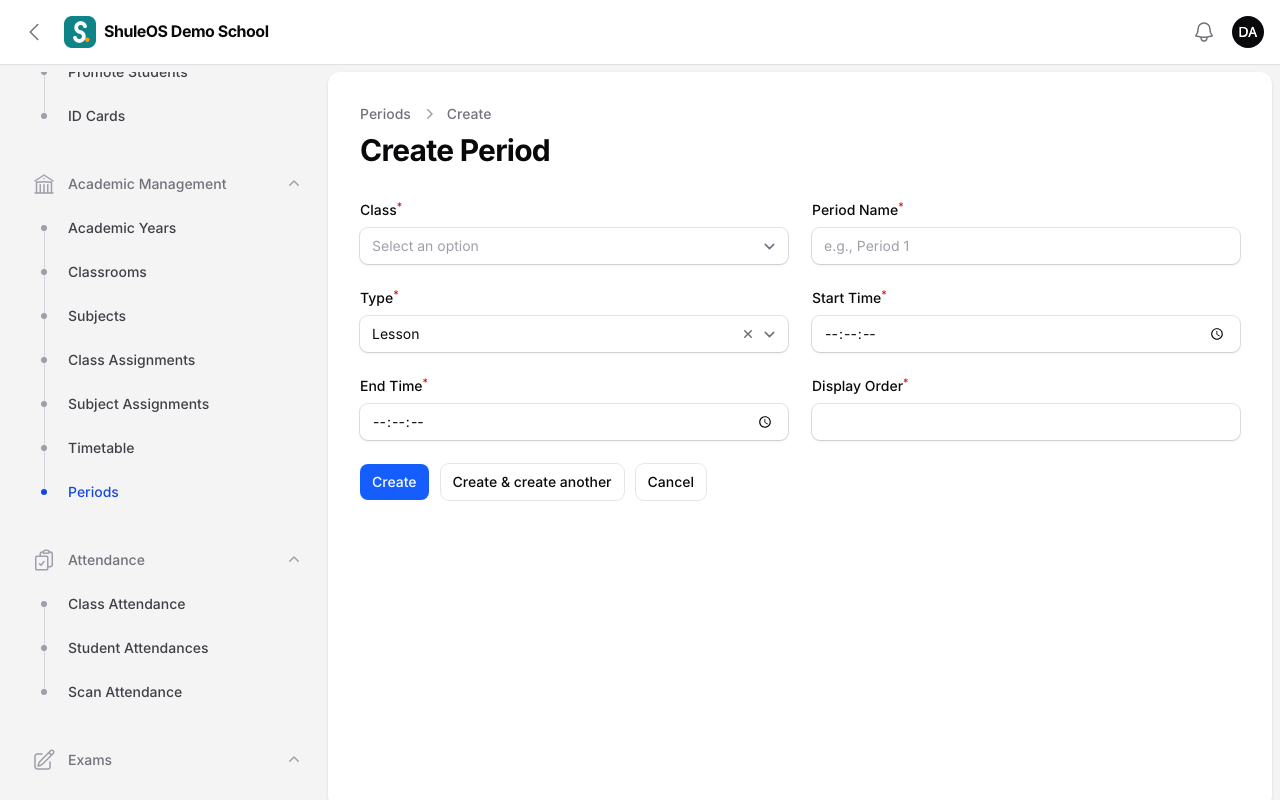
| Field | What to enter |
|---|---|
| Class | The class the period is for. |
| Period Name | For example Period 1 or Tea break. |
| Type | Lesson, or Break (no lesson). Breaks show on the timetable but no subject is put in them. |
| Start Time, End Time | The end must be after the start, and the times must not overlap another period of the same class ("These times overlap …"). |
| Display Order | The order in the day. |
- Click Create.
To make many periods at once click Import periods, download the template, fill it in, and check the preview. The timetable generator (step 2) can also add a standard set of periods for you if a class has none.

Step 2: Build the timetable
Open Academic Management → Timetable. Choose a class from the box at the top left. You see its week as a grid: the days across, the periods down. Each lesson shows the subject, the teacher and the room. Breaks and lunch are shown across the row.
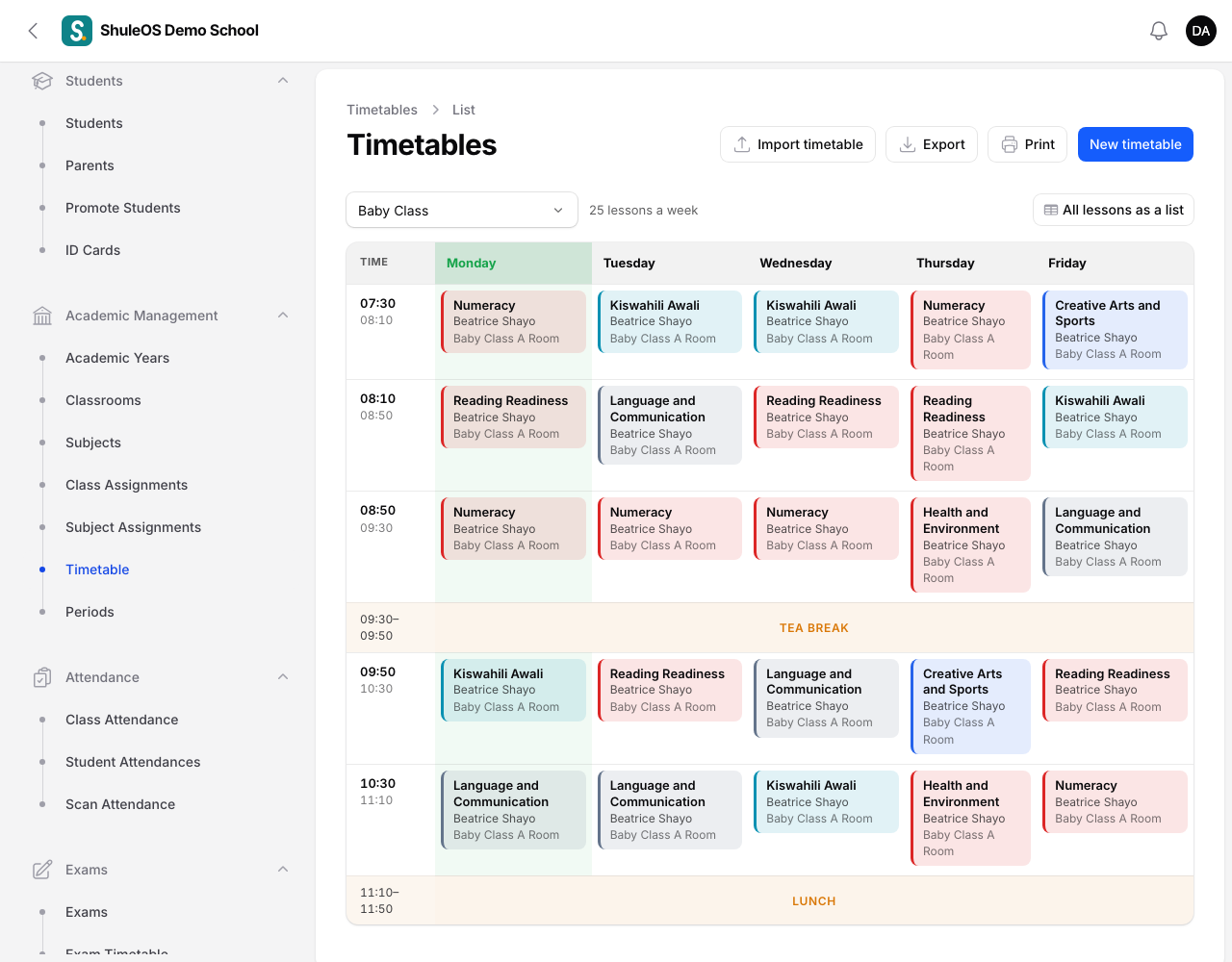
The header shows how many lessons a week the class has (for example "25 lessons a week"). Click All lessons as a list to see them as a table.
Fill it in by hand
-
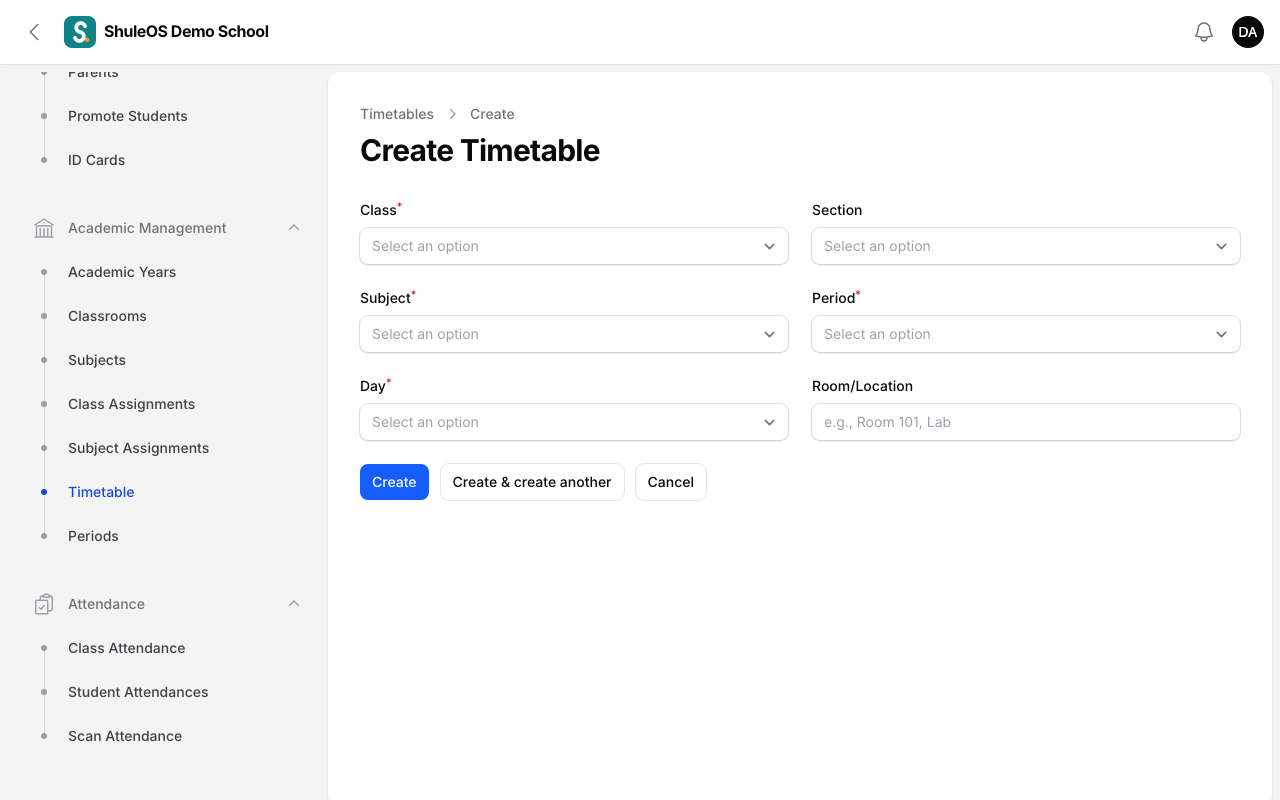
Click New timetable, or click an empty place in the grid.
-
Choose the Class, the Section (leave blank if the class has no streams), the Period, the Day and the Subject.
-
Optionally set the Teacher (override) and the Room/Location. Leave the teacher blank to use the subject's assigned teacher for that class and year.
-
Click Create.
Only subjects attached to the class are offered. A class can have only one subject in a given period on a given day: you see "This class/section already has a subject assigned for this period and day."
Generate it automatically
The fastest way is to let ShuleOS build a class's week.
- Open the class (Academic Management → Classrooms), click Edit, and open the Timetable tab.
- Click Generate timetable and confirm the warning: This replaces every lesson currently on this class's timetable with a new weekly plan built from its subjects and subject teachers. A standard set of periods is added if none exist. Teachers are never booked in two places at the same time.
- You see "Timetable generated: 25 lessons". If you see "Nothing to schedule", the class has no subjects: attach some first.
Core subjects get more lessons in the week. Because it replaces the current timetable, generate before you make hand changes, not after. Assign subject teachers first (see Class teachers and subject teachers), so teachers are not double-booked.
Import a timetable from a file
Click Import timetable. Each row is one lesson: class, day, period, subject and, optionally, teacher and room. Leave Section empty for the whole class and Teacher empty to use the subject teacher. Periods must exist first. A lesson already in that slot is updated. You see a preview before anything is saved.
Print and export
Use Export or Print on the Timetable page. Teachers see their own timetable in the teacher portal (My Timetable, My Week), and parents see their child's class timetable in the parent portal, if you have switched it on in Settings.
If something goes wrong
| What you see | What it means |
|---|---|
| These times overlap … | Two periods of the same class cross each other. Change the times. |
| The end time must be after the start time | Correct the times. |
| This class/section already has a subject assigned for this period and day | Edit that lesson instead of adding another. |
| The timetable is empty | Create periods, attach subjects to the class, then generate or fill it in. |
| A period is missing from the grid | It belongs to another class, or was never created. |
Related guides
- Class teachers and subject teachersChoose the class teacher of each class and stream, and the teacher of each subject in each class, for the current academic year.
- Classes and streamsCreate the school's classes, choose how each is assessed, add streams (sections), and choose the subjects each class takes.