
Create an exam and choose its classes
Set up an exam for the year and term, choose which classes sit it, and keep it moving from draft to published.
An exam is a set of papers sat by one or more classes, such as "Term 1 Mid-term" or "Term 3 End-term". You create the exam first. Then you give it a timetable, teachers enter the marks, and you turn the results into report cards.
Before you start
- The academic year, its terms, the classes and their subjects must exist.
- Each class needs a grading scheme, because marks are turned into grades by it (see Grading schemes).
Create the exam
-
Open Exams → Exams. The list shows each exam with its type, year, term, status, classes and start date. Use the year buttons and the Status filter at the top to narrow it.

-
Click New exam.
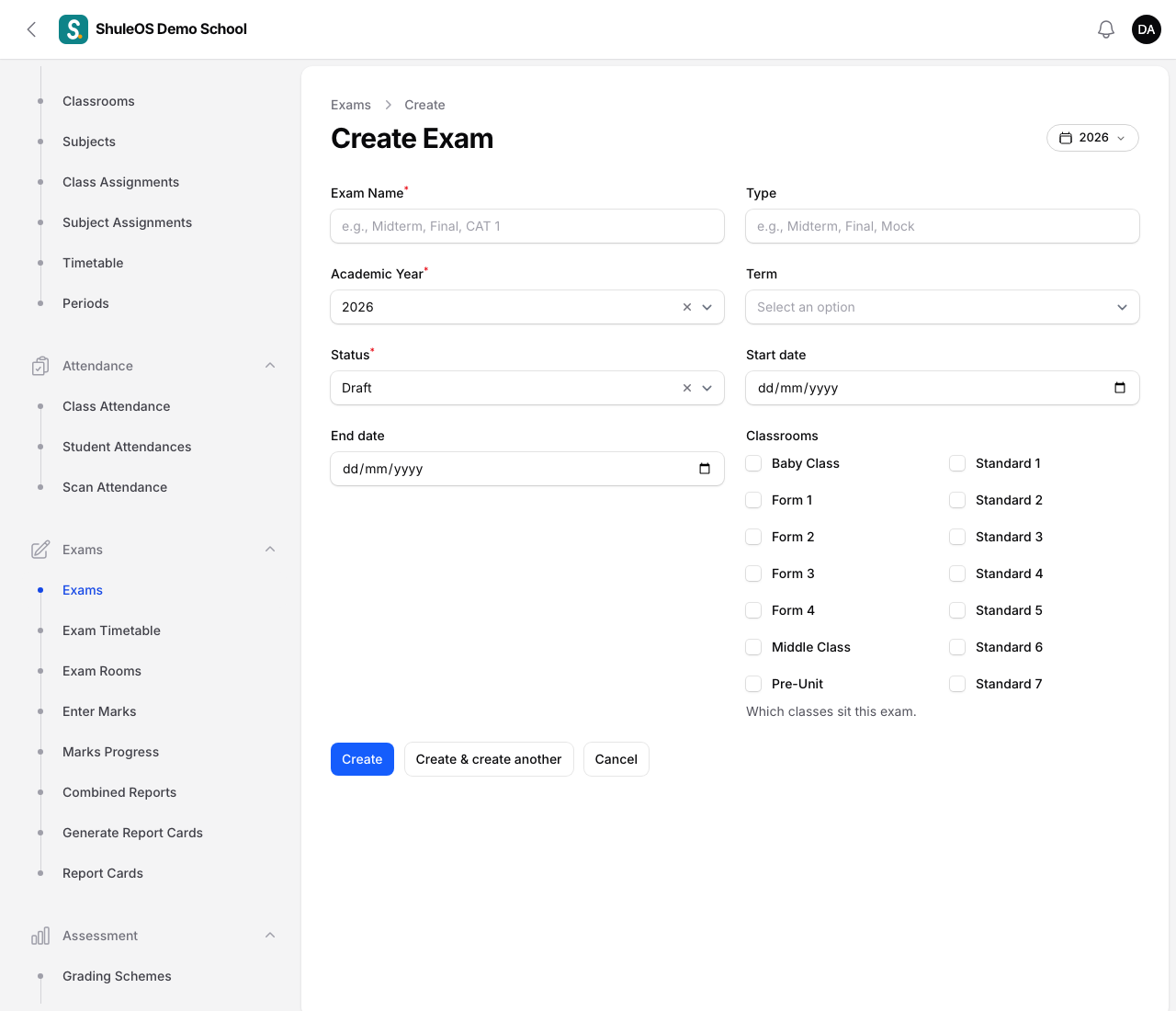
| Field | What to enter |
|---|---|
| Exam Name | Required. For example Midterm, Final, CAT 1. |
| Type | Optional label, for example Midterm or Mock. |
| Academic Year | Required. The current year is offered first. |
| Term | The term the exam belongs to. Only the chosen year's terms are listed. |
| Status | Draft, Active, Completed or Published. |
| Start date, End date | Optional. When the exam is sat. |
| Classrooms | Which classes sit this exam. Only these classes get papers, marks entry and report cards for it. |
- Click Create.
What the statuses are for
| Status | Meaning |
|---|---|
| Draft | Being prepared. Marks can be entered. |
| Active | The exam is running or marks are being entered. |
| Completed | Marking is finished. Marks and assessments are locked. |
| Published | Results are final. Marks and assessments are locked. |
Locking protects finished results. When an exam is Completed or Published, nobody can change its marks: you see "This exam is locked ... Ask an administrator to set it back to Active." To correct a mark, an administrator edits the exam and sets its status back to Active, makes the change, and then sets it to Completed again.
The dashboard's exam cards use the latest exam that has results.
Open an exam
Click an exam to see its page. It has three tabs:
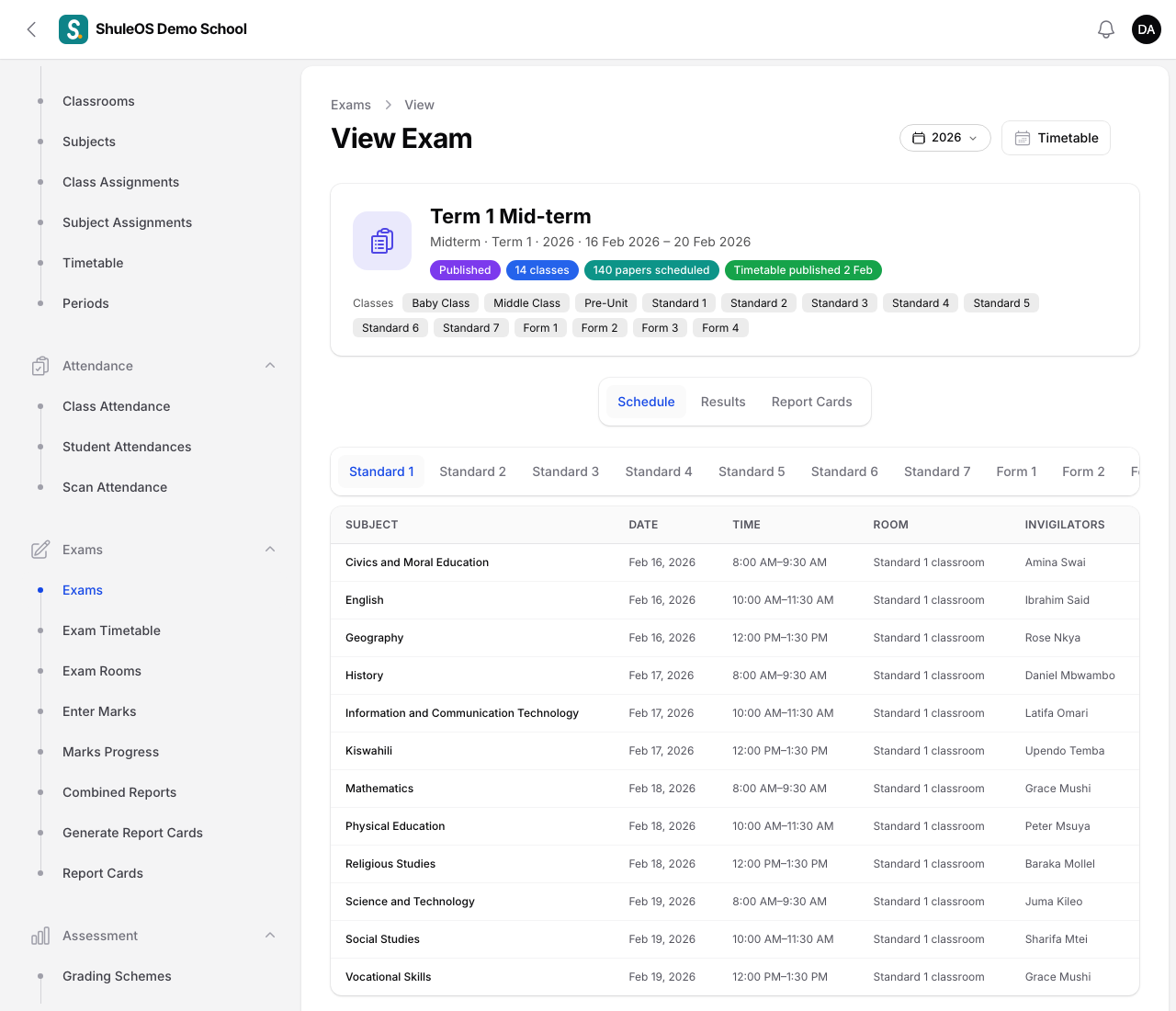
| Tab | What it shows |
|---|---|
| Schedule | The exam's papers: class, subject, date, time, room and invigilators. |
| Results | The marks entered so far. |
| Report Cards | The report cards made from this exam. |
The buttons at the top (Publish timetable, Auto-assign invigilators, Download and Import timetable CSV, Print timetable, Print invigilation roster) are explained in Exam timetable, rooms and invigilators.
Change or delete an exam
Click Edit to change any field. Delete removes the exam and the marks entered for it, so do not delete an exam that has results. Set it to Completed instead, which also locks its marks.
If something goes wrong
| What you see | What it means |
|---|---|
| A class is missing from marks entry | It is not ticked under Classrooms for this exam. Edit the exam and tick it. |
| The term list is empty | The chosen academic year has no terms yet. |
| The exam is missing from a list | It belongs to another academic year. Use the year buttons at the top. |
Related guides
- Exam timetable, rooms and invigilatorsGive each exam paper a date, time, room and invigilators, check clashes, publish the timetable to parents and teachers, and print it.
- Enter marks and follow marks progressEnter each student's marks for one subject in one exam, import them from a file, and see which classes and teachers still have marks to enter.
- Grading schemesDefine how marks are added up (the components) and turned into grades (the bands), and choose which scheme each class uses.