
Discounts and scholarships
Create discounts (sibling, staff child, scholarship), give them to whole classes or single students, and see who has one.
A discount lowers what a student is charged, for example Sibling discount 10% or Merit scholarship 100%. You create the discount once, then assign it to students.
Create a discount
-
Open Fees → Discounts. The list shows each discount with its value, the fee type it applies to, how many students have it, and whether it is active.

-
Click New discount.
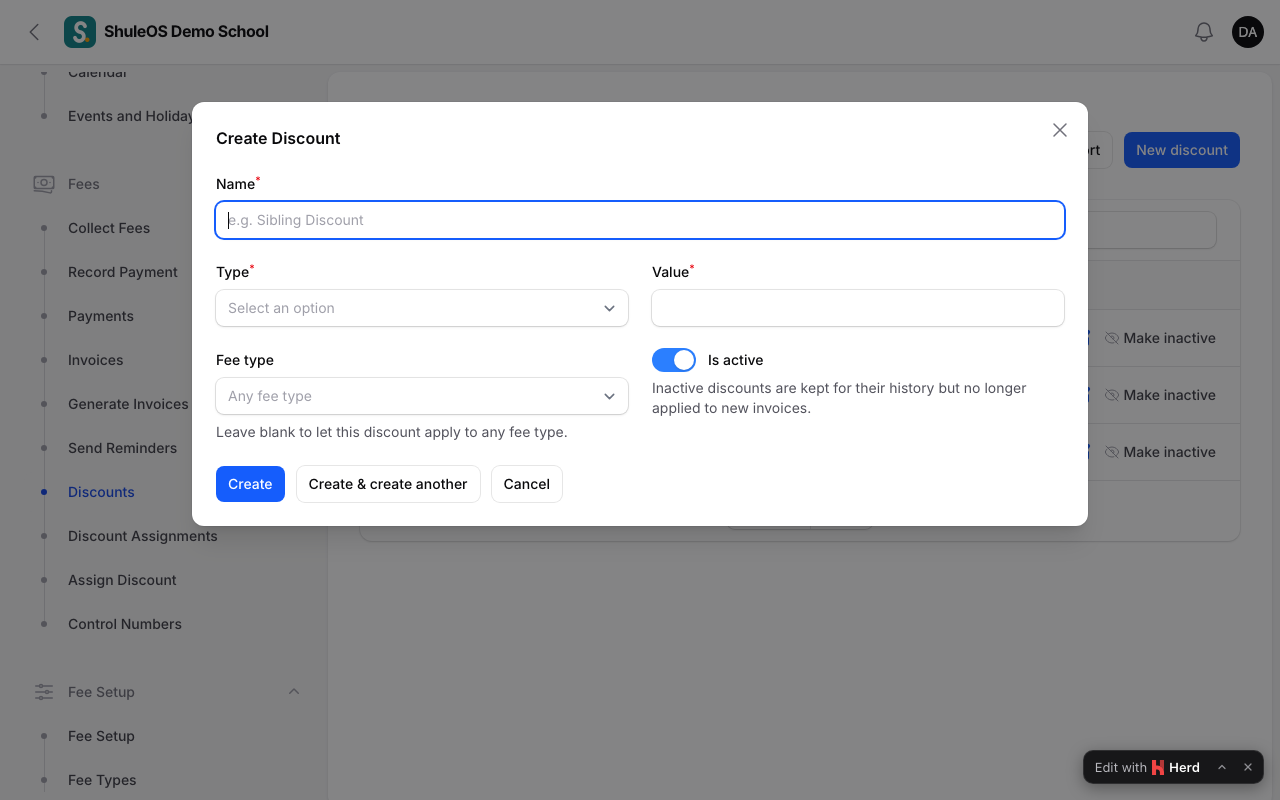
| Field | What to enter |
|---|---|
| Name | For example Sibling discount. It must be different from other discounts ("This school already has a discount with that name."). |
| Type | Percentage off or Fixed amount off. |
| Value | The percentage (0.01 to 100) or the amount. |
| Fee type | Choose a fee type (for example Tuition) to limit the discount to it. Leave it as Any fee type to apply to every fee. |
| Active | Inactive discounts are kept for history but no longer applied to new invoices. |
- Click Create. Use Make inactive on a row to stop using one.
Give a discount to students
One student, or a few
Open Fees → Discount Assignments and click New Discount assignment. Choose the Student, the Discount, the Academic year, optionally one Installment (leave it to mean the whole year), and add Notes such as "Second child in the school". Click Create.

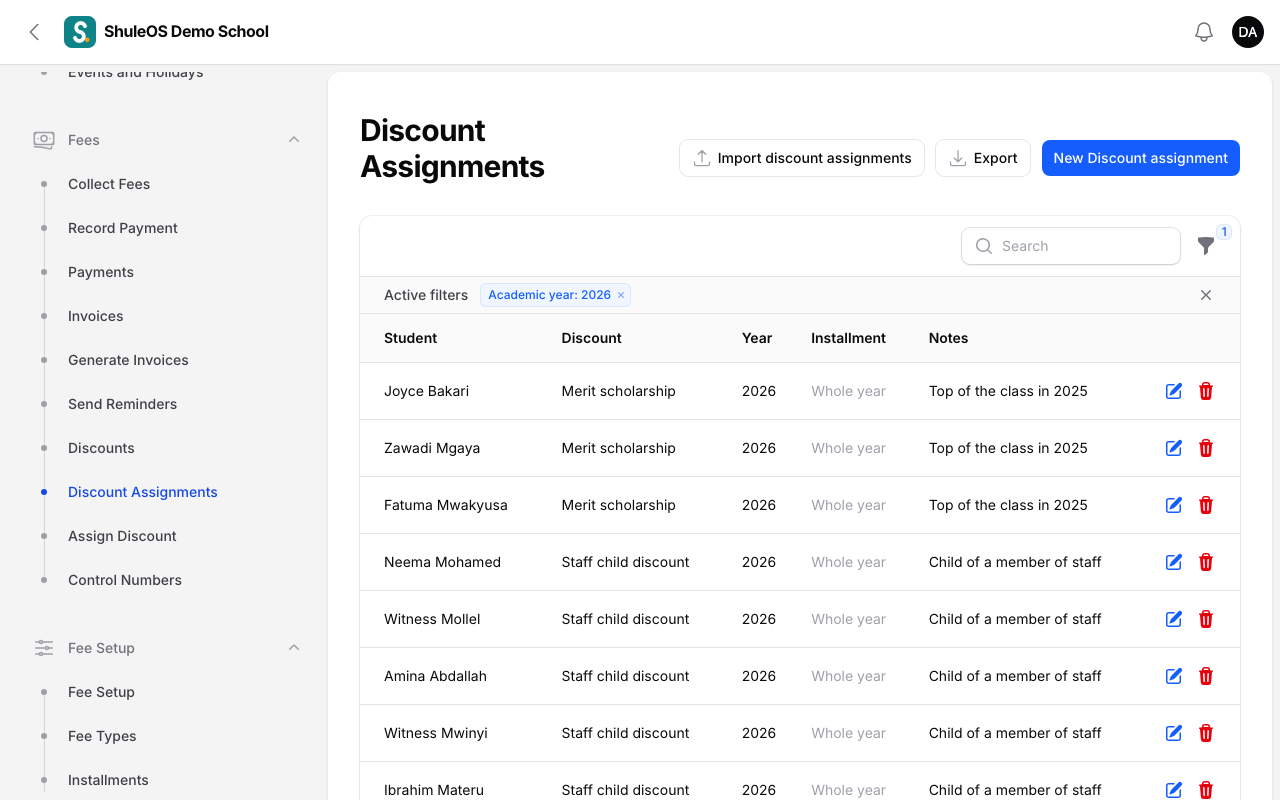
The list shows each student's discounts with the year, the installment and the notes. Filter by year or discount. Import discount assignments loads many from a file.
A whole class at once
Open Fees → Assign Discount.

- Choose the Discount, the Academic year, optionally an Installment, and Notes.
- Tick the classes.
- Click Assign to selected classes. You see "Merit scholarship assigned to 30 student(s)", and how many already had it and were skipped.
When a discount takes effect
- A discount is applied when the invoice is generated, using the price at that moment. Assign discounts before you generate invoices.
- A discount is not applied to an invoice that already exists. If you assign one afterwards, void the invoice and generate it again, or post a credit adjustment (see Generate invoices).
- A fee override with an amount always wins over a discount.
If something goes wrong
| What you see | What it means |
|---|---|
| Choose a discount, a year and at least one class first | Fill in the top of Assign Discount and tick a class. |
| … already had it and were skipped | Those students were assigned before. |
| The invoice did not change | It was generated before the discount was assigned. |
Related guides
- Fee overrides: exemptions and special amountsChange what one student is charged for one fee: exempt them, give a different amount, or set the dates they owe from and until.
- Generate invoices, and correct themBill a whole school or chosen classes for an installment or the year's one-off fees, look at invoices, void a wrong one, post adjustments and opening balances.