
Classes and streams
Create the school's classes, choose how each is assessed, add streams (sections), and choose the subjects each class takes.
A class is a level of the school, for example Standard 1 or Form 3. A class can have sections (also called streams), such as A and B. Students are placed in a class, and in one of its sections, for an academic year. Classes are also where you choose which subjects are taught.
Before you start
- Create the academic year first (see Academic years and terms).
- If some classes are assessed by competency rather than marks, that is decided per class below.
Create a class
-
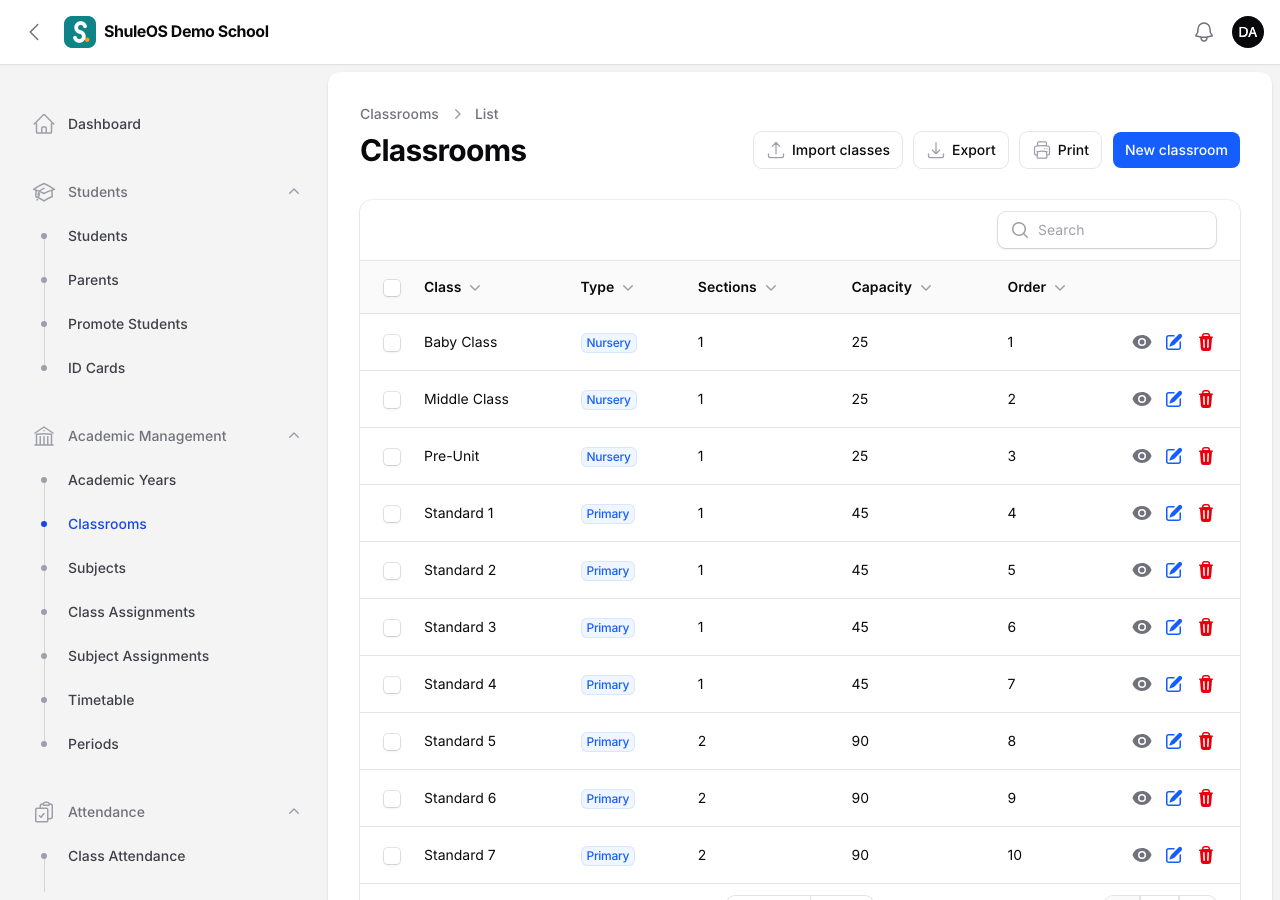
Open Academic Management → Classrooms. The list shows each class with its type, sections, capacity and order.
-
Click New classroom.

| Field | What to enter |
|---|---|
| Class Name | For example Standard 1. It must be different from every other class in your school ("This school already has a class with that name"). |
| Class Type | Nursery, Primary, Secondary or Advance. |
| Assessment Mode (required) | Marks: grading scheme, percentages and grades, entered in Enter Marks. Competency: teachers rate the child on each learning area instead, with no percentages or ranking. Nursery classes are often set to Competency. |
| Grading Scheme | How marks become grades for this class. The school's default scheme is filled in. Click the + beside it to make a new scheme on the spot: give it a name and choose a starting template. You can edit its components and grades later in Assessment → Grading Schemes. |
| Capacity | The most students the class can hold across all sections. |
| Display Order (required) | The order classes are shown in. The next number is suggested. It also decides where students go at the end of the year: each class moves up to the class with the next display order. |
- Click Create.
Add sections (streams)
-
Open the class from the list (click its name), then click Edit.
-
Open the Sections tab under the form and click New section.

-
Enter the Section Name (for example
A), its Capacity, and leave Active on. Click Create.
If a class has no streams you can leave sections out. Students are then placed in the class without a section.
Choose the class's subjects
On the class's Edit page open the Subjects tab and click Attach. Search for a subject by name or code and add it. Use Detach to remove one. The subjects you attach are the ones that appear in marks entry, timetables and report cards for the class. Subjects themselves are created in Subjects.
The class page
Click a class name to see its page: how many students it has this year against its capacity, boys and girls, how it is assessed, and its class teacher. Tabs along the page cover Sections, Class Teachers, Subjects, Subject Teachers, Periods, Timetable and Enrolled Students.

To change anything in the tabs (add a section, attach a subject, enrol a student), open the class's Edit page. The view page is read-only.
Import many classes at once
Click Import classes on the list. Download the Blank template (or the Sample with examples), fill in one row per class, upload it and check the preview.

- The columns are Class, Type, Capacity, Order, Sections and Subjects. Separate several sections or subjects in one cell with a semicolon (
;). - A class with the same name is updated, missing sections are added, and subjects that do not exist yet are created. Nothing is ever removed.
- You see the result before anything is saved. Click Save the classes to finish.
Export and print
Use Export (Excel-friendly CSV or Excel .xlsx) or Print on the list to get the class list.
Delete a class
Use Delete on a class only if you created it by mistake. Deleting a class also removes its sections and the record of which students were enrolled in it. A class that has enrolled students, marks, report cards or attendance cannot be deleted: ShuleOS refuses and tells you what it still has. Keep it, and stop using it.
If something goes wrong
| What you see | What it means |
|---|---|
| This school already has a class with that name | Use a different name. |
| A student cannot be placed in the class | Open the Enrolled Students tab of the class and click New enrollment. If the button is missing, your role is not allowed to change classes. |
| The class shows "67% full" | The number of students against its capacity. Raise the capacity if needed. |
Related guides
- SubjectsCreate the subjects your school teaches, give each a code, and switch old ones off without losing their history.
- Add a studentRegister a new student, place them in a class, and link their parents, so they show up in attendance, exams, fees and the parent portal.
- Promote students at the end of the yearMove every class up to the next class for the new academic year, keep back the students who repeat, and mark those who leave. The old year stays as history.