
Accounts, categories and expense settings
Set up the cash box and bank accounts, the categories spending is grouped under, and whether expenses need approval.
Three small screens prepare the ground for recording expenses.
Accounts
An account is where the school's money is kept: the cash box, or a bank account.
-
Open Expenses → Accounts. You see each account with its type, bank, Balance and whether it is active.

-
Click New account and fill in:

| Field | What to enter |
|---|---|
| Name | For example Cash box or CRDB Bank, operations. It must be different from other accounts. |
| Type | Cash or Bank account. |
| Bank, Account number | Shown for bank accounts. |
| Opening balance | How much is in it now. Later changes are made with Add money or Correct balance. |
| Active | Inactive accounts are kept for history but no longer offered for new expenses. |
What you can do to an account
| Action | What it does |
|---|---|
| Add money | Record money put into the account, such as a deposit or cash from fees. It adds to the balance. |
| Correct balance | After counting the cash or checking the bank statement, enter what is really in it. The difference is recorded, with an optional reason. |
| History | Every movement in and out. |
| Edit, Make inactive | Change details, or retire the account. |
| Delete | Removes the account completely, and only while nothing has moved on it. |
Print statement opens a printable statement for one account, or all, between two dates.
Categories
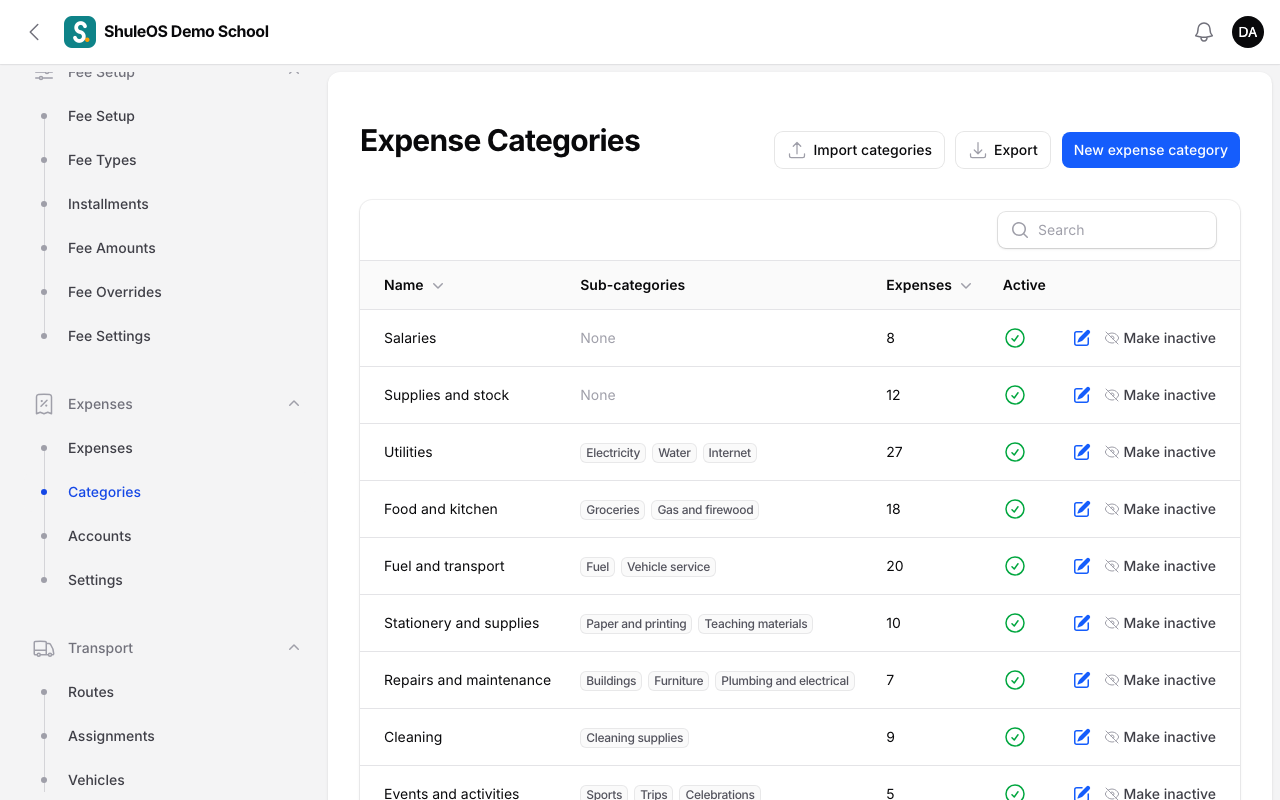
Categories group spending: Utilities, Repairs and maintenance, Food and kitchen and so on.
-
Open Expenses → Categories. Each shows its sub-categories and how many expenses it holds.
-
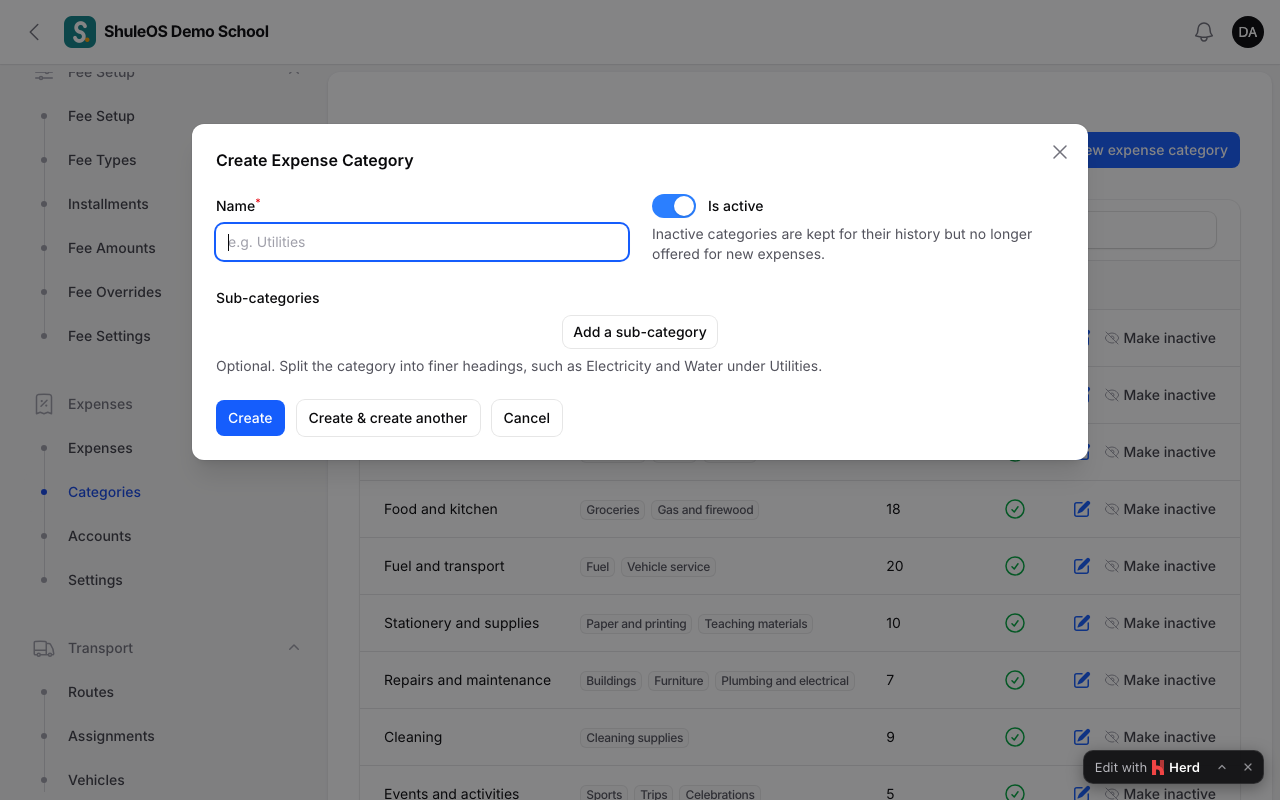
Click New expense category, enter the Name, and optionally add Sub-categories (for example Electricity and Water under Utilities). Click Create.
-
Make inactive retires a category without losing its history. Import categories loads many from a file.
The Salaries category is used by payroll.
Expense settings
Open Expenses → Settings.
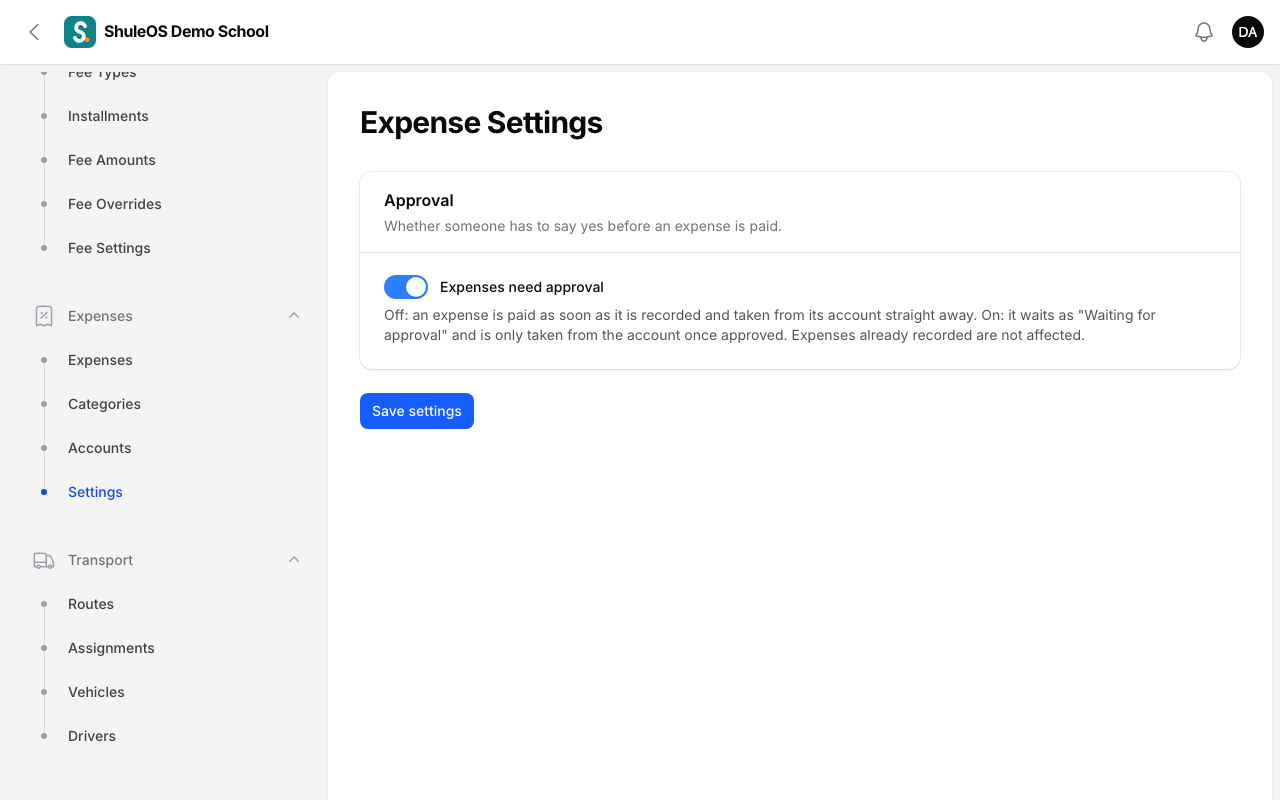
- Expenses need approval:
- Off: an expense is paid as soon as it is recorded and taken from its account straight away.
- On: it waits as Waiting for approval and is only taken from the account once approved.
- Expenses already recorded are not affected when you change it.
Click Save settings.
If something goes wrong
| What you see | What it means |
|---|---|
| This school already has an account with that name | Use another name. |
| An account cannot be deleted | Money has moved on it. Make it inactive instead. |
| A category is missing when recording an expense | It is inactive. |