
Grading schemes
Define how marks are added up (the components) and turned into grades (the bands), and choose which scheme each class uses.
A grading scheme answers two questions for a class that is assessed by marks:
- What parts make up a subject's mark? For example Mid Term out of 25, Term Exam out of 50 and Activities out of 25. These are the components.
- What grade does a percentage earn? For example 80 to 100 is an A, Excellent. These are the grade bands.
Each class uses one scheme. Different classes can use different schemes, for example a nursery-style scheme for young classes.
See your schemes
Open Assessment → Grading Schemes. The list shows each scheme. Click one to see or change it.
Create a scheme
- Click New grading scheme.
- Optionally choose Start from a template. It fills in the components and grades below, and you can change anything before saving:
- Single exam mark out of 100, grades A–E
- Mid Term (25) + Term Exam (50) + Activities (25), grades A–E
- NECTA O-Level: exam out of 100, grades A–F with points 1–5, for secondary schools that report points and division (see Secondary results). A is 75–100 (1 point), B 65–74 (2), C 45–64 (3), D 30–44 (4) and F 0–29 (5).
- Start empty, to set up your own.
- Give it a Scheme Name.
- Set the Pass mark (%) if you want one. A subject percentage at or above it counts as a pass in the exam reports. Leave it empty if the scheme has no pass or fail.
- Check the Components and Grade Bands (below) and click Create.
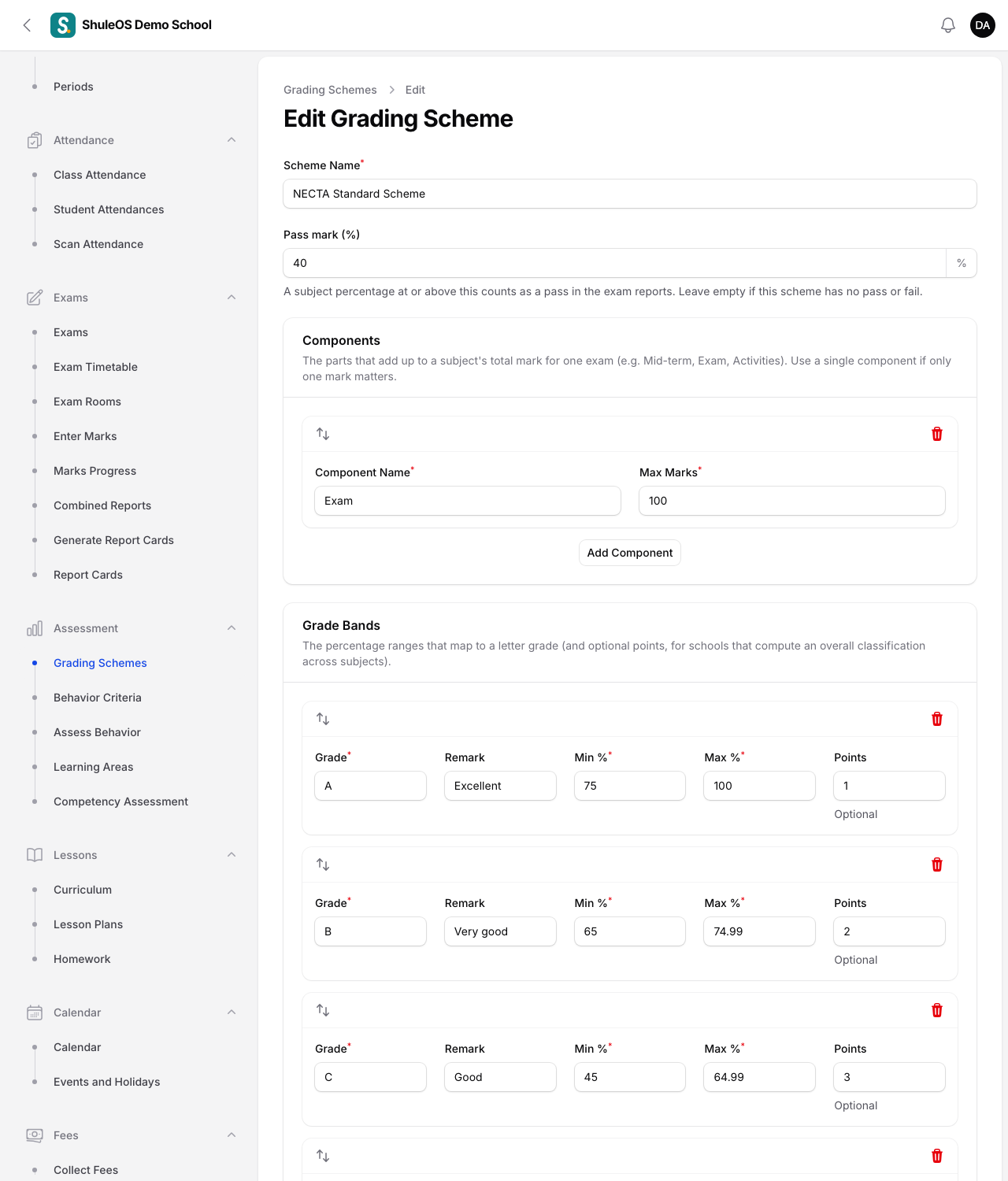
Components
The parts that add up to a subject's total mark for one exam. Use a single component if only one mark matters.
| Field | What to enter |
|---|---|
| Component Name | For example Exam or Activities. Teachers see one column for each in Enter Marks. |
| Max Marks | The most a student can score in that part, for example 70. |
Click Add Component for more; use the arrows to reorder and the bin to remove one.
Grade bands
The percentage ranges that become a letter grade.
| Field | What to enter |
|---|---|
| Grade | The letter, for example A. |
| Remark | A word or two shown on report cards, for example Excellent. |
| Min %, Max % | The range, for example 75 to 100. Make ranges follow on from each other, for example 65 to 74.99 next. |
| Points | Optional. Needed for secondary results: the points a grade is worth, so the best subjects can be added up into a division. The NECTA O-Level template already has them. |
Every mark must fall in one band. Leave no gaps between bands.
How a mark becomes a grade
- A subject's marks are added up across its components (the total).
- The total is turned into a percentage of the maximum possible.
- The percentage is looked up in the bands to find the grade and remark.
A component with no mark entered is left out, never counted as zero.
Choose the scheme for a class
- For new classes: the school's default is set in Account → Settings → Exams and Reports → Default grading scheme.
- For an existing class: open Academic Management → Classrooms, click the class, Edit, and choose the Grading Scheme. You can also make a new scheme there with the + beside the field.
Change a scheme later
You can edit components and bands at any time. Changing them does change how marks are graded, including exams already sat, when their results are next calculated. Do this before an exam, not after.
If something goes wrong
| What you see | What it means |
|---|---|
| This class has no grading scheme configured yet (in Enter Marks) | The class has no scheme, or the scheme has no components. |
| A student has no grade | Their marks are not in any band, or their status is Absent or Exempt. |
| Teachers see the wrong columns | The scheme's components are not what you meant. Edit the scheme. |
Related guides
- Classes and streamsCreate the school's classes, choose how each is assessed, add streams (sections), and choose the subjects each class takes.
- Enter marks and follow marks progressEnter each student's marks for one subject in one exam, import them from a file, and see which classes and teachers still have marks to enter.
- School settingsYour school's name, logo, colours, report card layout, and what parents, teachers and visitors can see. Seven tabs on one page.