
Find, change and print students
Search and filter the student list, open a student's page, change their details, export the list, and print class lists.
Students → Students is the list of every student in the school. You use it to find a student, open their page, change their details, and export or print lists.
The student list
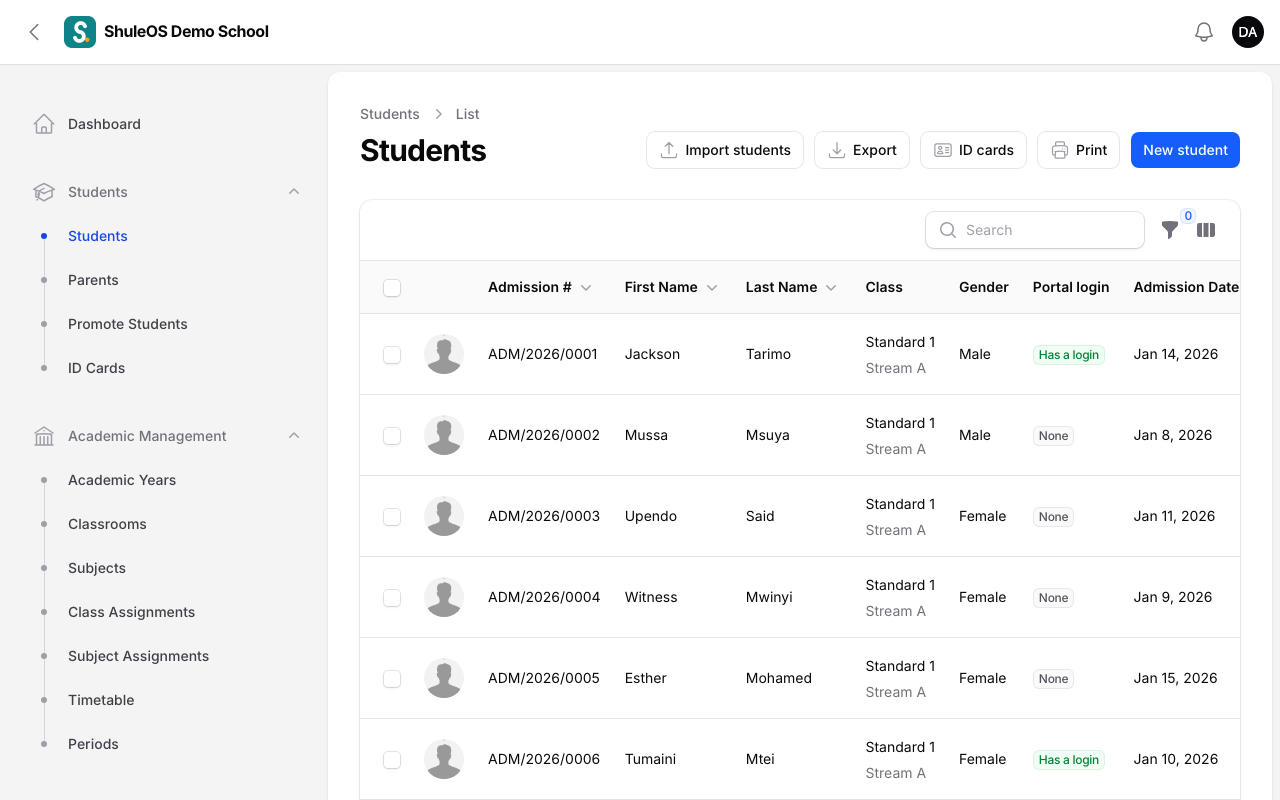
Each row shows the student's photo, Admission #, First Name, Last Name, Class, Gender, Admission Date and Status. Click a heading to sort. At the end of each row are three icons: View (open the student), Edit and Delete. Clicking the row also opens the student.
Search
Type in the Search box to find a student by name or admission number.
Filters
Click the funnel icon next to the search box to filter by Class, Status or Gender, then Apply filters. A small number on the funnel shows how many filters are on. Use Reset to clear them.
Choose the columns
Click the columns icon next to the funnel to switch columns on or off, then Apply columns.
How many per page
At the bottom, choose 5, 10, 25, 50 or All students per page.
Open a student
Click a student to open their page. It shows:
- The header with the photo, name, admission number, gender and badges: Active, the class (for example Standard 1 A) and how many parents are linked.
- A Profile section with the admission number, control number, admission date, date of birth, contact details and address.
- Tabs along the bottom:
| Tab | What it shows |
|---|---|
| Overview | The class, class teacher, this year's attendance rate, the latest exam average and the latest report card with the position in class. |
| Results | The student's exam results. |
| Report cards | Their report cards, released or not. |
| Attendance | Their attendance record. |
| Behavior | Their behaviour assessments. |
| Parents | Their linked parents. |
| Enrollment History | The classes they have been in, year by year. |
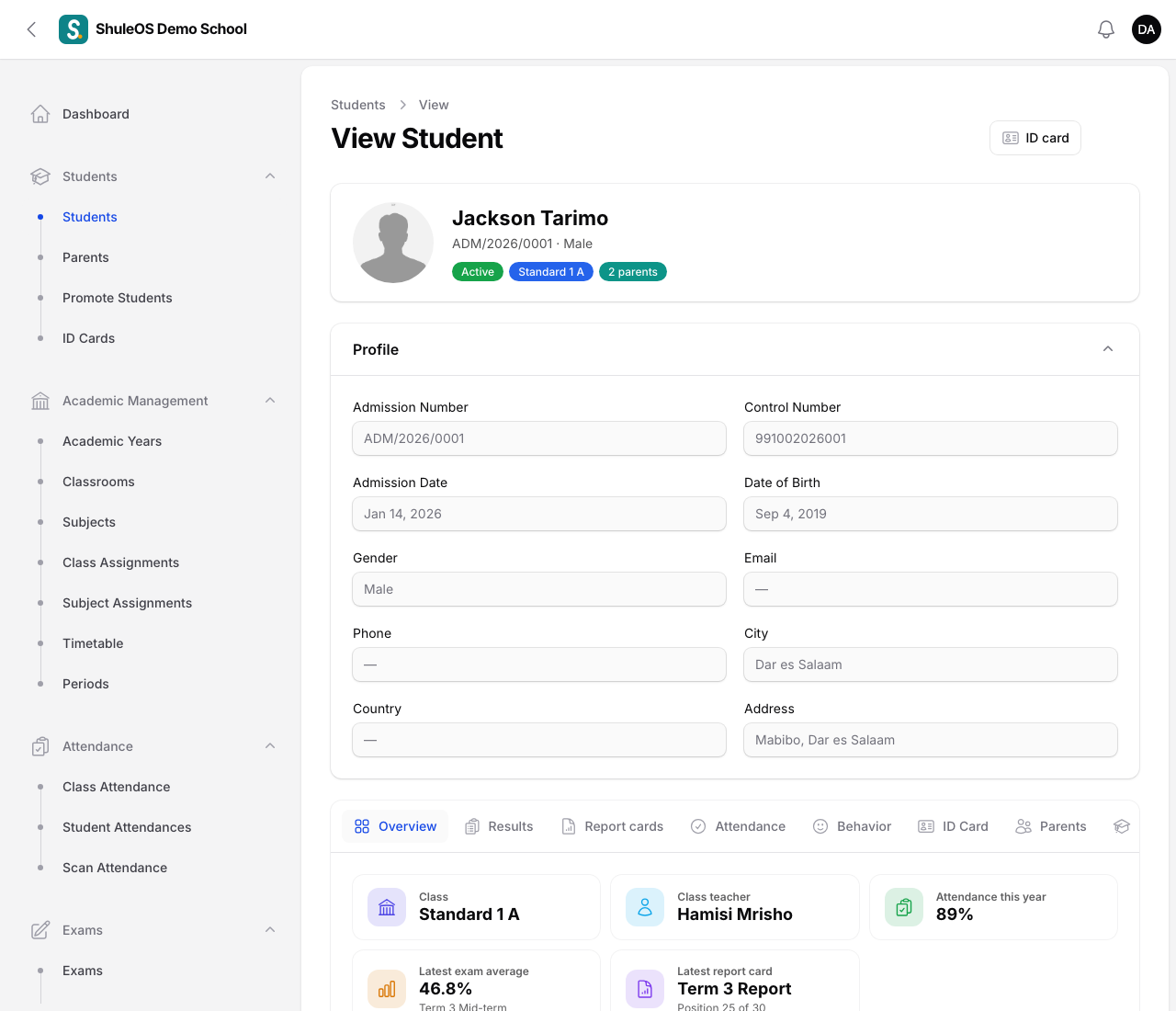
You only see the tabs your role allows. For example, a records clerk without permission to see exams will not see Results or Report cards.
Change a student
- Open the student and click Edit.
- Change the fields (the same as in Add a student).
- Click Save changes.
On the Edit page you can also link or remove parents (the Parents tab).
Stop a student attending without deleting them
When a student leaves, change their Status instead of deleting them:
- Inactive: not attending for now.
- Transferred: moved to another school.
- Graduated: finished the school.
Only Active students are counted, marked in attendance, billed and messaged. Their history stays.
A student with history cannot be deleted. Deleting a student would also erase everything attached to them: their attendance, marks, report cards, invoices, payments and fee history. So ShuleOS refuses: you see "Cannot delete" with what the student still has, for example "It still has 3 invoices, 2 payments and 41 attendance records." Delete is only for a student added by mistake who has no history. If the student has left, set their status instead.
Export the list
Click Export, then Excel-friendly CSV or Excel (.xlsx). The file has the same columns as the import file, for the students that match your current search and filters. This is a quick way to get a backup, or to prepare corrections to import back.
Print a class list or a contact list
- Click Print.
- Under What to print choose Class list or Parent contact list.
- Choose the Class, or leave it on All classes.
- Click Open PDF. It opens in a new tab, ready to print.
Delete several students
Tick the boxes on the left of the rows, then open Bulk actions → Delete selected. If any chosen student has history, nothing is deleted and you are told which students to untick. Read the note above first.
If something goes wrong
| What you see | What it means |
|---|---|
| A student is missing from the list | A filter is on (check the number on the funnel), or the search words do not match. Click Reset. |
| The class column is empty | The student is not enrolled in a class for the current year. |
| No New student, Import students or Delete buttons | Your role does not include them. |
Related guides
- Add a studentRegister a new student, place them in a class, and link their parents, so they show up in attendance, exams, fees and the parent portal.
- Import students and parents from a fileAdd or update many students, with their classes and parents, from one Excel or CSV file. You see a preview before anything is saved.
- Promote students at the end of the yearMove every class up to the next class for the new academic year, keep back the students who repeat, and mark those who leave. The old year stays as history.