
Fee amounts
Set how much each fee type costs for each class and installment, copy last year's amounts, and import them from a file.
Fee Amounts is the price list. For each fee type, it holds an amount for each class and each installment. Invoices are built from it.
Set the amounts
-
Open Fee Setup → Fee Amounts.
-
Choose the Fee type and the Academic year. The page says how the fee varies ("Varies by class · Varies by installment").
-
You see a grid: the classes down the side, the installments across, and a Total for each class.

-
Type each amount. If the fee type does not vary by class or installment, you only see the boxes that matter (for example one box for the whole school).
-
Click Save. You see "Fee amounts saved".
The Fee Setup checklist shows when every amount is set (see Fee setup: the order to do it in).
Copy from another year
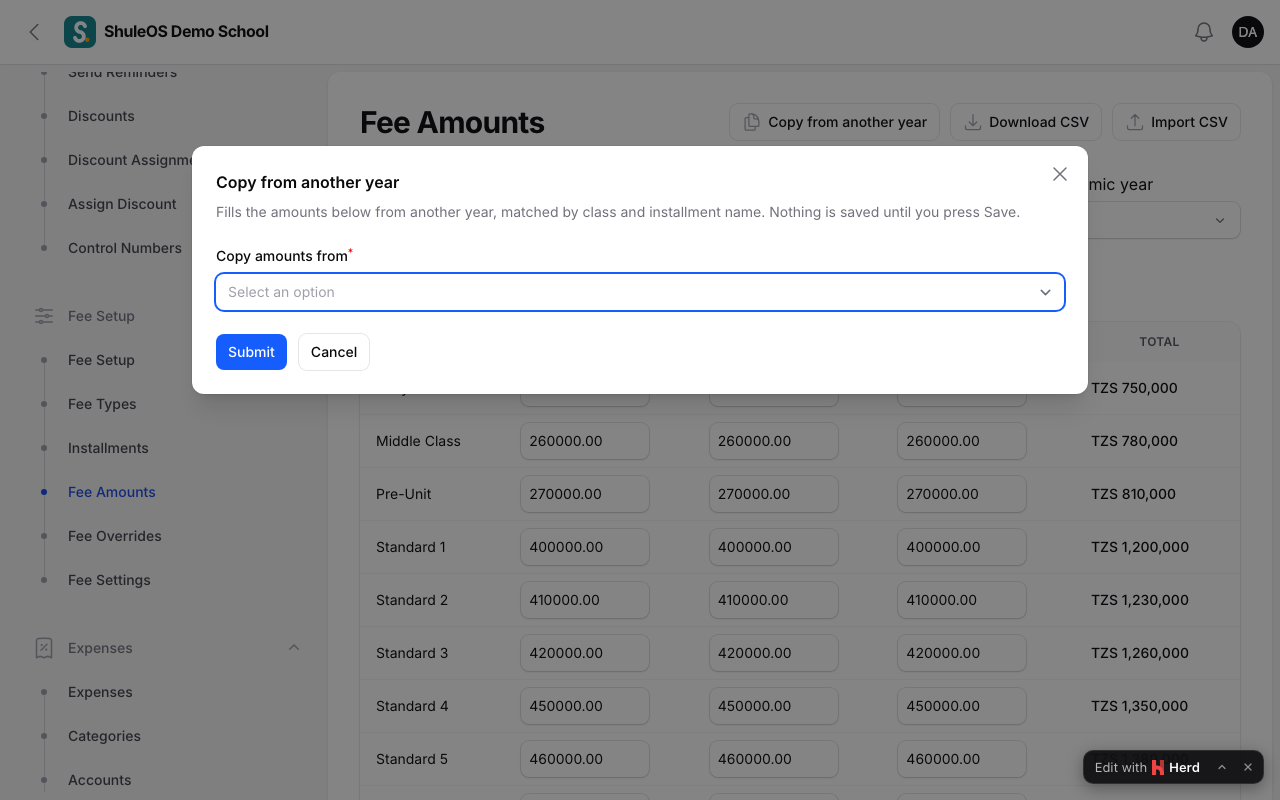
To start a new year from last year's prices, click Copy from another year, choose the year to copy from and confirm. You see "Copied 42 amount(s)", and how many could not be matched to an installment in this year and were skipped. Review the amounts, then Save: copying only fills the grid.
Use a spreadsheet
- Download CSV gives a file with your classes and installments.
- Fill it in, then Import CSV. The grid is filled ("Amounts filled in for 14 class(es)") and any problems are listed. Nothing is saved until you press Save.
Change an amount later
You can change an amount at any time. It affects invoices you generate after the change. Invoices already generated keep the amount they were issued with: to correct one, void it and generate it again (see Generate invoices). For one student who pays a different amount, use a fee override rather than changing the price for the class.
If something goes wrong
| What you see | What it means |
|---|---|
| Nothing to copy | The other year has no amounts for this fee type. |
| … could not be matched to an installment | The installment names differ between years. Set them by hand. |
| A class is missing from the grid | The class does not exist, or the fee type is set for specific classes only. |
| Amounts vanished after switching year | Amounts belong to a year. Choose the right Academic year. |
Related guides
- Fee types and installmentsCreate the things you charge for (tuition, meals, transport…) and the installments they are paid in (Term 1, 2 and 3), with their due dates.
- Generate invoices, and correct themBill a whole school or chosen classes for an installment or the year's one-off fees, look at invoices, void a wrong one, post adjustments and opening balances.