
Users: logins for the school office
Give each person in the office their own login and role, reset a forgotten password, and switch a login off when someone leaves.
Account → Users lists the people who sign in to the admin portal: the head teacher, the bursar, the secretary and so on. Give each person their own login, so that the Audit Log shows who did what. Never share one login.
Teachers have their own logins for the teacher portal, created on the Teachers page (see Teachers and their portal login). Parents have theirs too (see Parent logins and contacts). Neither appears here.

Each row shows the Name, Email, Role, the linked Employee and the Status (whether the person can sign in). A login with no role shows Administrator: it can do everything.
Add a user
-
Click New user.

-
Fill in the form:
| Field | What to enter |
|---|---|
| Name | The person's name. |
| Their sign-in email. Must not belong to another login. | |
| Temporary password | At least 8 characters. Tell the person yourself. They must choose their own the first time they sign in. |
| Role | What this login is allowed to do. Roles are made under Roles. |
| Employee | Optional. Links the login to the person's staff record, if the school pays them. This also gives them My Payslips in the menu. |
- Click Create.
Your package limits the number of admin logins. If the limit is reached you see "Login limit reached" and the user is not created. Switch off logins no longer needed, or ask for a bigger package (see Your plan).
Your own profile
Every office login can change their own name and email: click your initials at the top right and choose My profile. Anything else about your account — your role, your employee link, whether you can sign in — is set by another administrator here on the Users page.

Change a user
Click Edit to change the name, email, role, employee link, or Can sign in. If the change is not allowed you see "Not saved" and the reason.
Reset a password
There is no "forgot password" link. Use Reset password on the person's row.
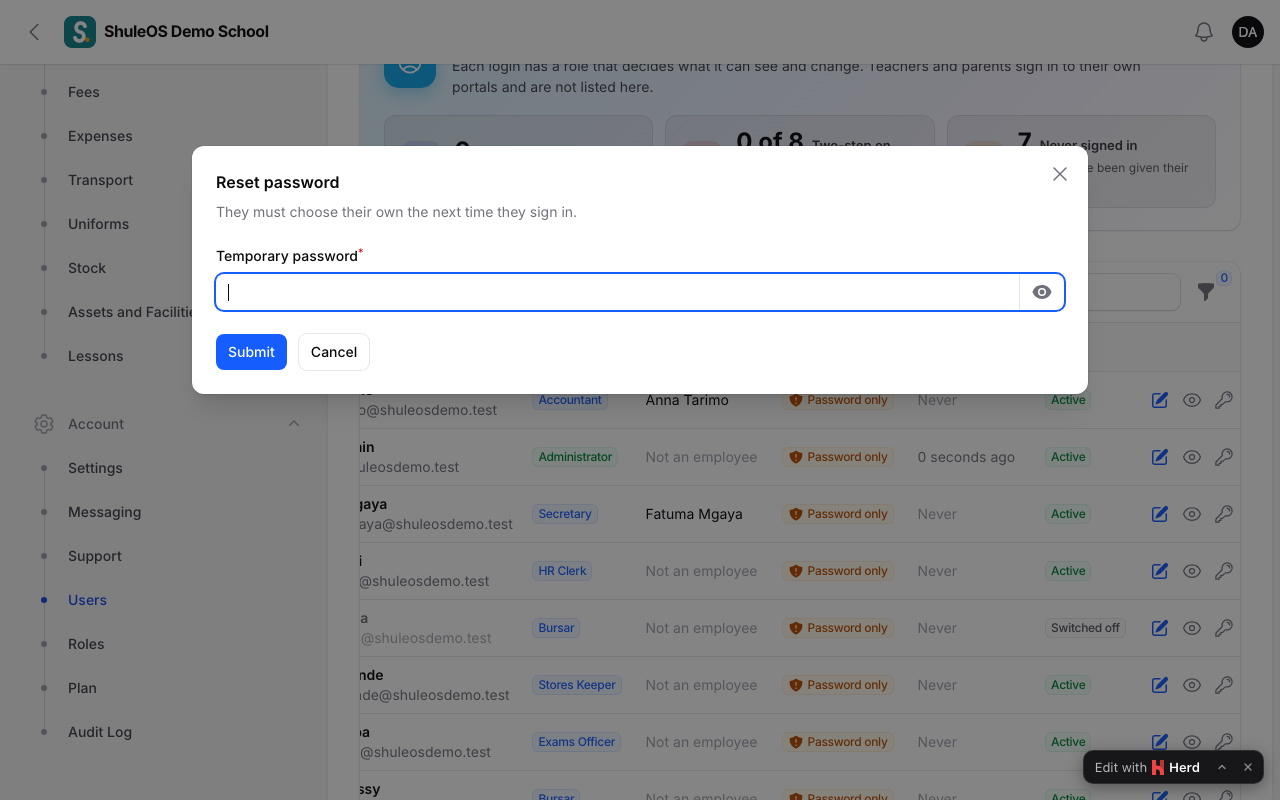
Type a Temporary password (at least 8 characters) and confirm. You see "Password reset". Tell the person the new password yourself. They must choose their own the next time they sign in.
Switch a login off
When someone leaves, use Switch off on their row. They can no longer sign in, and nothing is deleted. Switch on brings the login back.
Two safety rules stop a school locking itself out: you cannot switch off your own login, and you cannot switch off or remove the only login that can manage users. You see "Not switched off" with the reason. Give another person a role that can manage users first.
If the person is an employee who is leaving, use Record leaving on their employee page instead, which switches the login off for you (see Add and manage employees).
If something goes wrong
| What you see | What it means and what to do |
|---|---|
| "Login limit reached" | Your package's limit of admin logins is used up. |
| "Not switched off" | It is your own login or the only user manager. Give someone else the right first. |
| A teacher is missing from the list | Teachers are managed on the Teachers page. |
| The person signs in but sees few menu items | Their role is limited. Change their role. |
Related guides
- Roles and permissionsDecide exactly what each kind of user can see, add, change, delete and import, screen by screen, using ready-made roles or your own.
- Add and manage employeesAdd a member of staff, fill in their job, pay and check-in details, keep their documents, print ID cards, and record when they leave.
- Sign in and find your way aroundSign in to the admin portal, read your dashboard, use the menu and the bell, and change your password.