
HR setup: departments, job titles and leave types
The three short lists you set up before adding staff, so each employee can be placed in a department, given a job title, and asked for the right kinds of leave.
Three small lists sit behind every staff record. Set them up once, before you add employees, and staff can then be chosen from them instead of typed in by hand. You find them in the HR menu group.
You do not have to finish these first. When you add an employee you can also type a new department or job title on the spot and it is saved to the list. Doing them here first keeps the names consistent.
Departments
HR → Departments lists the parts of your school, for example Academics, Administration, Finance, Support Services and Transport.
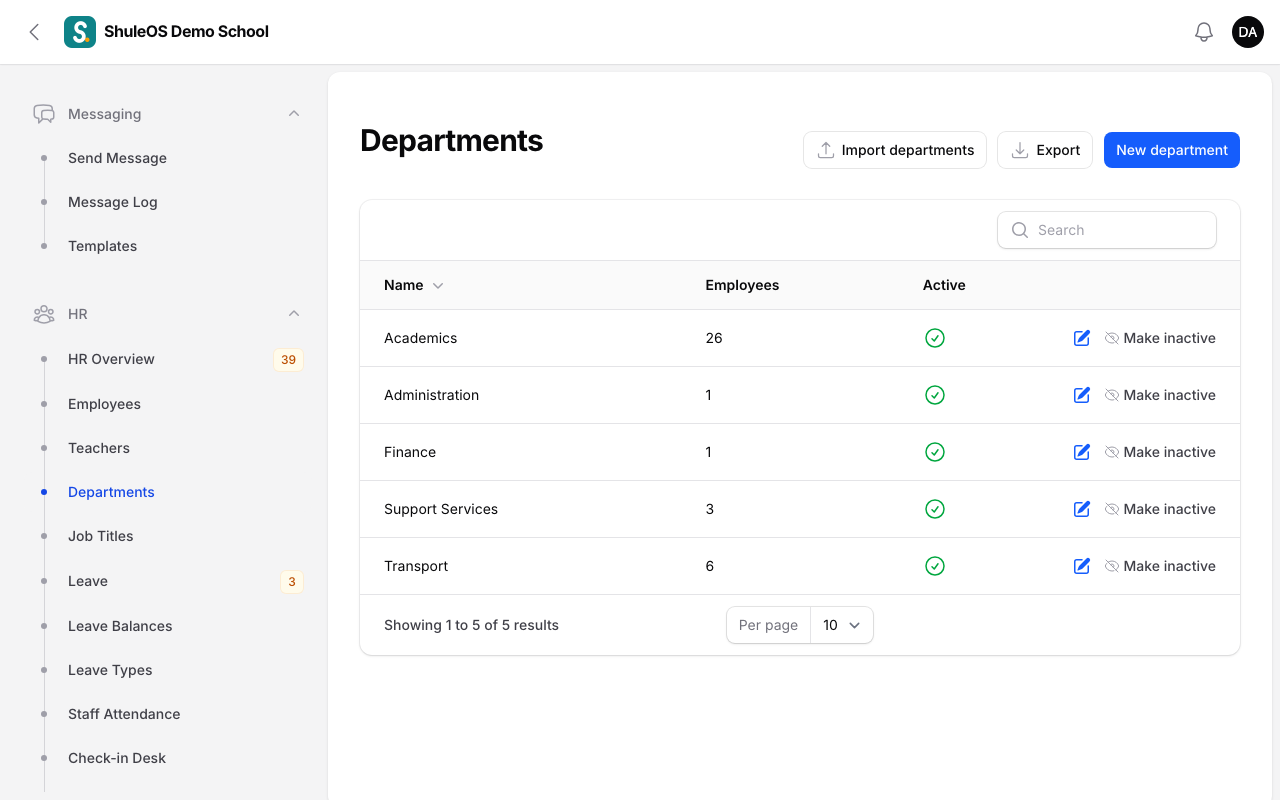
Each row shows the department Name, how many Employees are in it and whether it is Active.
-
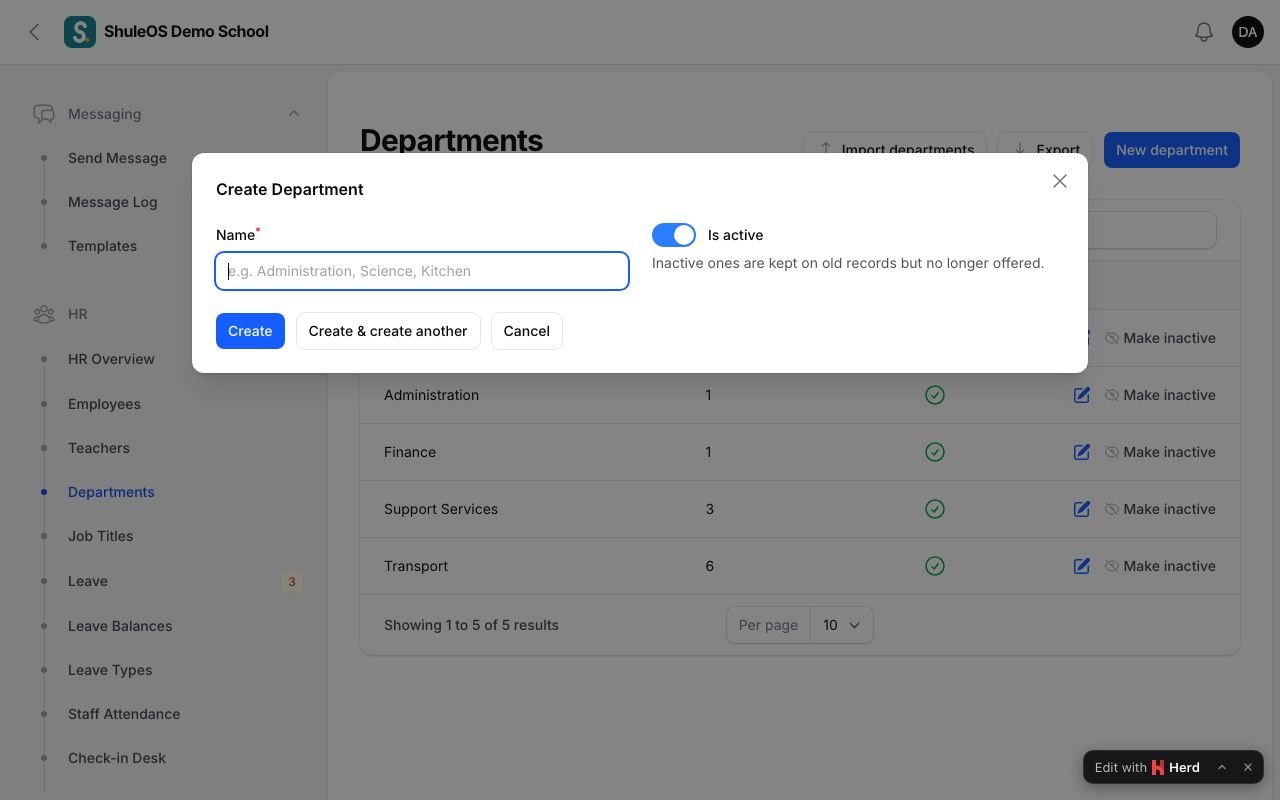
Click New department.
-
Type the Name and click Create.
-
Use Make inactive on a row to stop it being chosen for new staff. It stays on the records of people already in it. Make active brings it back.
To load many at once, click Import departments. It gives you a blank template and a sample, and shows a preview before anything is saved. Export downloads the list.
Job titles
HR → Job Titles works the same way. Examples are Head Teacher, Deputy Head Teacher, Class Teacher, Bursar, Secretary, Librarian, Cook, Cleaner and Driver. It has New job title, Import job titles, Export and Make inactive.
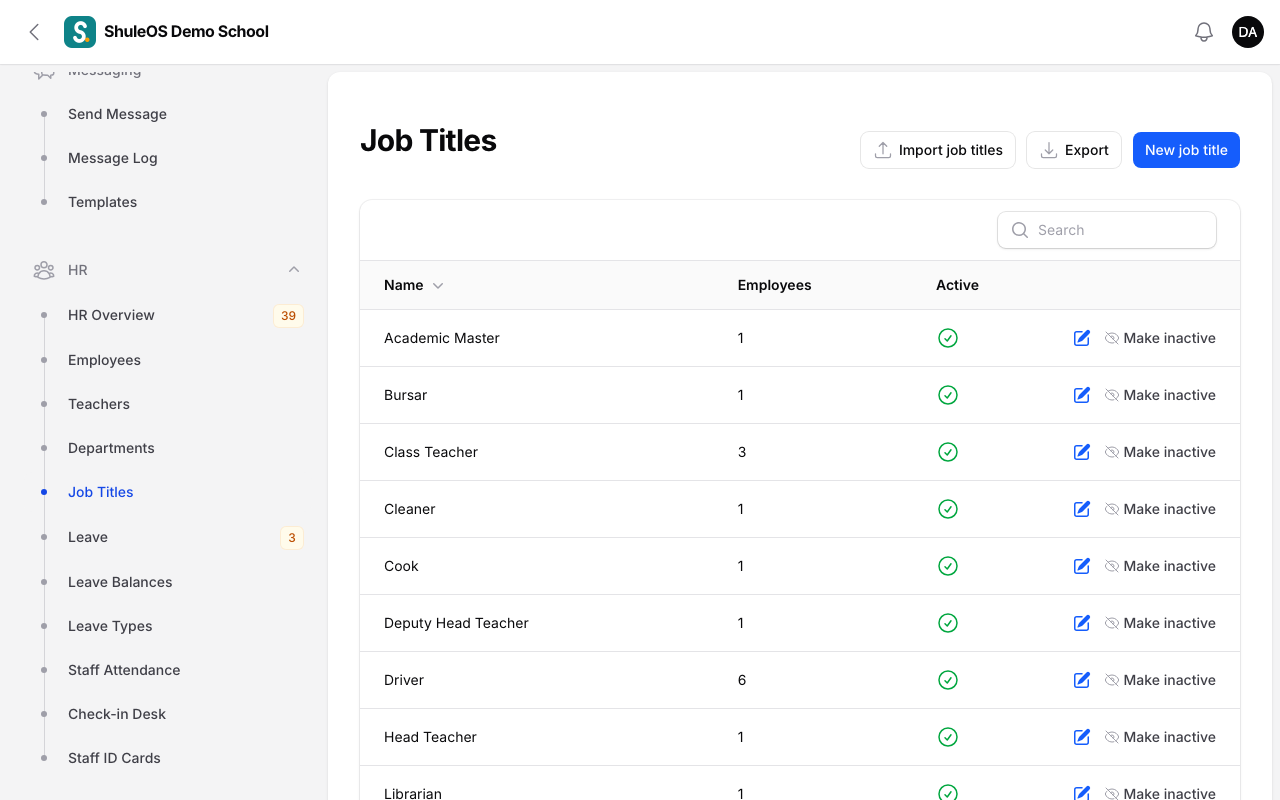
A job title is only a label. It does not decide what someone can do in ShuleOS. What a person can open is decided by their role (see the guide on roles).
Leave types
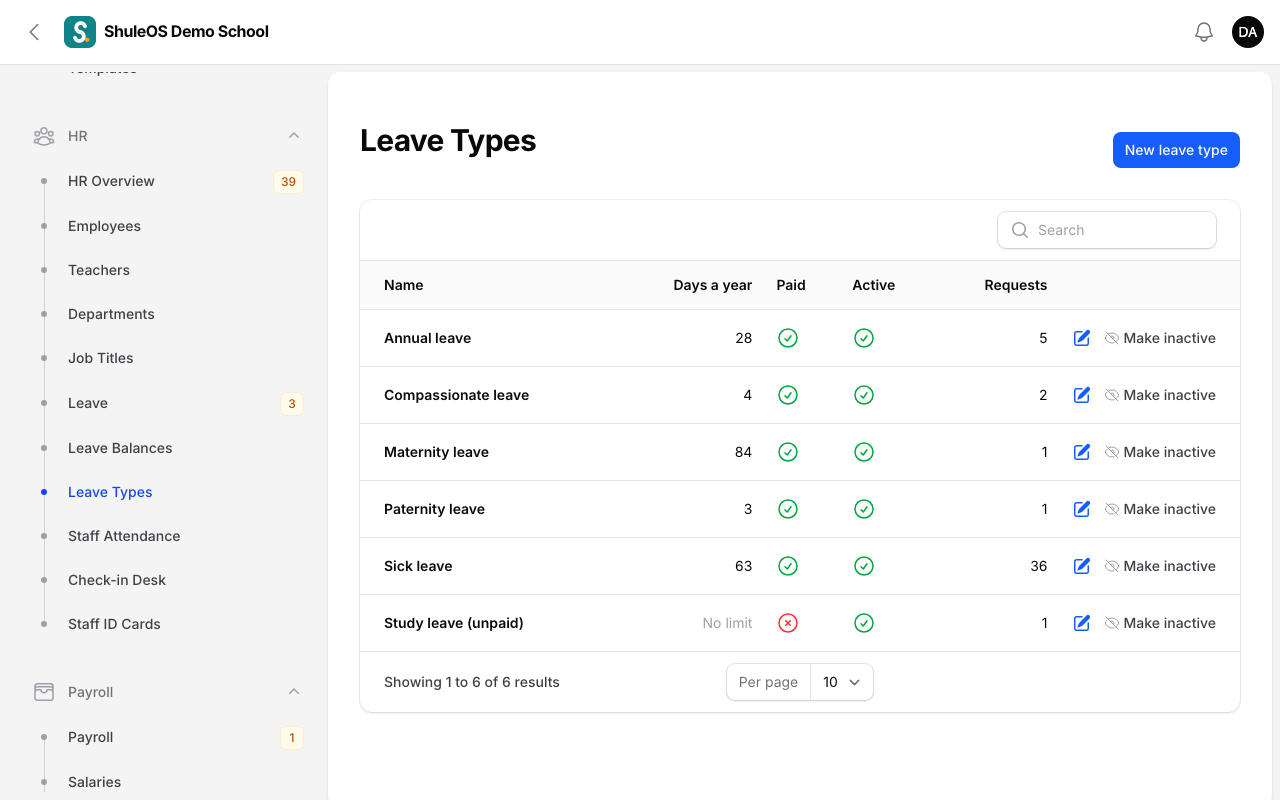
HR → Leave Types lists the kinds of leave staff can take and how many working days a year each allows.
-
Click New leave type.
-
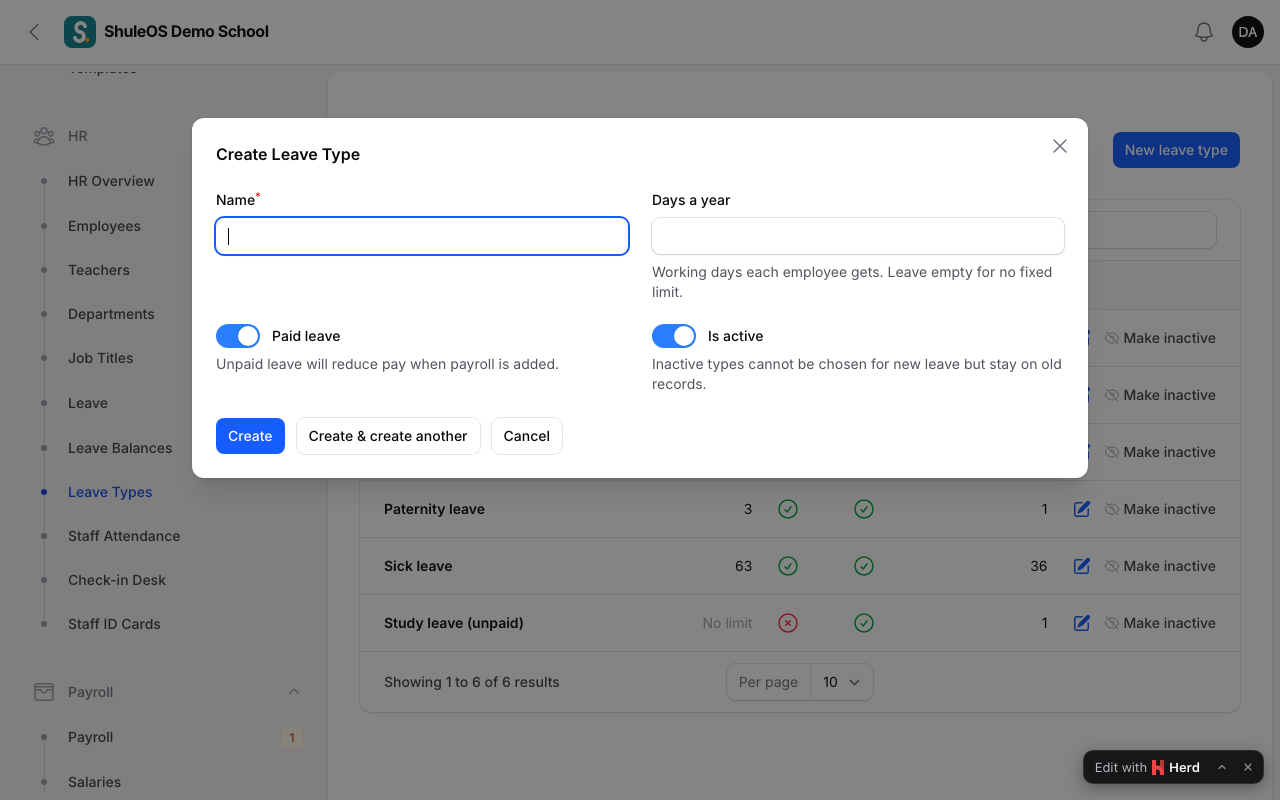
Fill in the window:
| Field | What to enter |
|---|---|
| Name | For example Annual leave, Sick leave, Maternity leave, Paternity leave, Compassionate leave or Study leave (unpaid). |
| Days a year | The working days each employee gets in a year. Half days such as 0.5 are allowed. Leave it empty for no fixed limit. |
| Paid leave | On for leave that is paid. Off for unpaid leave, which reduces pay when payroll is run. |
| Is active | Off stops the type being chosen for new leave. It stays on old records. |
- Click Create.
The list also shows how many leave Requests each type has had, so you can see what is used.
Working days. ShuleOS counts leave in working days: Monday to Friday, without the days your school calendar closes the school. See School calendar for how to mark holidays.
If something goes wrong
| What you see | What it means and what to do |
|---|---|
| A department, job title or leave type is missing when you add a person | It is inactive. Open its list and click Make active. |
| You cannot delete a department or job title | It can only be deleted while no employee has it. Make it inactive instead. |
| The HR group is missing from the menu | Your school's package does not include HR, or your role does not allow it. |
Related guides
- Add and manage employeesAdd a member of staff, fill in their job, pay and check-in details, keep their documents, print ID cards, and record when they leave.
- Leave requests and leave balancesRecord and decide staff leave, see who is away, and check how many leave days each person has taken and has left.