
The message log and message templates
See everything the school has sent, by hand and automatically, who got it and whether it arrived; cancel scheduled messages; and keep ready-made messages.
The message log
Messaging → Message Log lists every message the school has sent, whether written by hand or sent automatically by ShuleOS (for example when a child is marked absent).
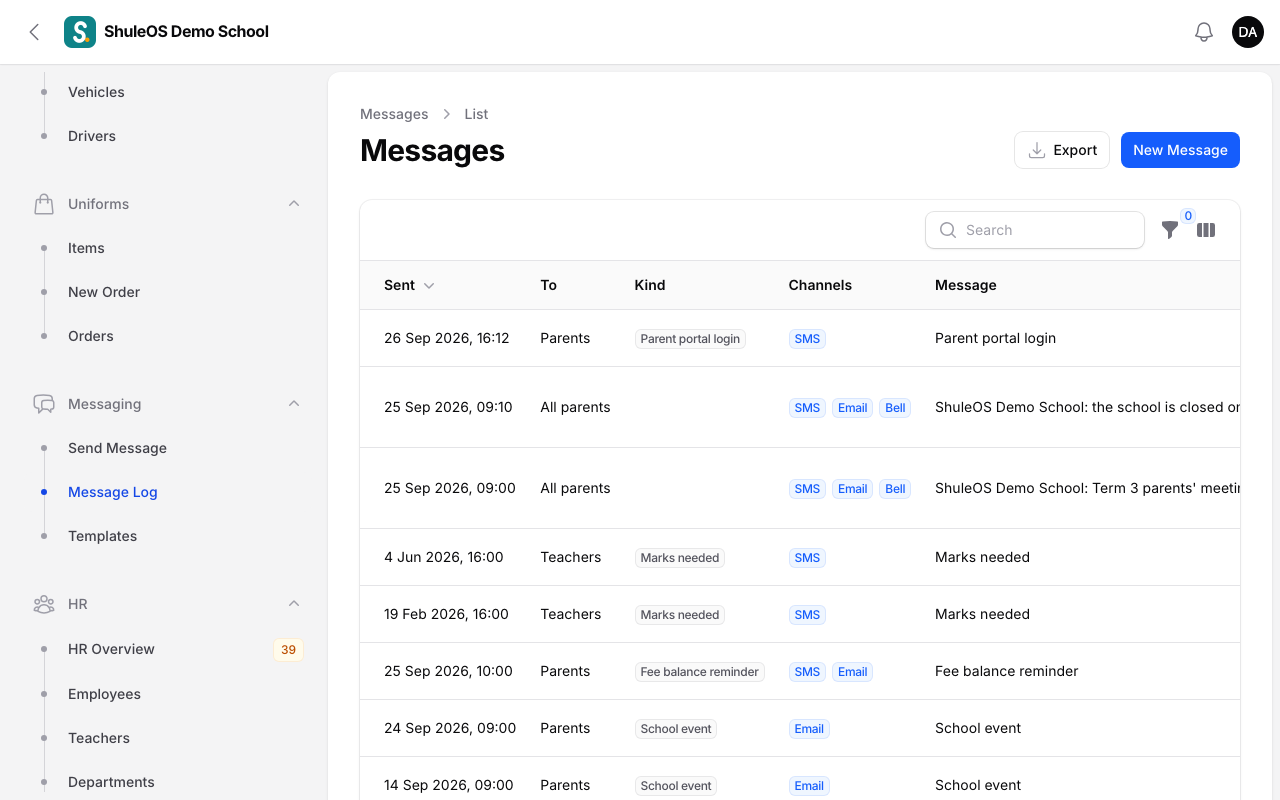
Each row shows when it was Sent, who it went To, the Kind (Sent by hand, or the automatic notification it was), the Channels, the Message, and its Status:
| Status | Meaning |
|---|---|
| Scheduled | Waiting for the time you set. It shows in the Goes out column. |
| Queued / Sending | On its way. |
| Sent | Delivered to everyone it could reach. |
| Partly sent | Some people were reached and some were not. |
| Failed | Nothing could be delivered. |
| Cancelled | Cancelled before it went out. |
The columns Sent, Failed and Skipped count the recipients, and By shows who wrote it (System for automatic ones). Filter by Status or Kind. Export downloads the log. New Message takes you to Send Message.
One message in detail
Click a row to open it. You see the full text and a list of every recipient with the channel and whether it was sent, failed, skipped or (in safe mode) recorded only. Use it to answer a parent who says "I never got it".

Cancel a scheduled message
On a Scheduled message, click Cancel. Nobody will receive it. Anything already sent stays sent. You see "Message cancelled".
Message templates
Messaging → Templates keeps messages you send often.

The list shows each template's Name, the start of its Body, and whether it is Active. Click Add starter templates to load ready-made ones for school life (fee reminder, half-day notice, exam timetable, homework reminder, meeting request, emergency notice, marks needed for teachers and more). It only adds the ones you do not have yet.
To write your own, click New Template.

| Field | What to enter |
|---|---|
| Name | What you will look for in the list, for example Half-day notice. |
| Subject | The email subject and bell title. |
| Main message | The text. You can use {name}, {students} and {school}. It shows how many SMS it will take. |
| Available when sending | Off hides it from the Use a template list without deleting it. |
Use Edit or Delete on a row, or tick several and choose Delete selected.
Templates also matter to teachers: in Messaging settings you can allow teachers to send only the templates you approve.
If something goes wrong
| What you see | What it means and what to do |
|---|---|
| A message shows Failed | Open it. The recipients show why: a wrong number, a full mailbox, or the SMS provider refused. Fix the details and send again. |
| Many are Skipped | Those people have no phone, email or portal login for the channels chosen. |
| A template is missing from Use a template | It is switched off under Available when sending. |
| Cancel is missing | Only a message still waiting (Scheduled) can be cancelled. |
Related guides
- Send a message to parents or teachersWrite a message once and send it by SMS, email and the portal bell to all parents, the parents of one class, one parent, all teachers or one teacher, now or later.
- Messaging settings: SMS, WhatsApp, email, automatic notifications and quiet hoursConnect the school's SMS, WhatsApp and email, choose which automatic notifications go out and how each one is worded, set quiet hours, and decide what class teachers may send.