
Import students and parents from a file
Add or update many students, with their classes and parents, from one Excel or CSV file. You see a preview before anything is saved.
When the school already has its students in a notebook or a spreadsheet, do not type them in one by one. Fill in one file and import it. One row is one student, with their class and up to two parents, so a single import creates the students, places them in their classes and links their parents.
Before you start
- Create the academic year and the classes first. The file names each student's class, and every class must already exist. See Classes and streams.
- Make sure your school has room. If your package limits the number of active students, the import stops adding once the limit is reached and tells you which rows were left out.
- Have the information in Excel or a CSV file. The file must be saved as .xlsx or .csv.
Step 1: Get the template
-
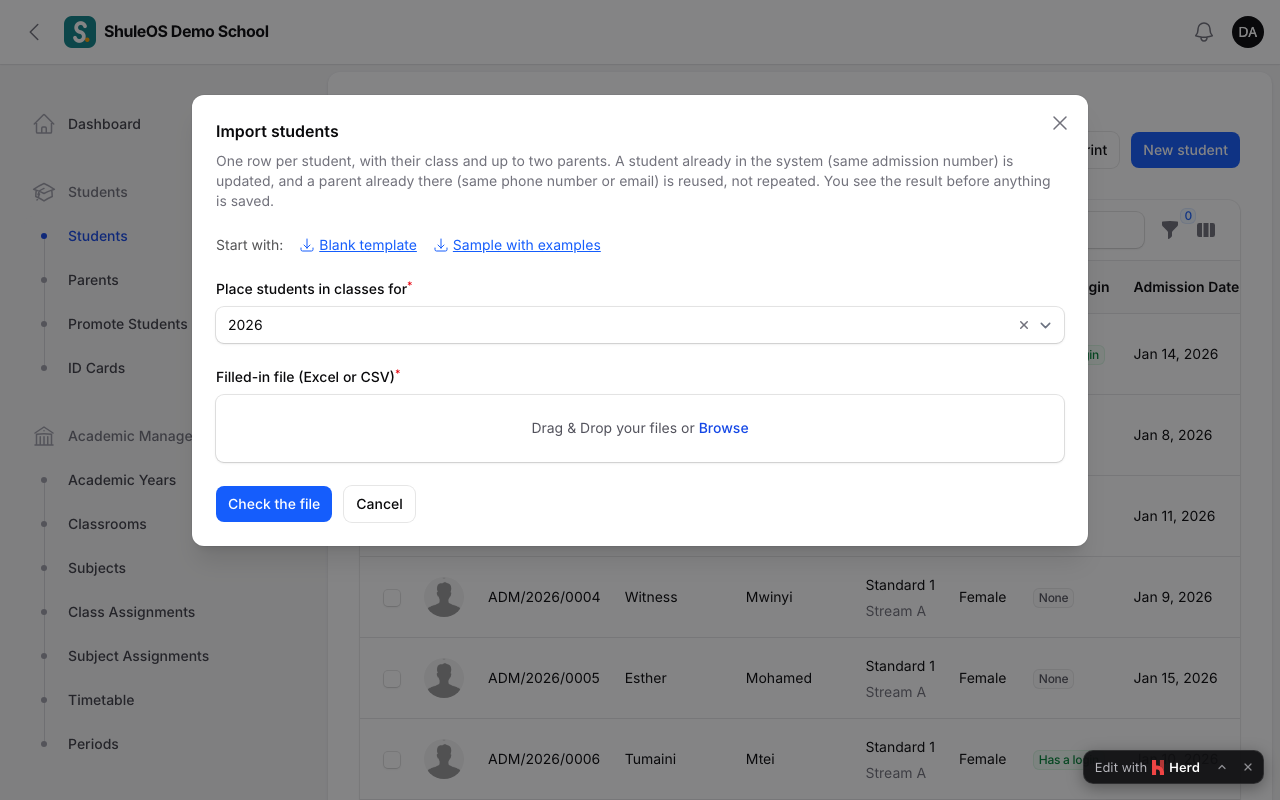
Open Students → Students and click Import students.
-
In the window that opens, download the Blank template (only the header row) or the Sample with examples (a few example students you can copy from).
The columns are:
| Column | What goes in it |
|---|---|
| Admission number | Required. Unique for each student. |
| First name, Last name | Required. |
| Gender | Male, Female or Other. |
| Date of birth, Admission date | Like 2016-03-15 or 15/03/2016. |
| Class, Section | The class's name exactly as it is in ShuleOS, and the stream (for example A). Leave both empty to add the student without a class. |
| Status | Active, Inactive, Graduated or Transferred. Empty means Active. |
| Phone, Email, Address, City | The student's own details, optional. |
| Parent 1 name, Parent 1 phone, Parent 1 email, Parent 1 relationship | The first parent. |
| Parent 2 name, Parent 2 phone, Parent 2 email, Parent 2 relationship | A second parent, optional. |
Do not rename or reorder the header row. ShuleOS also recognises common variations, such as "Surname" for Last name, but the template is the safest.
Step 2: Fill in the file
- One row per student. Do not leave blank rows in the middle.
- Type the class the way it appears in ShuleOS, for example
Standard 1. - Give every parent a name if you give a phone or email. A phone or email with no name is rejected.
- Phone numbers can be written any usual way, for example
0712 345 678. - A parent shared by two children (brothers and sisters) should have the same phone number on both rows. ShuleOS then keeps one parent linked to both children.
Step 3: Upload and check the preview
- Back in the Import students window, choose Place students in classes for the academic year (the current year is filled in).
- Upload your file and click Check the file. Nothing is saved yet.
- ShuleOS shows what it would do, for example:
- New students: 30. Existing students updated: 0.
- Placed in a class: 30. (and how many were moved from another class)
- Parents: 28 new, 30 linked to their children.
- 3 row(s) will be left out: followed by the reasons.
If the file has problems the first few are shown. Typical messages:
| Message | What to do |
|---|---|
| the class "Std 1" does not exist | Correct the class name to match ShuleOS, or create the class. |
| Standard 1 has no section "C" | Add the stream to the class first, or fix the section. |
| the gender "M" is not Male, Female or Other | Use the full word. |
| the date of birth "…" must be like 2016-03-15 or 15/03/2016 | Correct the date. |
| the status "…" is not Active, Inactive, Graduated or Transferred | Use one of those. |
| parent 1 has a phone or email but no name | Add the parent's name. |
| the phone of parent 1 "…" is not a phone number | Fix the number. |
| admission number … belongs to another school | That admission number is already used elsewhere. Use your own. |
| … was not added, the school has reached the … active students its package allows | Your package's student limit is reached. |
Fix the file and check it again. You can repeat this as often as you like.
Step 4: Save
When the preview looks right, click Save the students. You see "Students saved" with the counts: how many were added, how many updated and how many parents were added.
What the import does with people who already exist
- A student with the same admission number is updated, not repeated. Only the columns you filled in are changed, so you can use the import to correct or complete existing records.
- A parent with the same phone number or email is reused, not repeated.
- Nothing is ever deleted by an import.
After the import
- Open Students → Students to check the list.
- Parents need logins to use the parent portal. See Parent logins and contacts.
If something goes wrong
| What you see | What it means |
|---|---|
| Nothing to import | The file has no rows, or the header row is missing. |
| The file will not upload | It must be Excel (.xlsx) or CSV, and within 5 MB. |
| The Import students button is missing | Your role is not allowed to import students. |
| Students imported but not in the class list | The class column was empty or the class did not exist. Place them from the class's Edit page. |
Related guides
- Add a studentRegister a new student, place them in a class, and link their parents, so they show up in attendance, exams, fees and the parent portal.
- Classes and streamsCreate the school's classes, choose how each is assessed, add streams (sections), and choose the subjects each class takes.
- Parent logins and contact listsGive parents their portal logins, reset a forgotten password, import parents from a file, and print a contact list.