
Stock setup: stores, suppliers, categories and items
Set up the places stock is kept, the shops you buy from, the groups of items, and the items themselves, with their reorder level and opening quantity.
The Stock group keeps track of supplies the school buys and uses: stationery, cleaning supplies, laboratory consumables, sports equipment, first-aid items and so on. Four lists sit behind it. Set them up once, then use them every day.
Every change to a quantity is written as a movement with the stock left after it, so a figure can always be explained, and stock can never go below zero.
Stores
Stock → Stores lists the places stock is kept, for example Main Store and Science Store.
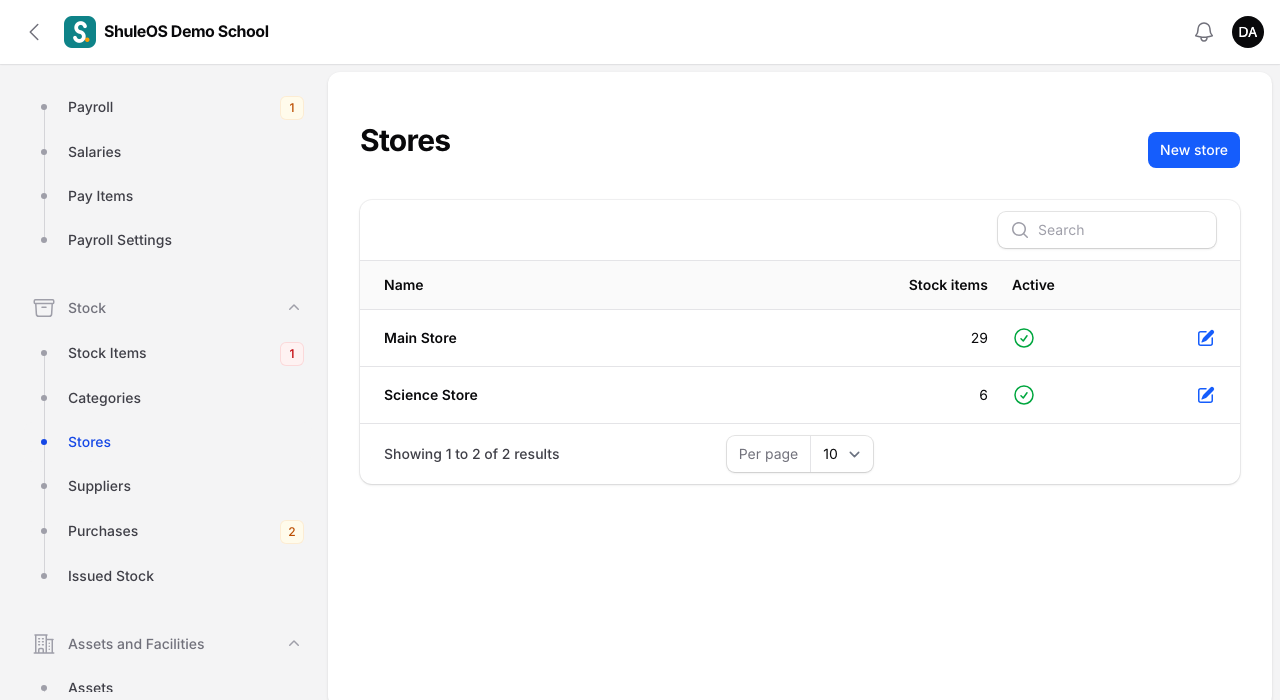
Each row shows the Name, how many Stock items are kept there, and whether it is Active. Click New store, type the Name, and click Create.

Make inactive stops a store being offered for new items. It stays on items already kept there.
Suppliers
Stock → Suppliers lists the shops and companies you buy from.

Click New supplier.

Enter the Name (required), Contact person, Phone, Email and Address, and click Create. The list shows how many Purchases you have made from each. Import suppliers and Export are on the top bar.
Categories
Stock → Categories groups items, for example Stationery, Cleaning supplies, Laboratory consumables, Sports equipment, First aid and health and Maintenance supplies. The stock value report adds items up by category.

Click New category, type the Name, and click Create.

Stock items
Stock → Stock Items is the list of everything you keep.

Each row shows the Name (and code), Category, where it is Kept in, how much is In stock, the Reorder at level, the Cost each and the Value (stock times cost). The stock figure is green when all is well, amber when it is at or below its reorder level, and red when none is left. Use the filters for Category, Store and Low or out of stock.
Add an item
-
Click New stock item.

-
Fill in the form:
| Field | What to enter |
|---|---|
| Name | Required. For example A4 paper (ream). |
| Code | Optional, for your own reference. |
| Category and Kept in | Pick from your lists. |
| Counted in | Required: Pieces, Boxes, Packets, Reams, Kilograms, Litres, Bags, Rolls, Sets, Pairs or Dozens. |
| Reorder level | You are warned when stock falls to this number or below. |
| Cost of one | The price of one unit. It is updated to the price of your latest purchase. |
| Stock now | What you already have. Only on a new item. Later, stock changes through purchases, issuing and counts. |
| Description | Optional. |
| Is active | Off keeps the item on old records but stops it being offered. |
- Click Create.
To load many items at once, click Import items: download the blank template or the sample, fill it in and check the preview.

The item's page
Click an item to see its details and its movement history: every time stock was received, issued, returned or counted, with the change, the stock after it, the cost and who did it.

Count stock
When you count the shelves, use Count on the item's row. Type what you Counted, add a Note such as "Yearly stock take", and confirm. The difference is recorded as a correction ("Counted") and you see "Stock counted".

The warning on the menu
The number beside Stock Items in the menu, and the Needs your attention list on the dashboard, count items at or below their reorder level. Set sensible reorder levels and they tell you when to buy.
If something goes wrong
| What you see | What it means and what to do |
|---|---|
| A category, store or supplier is missing when adding an item | It is inactive. Make it active in its list. |
| You cannot lower stock below zero | ShuleOS never allows a negative quantity. Count the item to correct it. |
| You cannot edit an item's stock directly | Stock only changes through purchases, issues, returns and counts, so the history stays honest. |