
Exam timetable, rooms and invigilators
Give each exam paper a date, time, room and invigilators, check clashes, publish the timetable to parents and teachers, and print it.
Each paper is one subject sat by one class in one exam. The exam timetable puts a date, time, room and invigilators on every paper.
Step 1: Set up the exam rooms
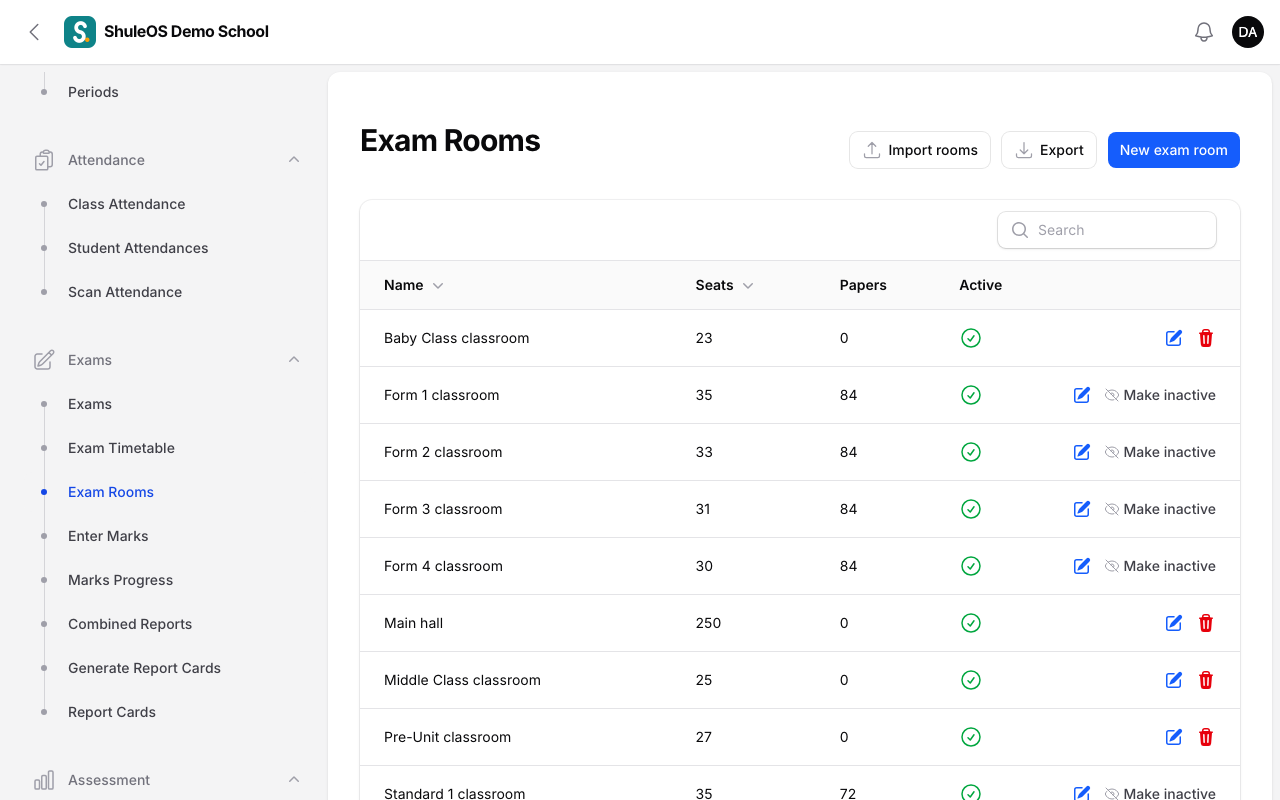
Exams → Exam Rooms lists the rooms where papers can be sat, with the number of seats, how many papers use each room, and whether it is active.
-
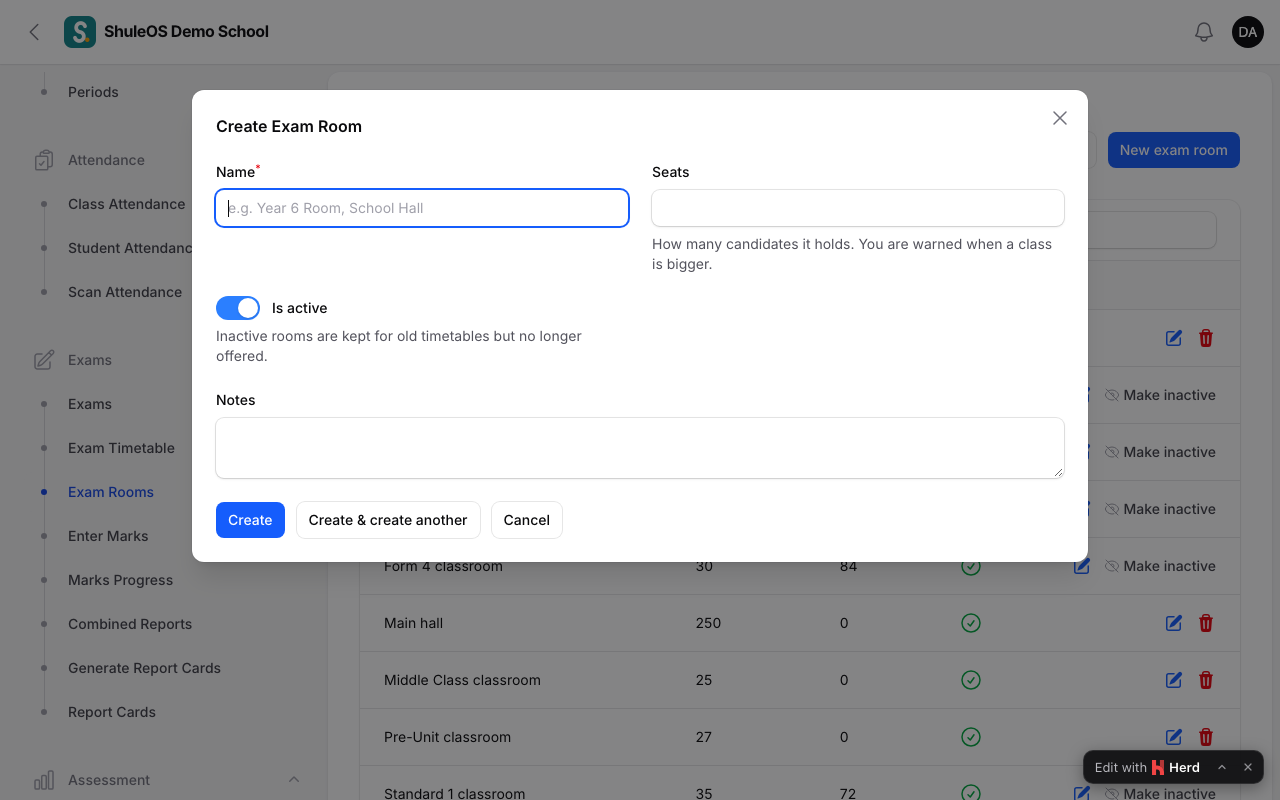
Click New exam room and enter the Name, the number of Seats, and leave Active on.
-
Make inactive takes a room out of the choices without deleting it.
-
Import rooms loads many rooms from a file (blank template and sample provided, with a preview before saving).
Step 2: Add papers to the timetable
-
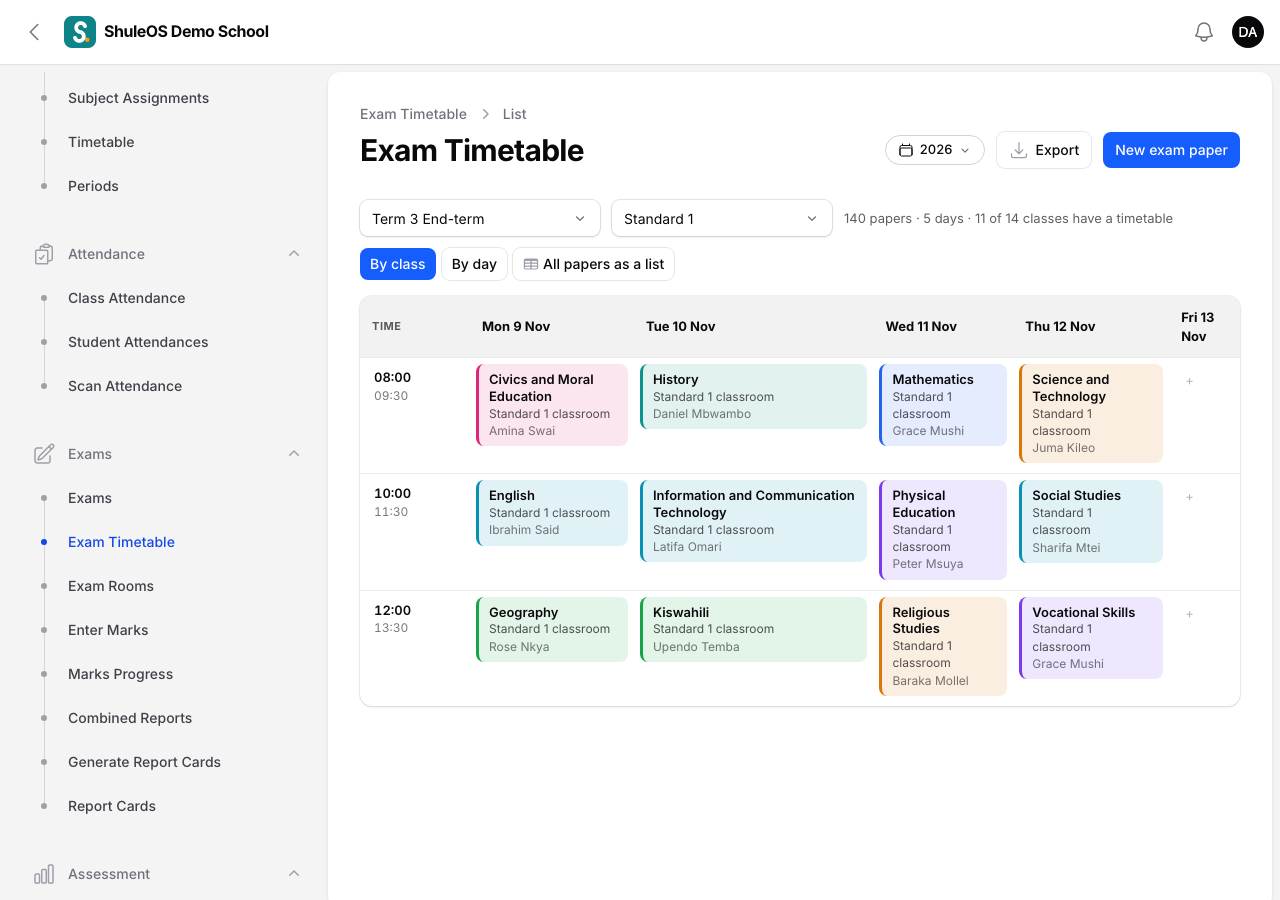
Open Exams → Exam Timetable. Papers appear on a grid by day and time. Use By class, By day or All papers as a list to change how you look at it.
-
Click New exam paper.
| Field | What to enter |
|---|---|
| Exam | Required. The exam this paper belongs to. |
| Class | Required. Only classes chosen for the exam are listed. |
| Subject | Required. Only subjects taught to that class are listed. |
| Exam date, Start time, End time | Required. |
| Room | Choose a room (its number of seats is shown). |
| Other venue | Type a place if it is not in the room list. |
| Chief invigilator, Other invigilators | Staff who supervise the paper. |
| Max marks | The most a student can score. |
| Instructions | Notes for students and invigilators. |
- Click Create.
Clashes ShuleOS warns you about
You cannot save a paper if it would cause:
- This class already has another paper during this time.
- (Room) is already in use during this time.
- (Teacher) is already invigilating during this time.
- (Teacher) is on leave that day.
If the room has fewer seats than the class has students, a warning appears under the room field.
Step 3: Assign invigilators automatically
Open the exam (Exams → Exams, click the exam) and click Auto-assign invigilators. Choose how many invigilators each paper needs (1, 2 or 3) and confirm. ShuleOS fills every paper that has too few, giving each duty to the teacher with the fewest so far. A teacher is never given a paper in a subject they teach that class, nor a time they are already invigilating. You see "Invigilators assigned to 12 paper(s)", and a note if there were not enough free teachers.
Step 4: Publish, print and share
On the exam's page:
| Button | What it does |
|---|---|
| Publish timetable | Parents can then see their child's class exam timetable and teachers see their invigilation duties. Unpublish timetable hides it again. |
| Print timetable (PDF) | The timetable, class by class. |
| Print invigilation roster (PDF) | Who invigilates what and when. |
| Download timetable CSV and Import timetable CSV | Edit dates, times, rooms and invigilators in Excel, then load the file back. You see what will change, and any clash, before anything is saved. |
If something goes wrong
| What you see | What it means |
|---|---|
| A clash message when saving | Change the date, time, room or invigilator that clashes. |
| Not enough free teachers for … | Add invigilators by hand, or lower the number per paper. |
| Parents cannot see the timetable | It is not published, or the parent portal's Exam timetable part is off in Settings. |
Related guides
- Create an exam and choose its classesSet up an exam for the year and term, choose which classes sit it, and keep it moving from draft to published.
- Enter marks and follow marks progressEnter each student's marks for one subject in one exam, import them from a file, and see which classes and teachers still have marks to enter.