
Transport routes, vehicles and drivers
Set up the school bus service: routes with their pickup points and price, the vehicles and their seats, and the drivers, who are staff.
The school bus service has four parts: routes (where the buses go, and what it costs), vehicles, drivers, and the students who ride. This guide sets up the first three. The students are added in Transport assignments and reports.
Before you start
- Create a fee type for transport (usually named Transport). A route points to it. See Fee types and installments.
- Drivers are staff, so they need a staff record (below).
Routes
Open Transport → Routes. Each route shows its price, fee type, how many students ride it this year, its seats and whether it is active. A note "More students than seats" warns when a route is full.
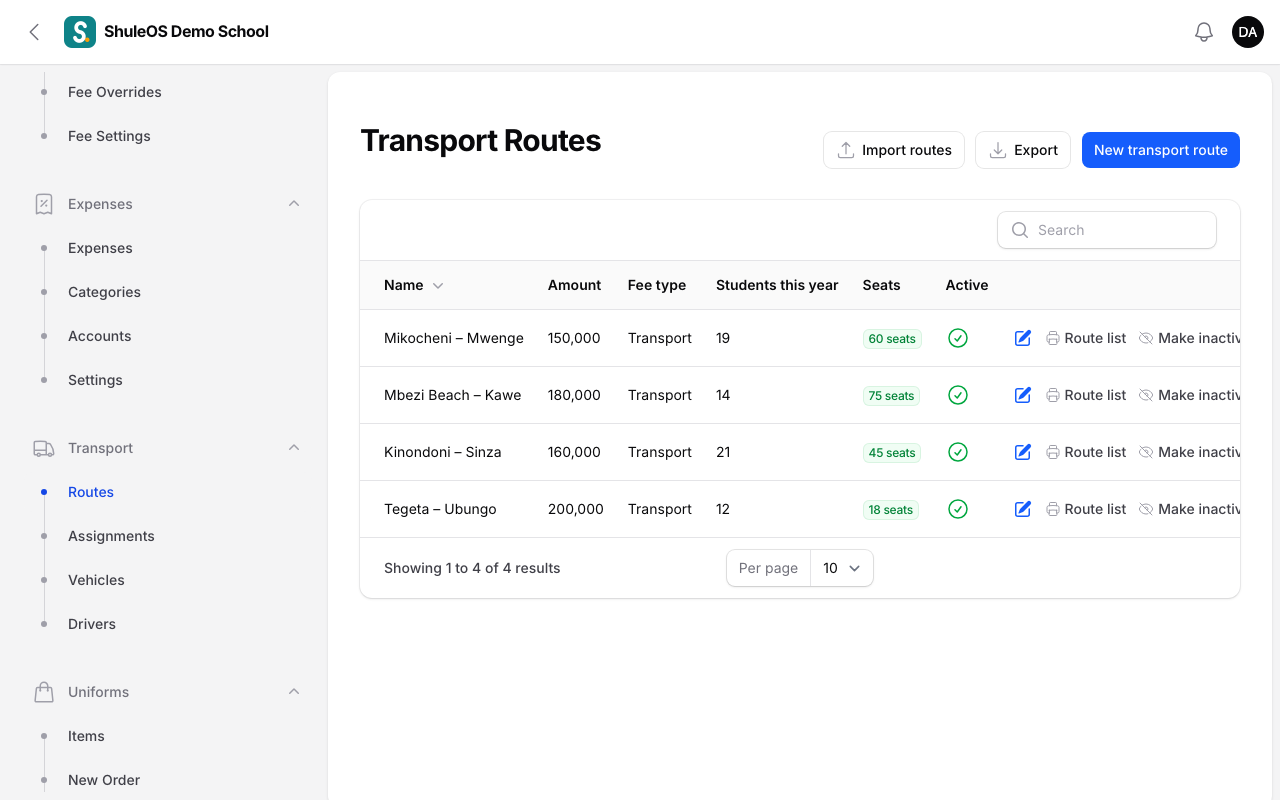
Click New transport route:
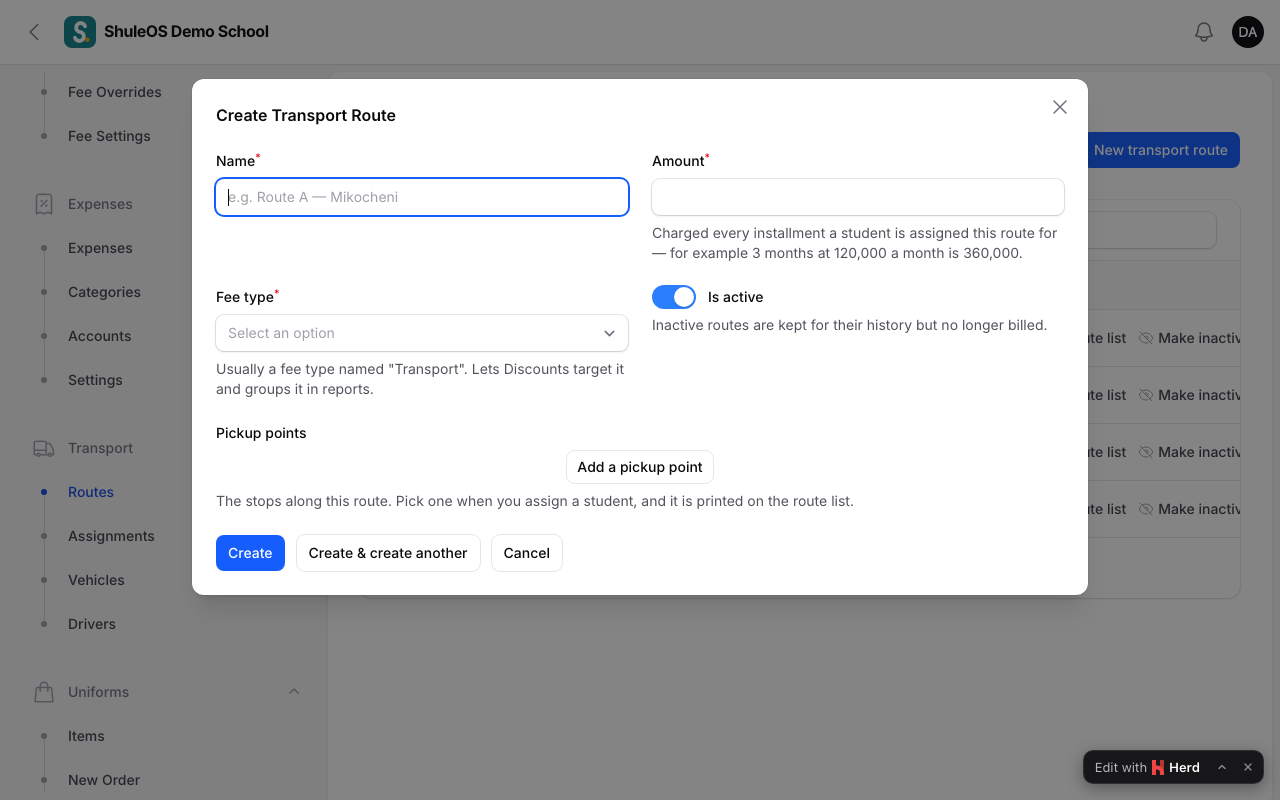
| Field | What to enter |
|---|---|
| Name | For example Mikocheni – Mwenge. It must be different from other routes. |
| Amount | What a student pays for each installment they are assigned this route. For example three months at 120,000 a month is 360,000 per term. |
| Fee type | Usually the fee type named Transport. It lets discounts target transport and groups it in reports. |
| Active | Inactive routes are kept for history but no longer billed. |
| Pickup points | The stops along the route. For each: its name, Morning pickup time and Afternoon drop-off time. You pick a stop when you assign a student, and it is printed on the route list. |
Each route row also has:
- Route list: a printable list of the stops and the students, for the driver.
- Make inactive: retire a route.
- Delete: only while no student is assigned to it.
Import routes loads many from a file.
Drivers
Drivers are members of staff, not a separate list. Open Transport → Drivers. You see each driver's name, phone, licence, vehicle and whether they are active.
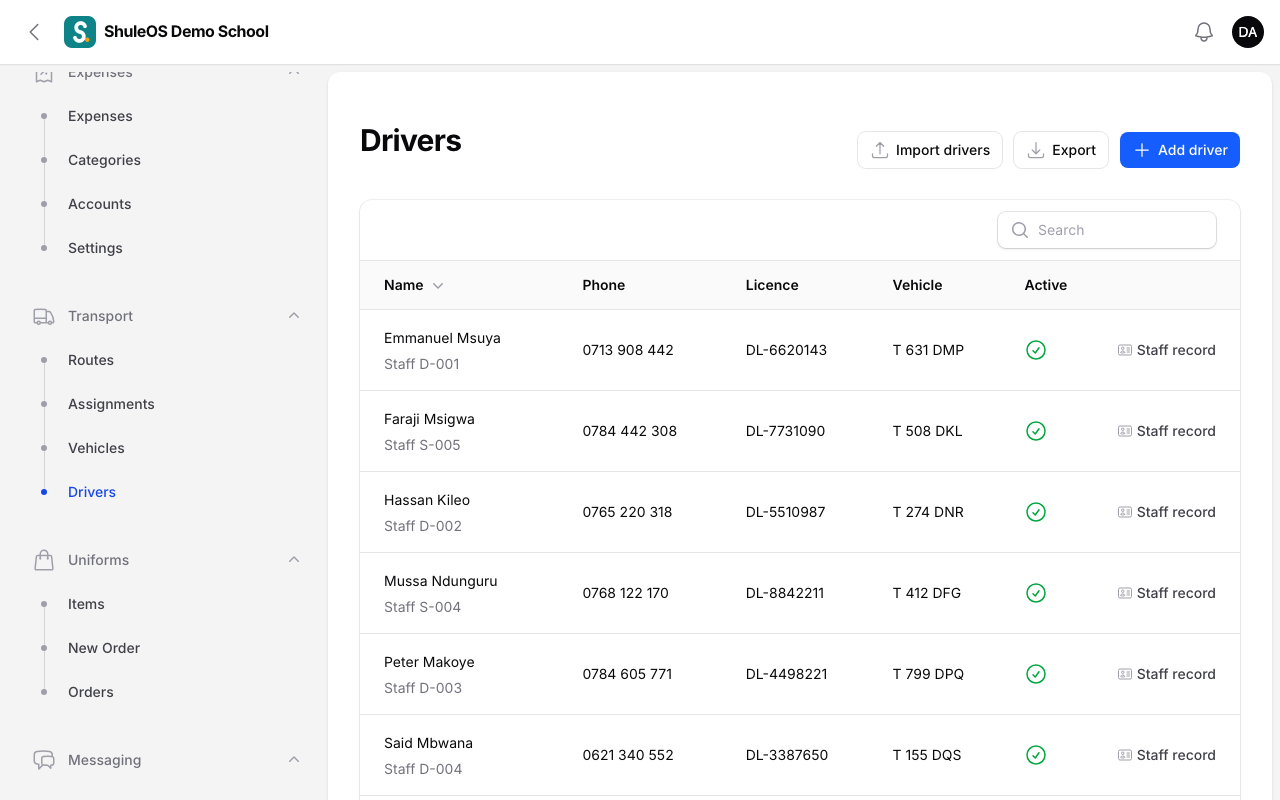
- Click Add driver. It opens the new staff form with the category already set to Driver. Enter their details and their licence number, and save. (See the HR guides for the staff form.) Once saved, the driver appears in this list and can be given a vehicle.
- Staff record on a row opens their staff record.
- Import drivers takes on a new driver as a member of staff in the Driver category and updates one with the same name.
Vehicles
Open Transport → Vehicles. Each row shows the registration, model, seats, driver, route, this year's fuel spending and kilometres per litre, and this year's repairs.
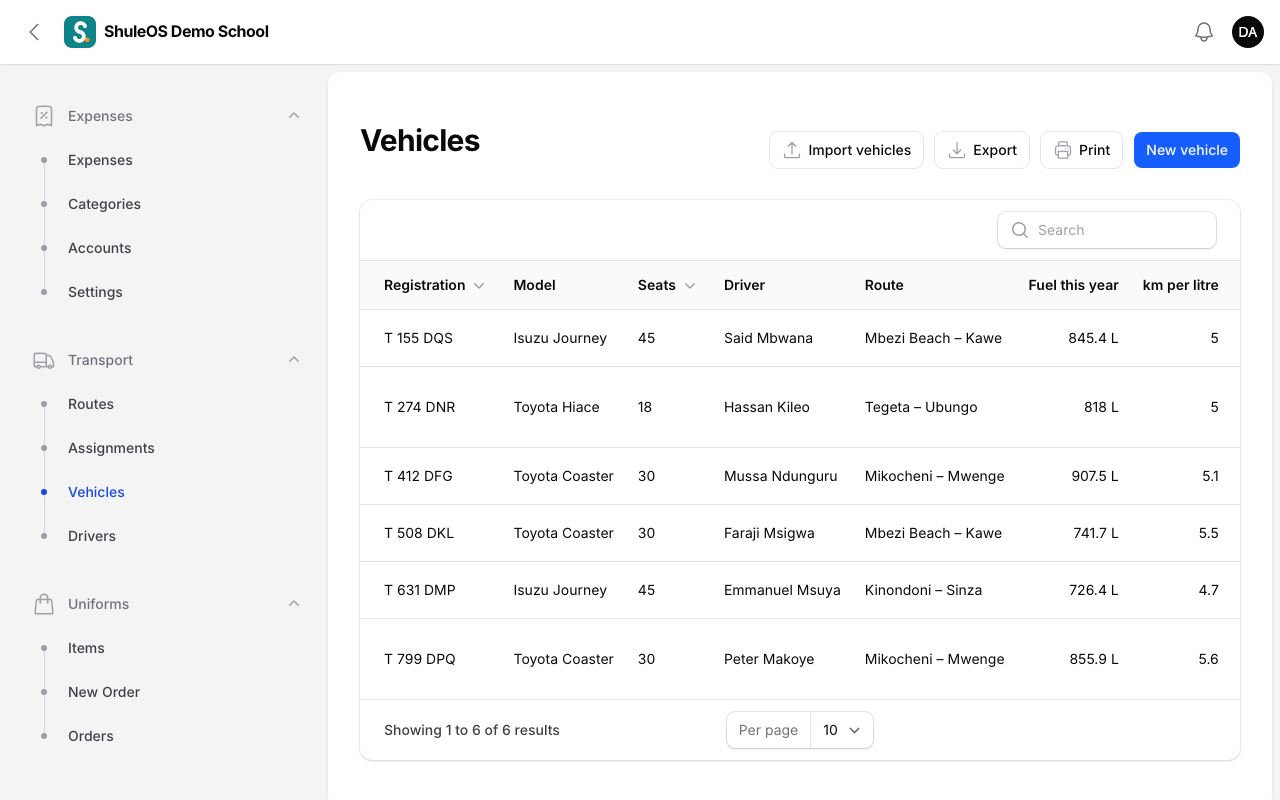
Click New vehicle:
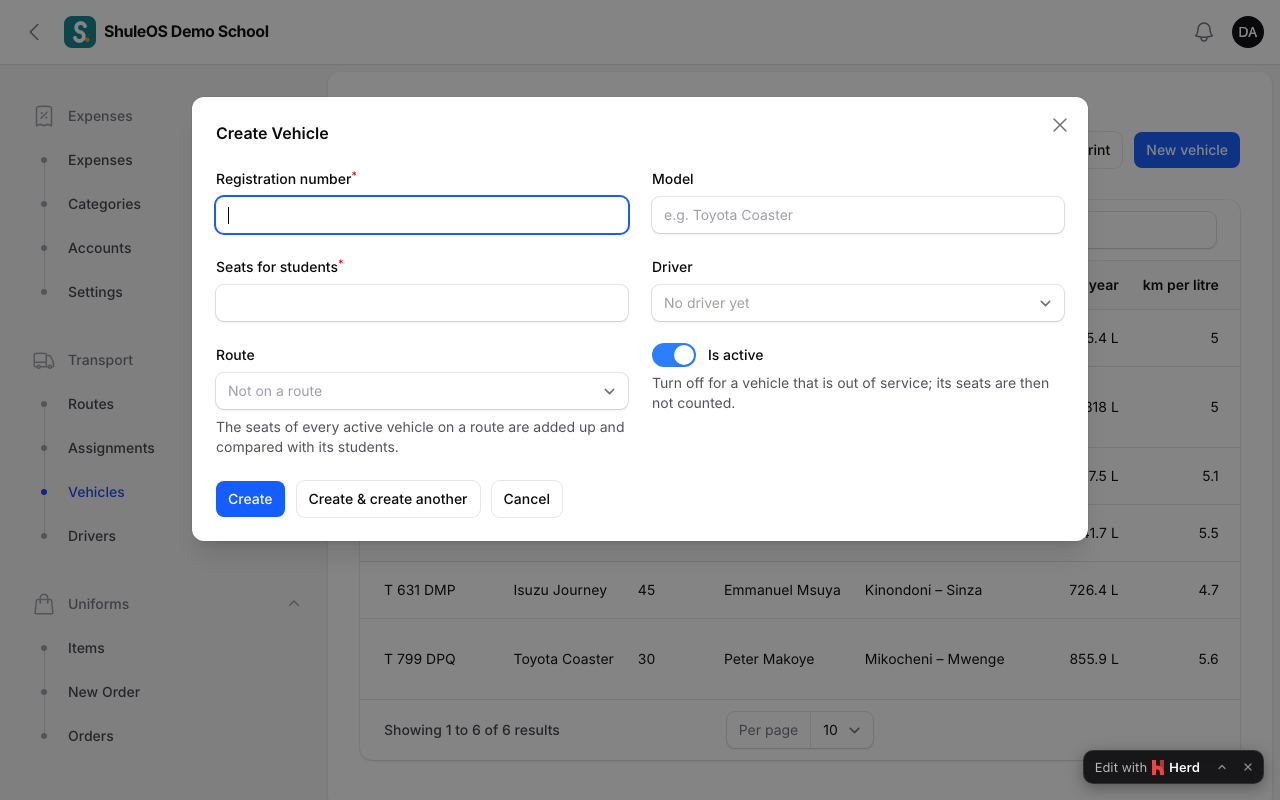
| Field | What to enter |
|---|---|
| Registration number | Must be different for each vehicle. |
| Model | For example Toyota Coaster. |
| Seats for students | How many students it carries. |
| Driver | Optional. Only active drivers are offered. |
| Route | Optional. The seats of every active vehicle on a route are added up and compared with the route's students. |
| Active | Turn off for a vehicle that is out of service; its seats are then not counted. |
A vehicle's page
Click a vehicle to see everything about it in one place: a summary of its driver, route, fuel and repairs, and tabs for the students who ride it, its route and stops, its fuel, maintenance and documents (such as insurance and inspection papers).
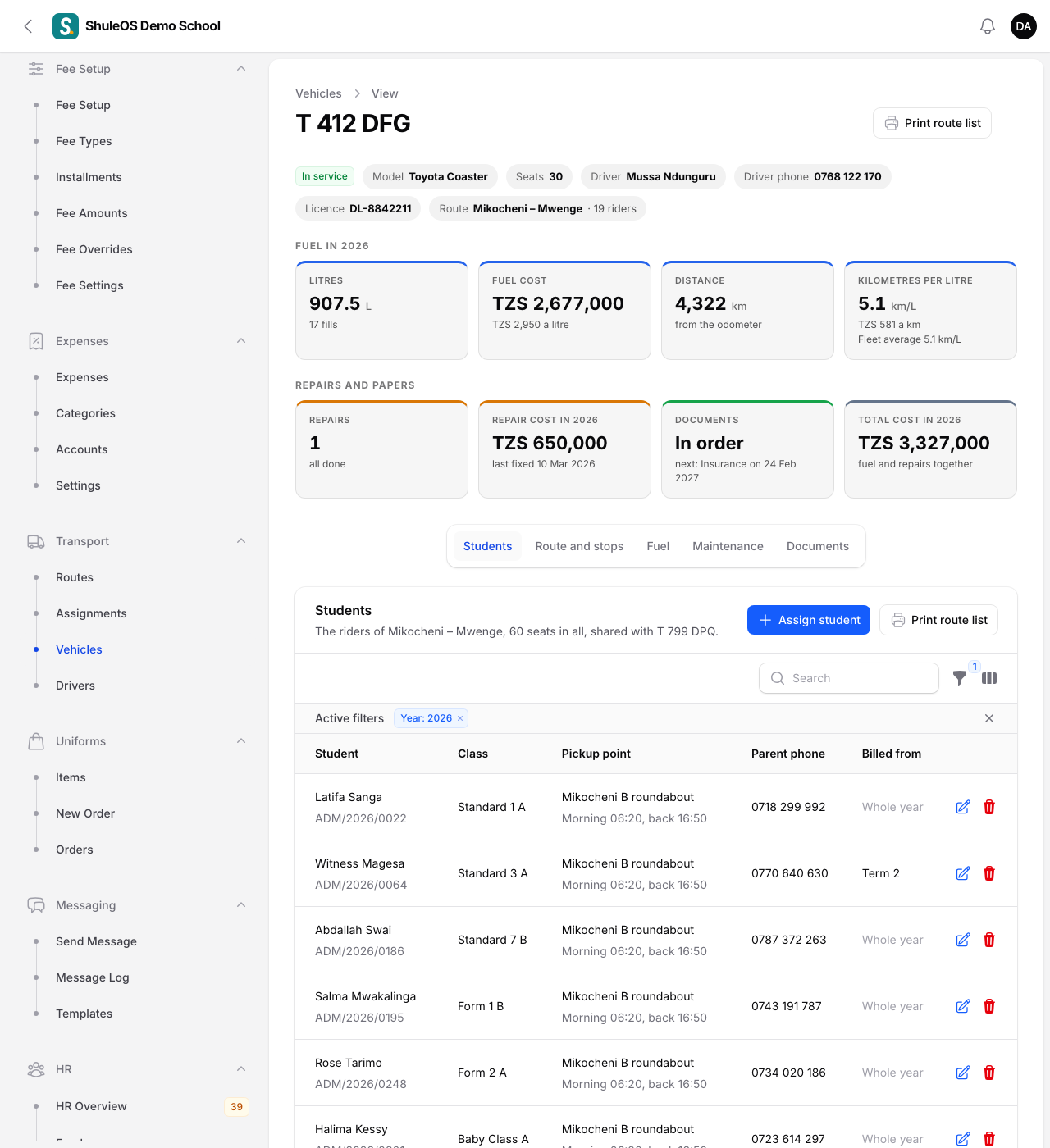
Print route list opens the route list for the vehicle's route. Riders belong to the route, so two buses on the same route show the same students.
If something goes wrong
| What you see | What it means |
|---|---|
| This school already has a route with that name | Use another name. |
| More students than seats | Add a vehicle to the route, or move students to another route. |
| A driver is missing when choosing one for a vehicle | They are not in the Driver category, or are inactive. |
| A route cannot be deleted | Students are assigned to it. Make it inactive instead. |