
Record expenses, approve and cancel them
Record what the school spends, choose the account it is paid from, approve or reject it if approval is on, and cancel a mistake.
An expense is money the school pays out: a TANESCO bill, chalk and markers, repairs. Each expense is paid from an account (the cash box or a bank account), so the account's balance always shows what is left.
Before you start
- Create the accounts the money comes from, and the categories you group spending by (see Accounts, categories and expense settings).
- Decide whether expenses need approval (Expense Settings).
Record an expense
-
Open Expenses → Expenses. The list shows the Date, Description, Category, Paid from, Amount, Status and any Receipt. Use the From and Until dates, Category, Paid from and Status filters, and the columns button to change what is shown.

-
Click Record expense.
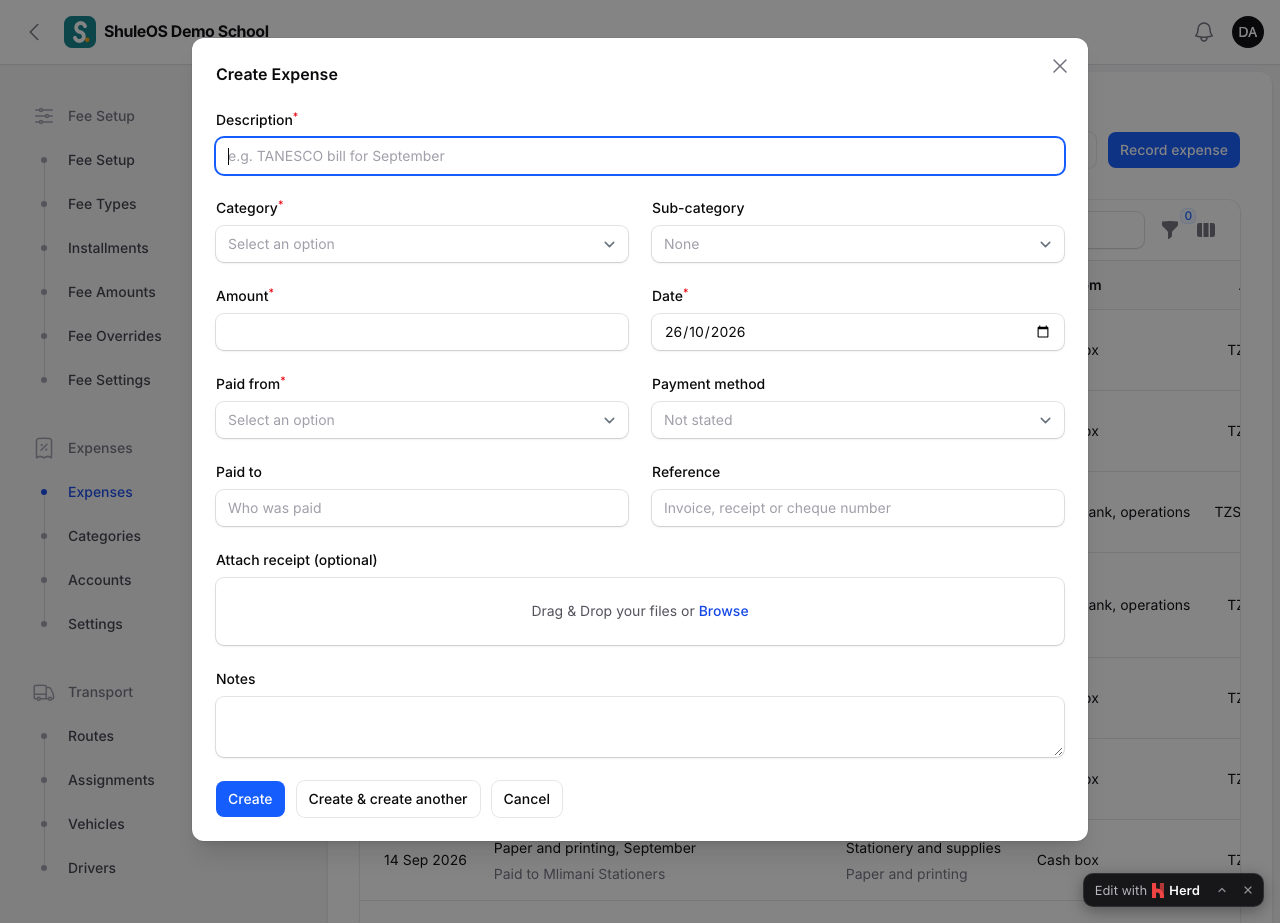
| Field | What to enter |
|---|---|
| Description | Required. For example TANESCO bill for September. |
| Category, Sub-category | Required category; optional sub-category, for example Utilities → Electricity. |
| Amount | How much was paid. |
| Date | When it was paid. |
| Paid from | The account: only active accounts are offered. |
| Method | How it was paid. |
| Paid to | Who received the money. |
| Attach receipt (optional) | A photo or scan of the receipt. |
- Click Create.
What you see next depends on the approval setting:
- Approval off: "Expense recorded". It is Paid at once and the amount is taken from the account.
- Approval on: "Expense recorded: waiting for approval. It is taken from the account once approved."
- If the account is now below zero you are warned ("… is now below zero. Record the money put in under Accounts → Add money.").
Approve or reject
When expenses need approval, an authorised person opens the list and, on a row that shows Waiting for approval:
| Button | What happens |
|---|---|
| Approve | The confirmation says "(description): the amount is taken from (account)". The status becomes Paid ("Expense approved"). |
| Reject | Nothing is taken from the account. The expense stays on record as Rejected. |
The dashboard's Needs your attention list shows how many expenses are waiting.
Cancel an expense
Use Cancel expense on a row. The expense is cancelled, not deleted, and the money goes back into its account. It stays on the list marked Cancelled.
Import, export and print
- Import expenses loads many from a file, with a preview ("Expenses recorded: 30 recorded, 2 skipped as already recorded").
- Export gives Excel-friendly CSV or Excel (.xlsx).
- Print expenses lets you choose From and To dates and opens a printable list.
Salaries
Salary payments made through Payroll appear here as expenses in the Salaries category. Do not record them twice.
If something goes wrong
| What you see | What it means |
|---|---|
| The account you want is missing | It is inactive, or does not exist. See Accounts. |
| Waiting for approval for a long time | Nobody has approved it. An approver must open the list. |
| The balance is below zero | Money was spent that was never recorded as put in. Use Add money on the account. |
| A wrong expense | Cancel it and record the correct one. |