
Learning areas and competency assessment
For classes assessed by competency (usually nursery), set up learning areas and their skills, then rate each child instead of giving marks.
Young children are not given marks and ranks. In a class whose Assessment Mode is Competency, a teacher rates each child on skills grouped into learning areas, such as Numeracy or Language. The report card then tells the child's story in sentences, not percentages.
Before you start
- Set the class's Assessment Mode to Competency (Academic Management → Classrooms → Edit). Only those classes appear in the steps below. See Classes and streams.
Step 1: Create the learning areas
-
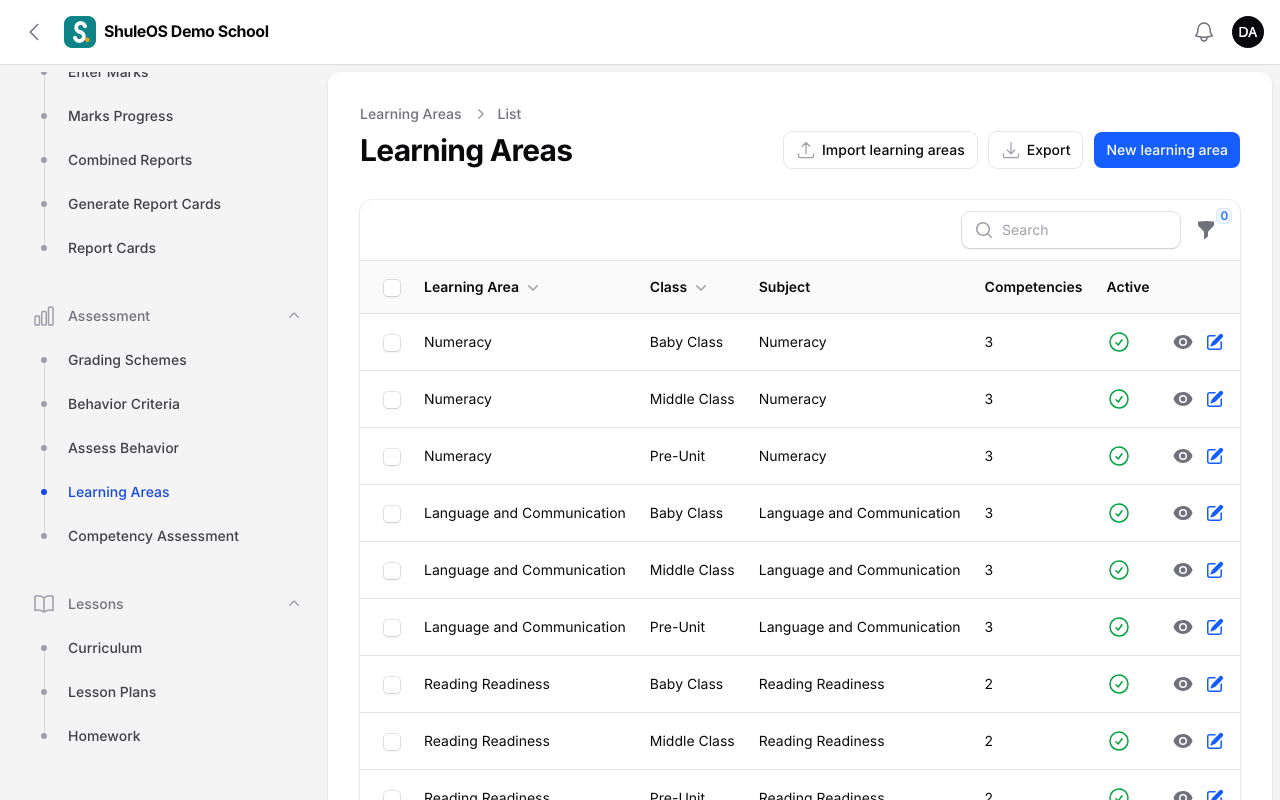
Open Assessment → Learning Areas. The list shows each area with its class, its subject, how many competencies (skills) it has and whether it is active. Use the Class filter to narrow it.
-
Click New learning area.
| Field | What to enter |
|---|---|
| Class | Required. Only classes set to Competency appear. |
| Subject | Optional. Link the area to one of the class's subjects, or leave empty for areas such as "Work Habits". |
| Learning Area | Required. For example Numeracy. |
| Display order, Active | Order it shows in, and switch it off if unused. |
-
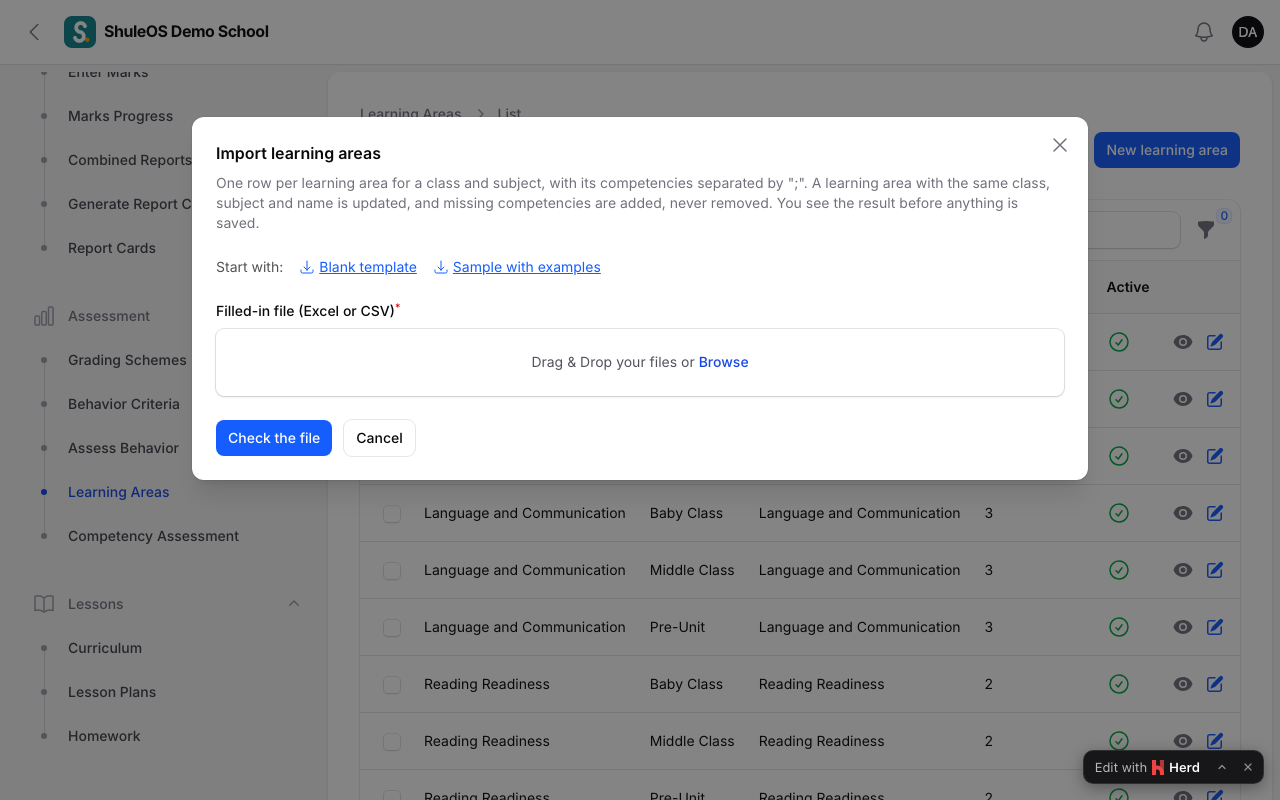
Click Create. To load many at once, click Import learning areas.
Step 2: Add the skills (competencies)
- Open the learning area and click Edit.
- On the Competencies tab click to add one. Write the Skill, and write it as just the skill: for example
recite numbers 1 to 20. ShuleOS turns it into a full sentence at each rating, such as "She is able to recite numbers 1 to 20." You can use{possessive},{object}and{subject}so the sentence uses he/she/they correctly. - Optionally write the exact sentence for a rating (Rating 1 to Rating 4) instead of the generic one.
- Keep Active on, and save.
Step 3: Rate the children
- Open Assessment → Competency Assessment.
- Choose the Exam and the Class. Then pick a learning area.
- For each child choose a rating for each skill. The four ratings are:
| Rating | Default label |
|---|---|
| 1 | Needs support |
| 2 | Developing |
| 3 | Able |
| 4 | Exceeds expectation |
Your school can change these words in Account → Settings → Exams and Reports → Competency rating scale. 4. Save. Ratings belong to the exam, so each exam has its own.
Class teachers can rate from the teacher portal (Behaviour and competencies).
Where it shows
The sentences appear on the child's report card in place of marks, and in the parent portal.
If something goes wrong
| What you see | What it means |
|---|---|
| No classes in this exam use Competency assessment | Set the class's Assessment Mode to Competency, and make sure the class is chosen for the exam. |
| No learning areas are set up for this class yet | Create learning areas for the class. |
| A class is missing when creating a learning area | It is not set to Competency mode. |
| This exam is locked | The exam is Completed or Published. An administrator sets it back to Active. |
Related guides
- Classes and streamsCreate the school's classes, choose how each is assessed, add streams (sections), and choose the subjects each class takes.
- Behaviour criteria and assessing behaviourChoose what behaviour is rated (punctuality, respect and so on), then rate each student for an exam so it appears on the report card.
- Generate and release report cardsMake report cards from an exam or a combined report, add comments, check them, mark them ready, release them to parents, and print or download them.