
Combined reports
Join several exams into one term report, with each exam counting for a percentage. A single exam needs no setup.
A report card can be made from one exam, which needs no setup. Or it can combine several exams into one report, for example Term 1 Report = Mid-term 40% + End-term 60%. That combination is a combined report.
Create a combined report
-
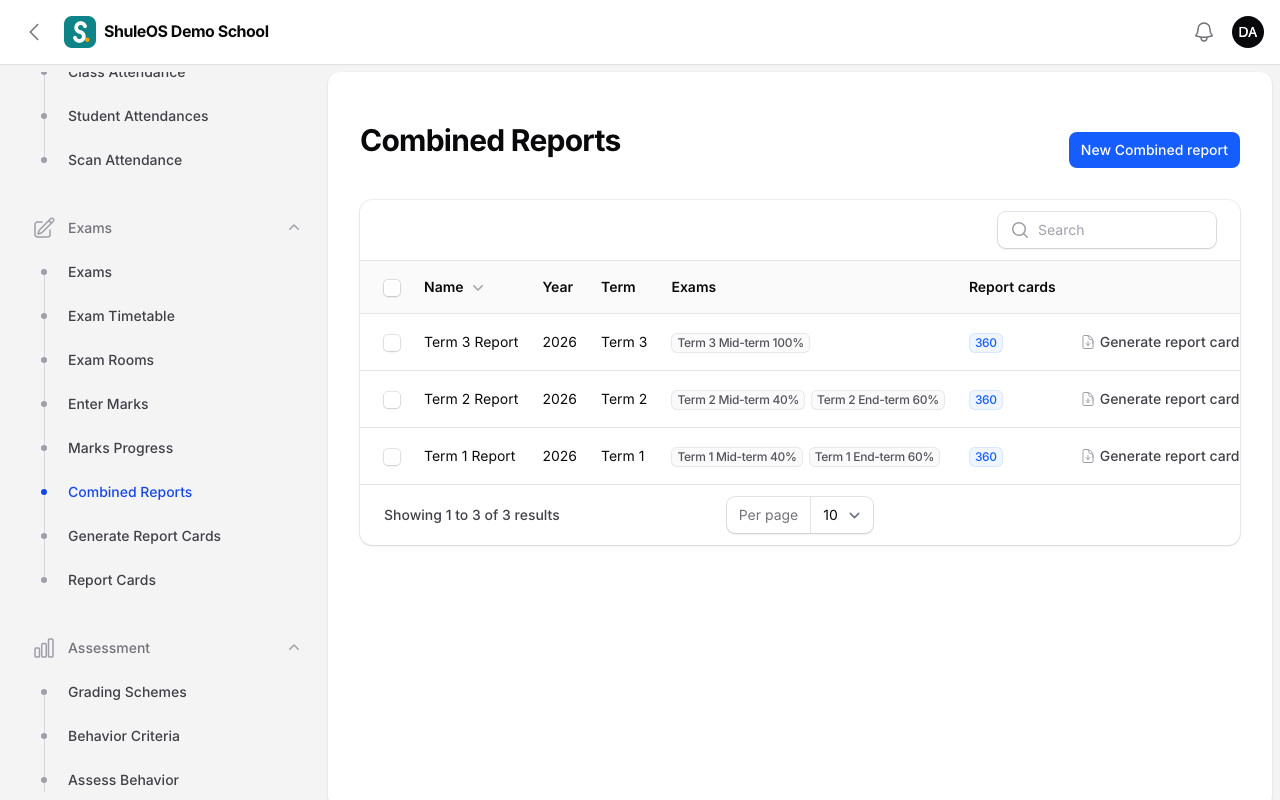
Open Exams → Combined Reports and click New combined report.
-
Fill in the form:
| Field | What to enter |
|---|---|
| Report name | For example Term 1 Report. It must be different from other reports in the same academic year ("This academic year already has a report with that name"). |
| Academic year | The year of the exams. |
| Term | Optional. Shown on the report card. |
| Exams in this report | Add at least two exams. For each, choose the Exam and how much it Counts for (%). |
- The percentages must add up to 100. A running total is shown ("Total: 100%"). If they do not you see "The percentages add up to 90%, but they must add up to 100%."
- Click Create.
Each exam can only be chosen once in a report.
Use it
The list shows each combined report with its year, term, exams and how many report cards were made from it. Click Generate report cards on a row to go straight to generating cards from it. See Generate and release report cards.
The reports also appear as a choice in Reports → Exam (see Results and exam reports).
If something goes wrong
| What you see | What it means |
|---|---|
| The percentages add up to …%, but they must add up to 100% | Adjust the weights. |
| This academic year already has a report with that name | Use another name. |
| The exam you want is not offered | It belongs to another academic year. |
Related guides
- Generate and release report cardsMake report cards from an exam or a combined report, add comments, check them, mark them ready, release them to parents, and print or download them.
- Create an exam and choose its classesSet up an exam for the year and term, choose which classes sit it, and keep it moving from draft to published.