
Generate invoices, and correct them
Bill a whole school or chosen classes for an installment or the year's one-off fees, look at invoices, void a wrong one, post adjustments and opening balances.
An invoice is one student's bill for one installment (for example Term 1) or for the year's one-off fees. ShuleOS builds them from your fee amounts, minus discounts, changed by overrides.
Before you start
- Fee types, installments and amounts are set (see Fee setup: the order to do it in).
- Discounts and overrides are assigned.
- Students are enrolled and Active in their classes.
Generate invoices
-
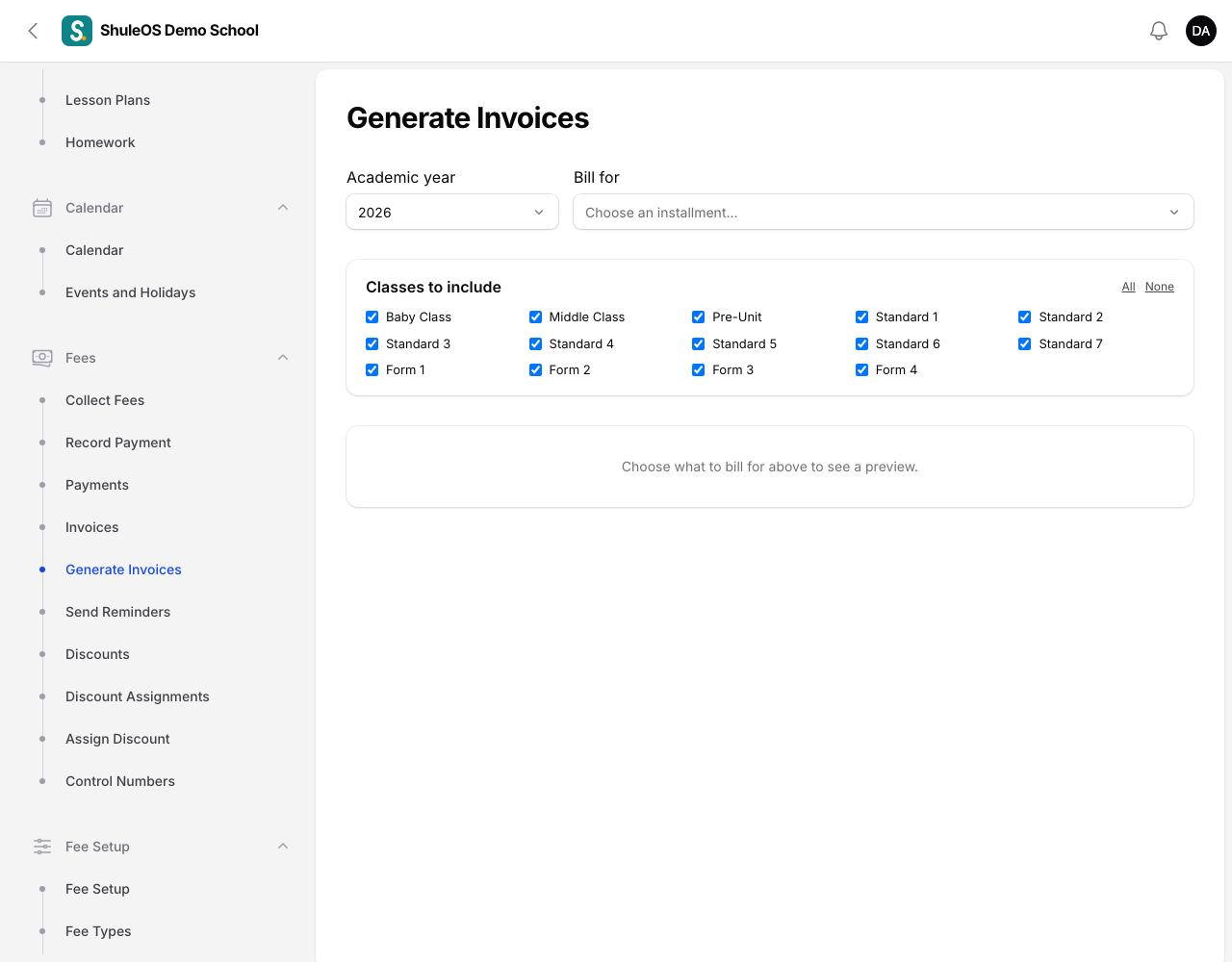
Open Fees → Generate Invoices.
-
Choose the Academic year.
-
Under Bill for choose an installment (for example Term 1) or One-off fees for the year.
-
Under Classes to include tick the classes. All and None save time.
-
A preview appears: "412 student(s) will be invoiced. Total TZS 178,400,000". Below it you see what will be left out:
- N already invoiced: students who already have this invoice.
- N nothing to charge (exempt or not liable).
- N class(es) not priced yet: skipped: those classes have no amounts.
- N joiner(s) left for manual invoicing: late joiners, when your rule is to decide by hand.
-
Click Generate invoices. You see "412 invoice(s) generated. Total TZS 178,400,000."
You can run it again later for other classes or another installment. Students who already have that invoice are skipped, so it is safe to run twice.
Transport and uniforms
Transport and uniforms are not part of this price list. A student with a transport route gets a "Transport" line added to their installment invoice automatically, and a uniform order is billed as its own invoice the moment it is placed.
The invoice list
Open Fees → Invoices.
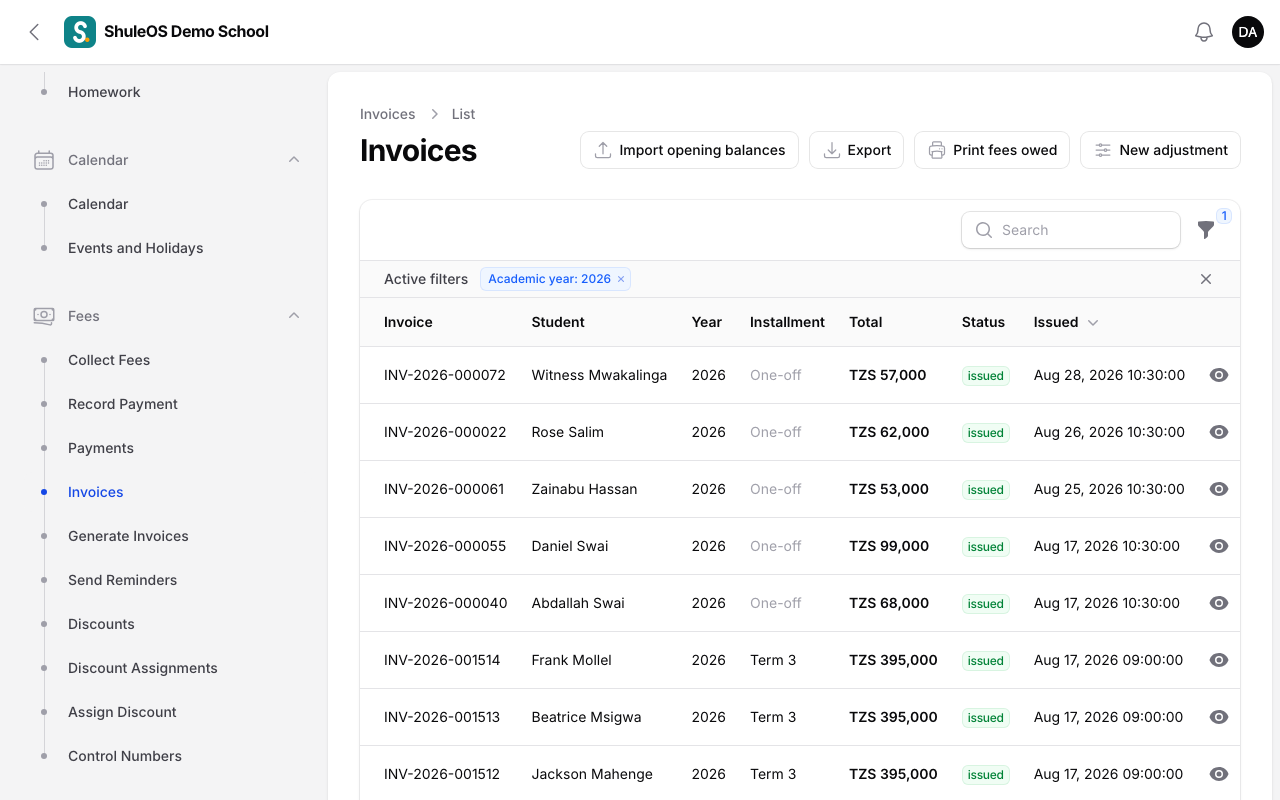
Each row shows the Invoice number, Student, Year, Installment, Total, and when it was Issued. Filter by year, installment or status (Issued or Voided). Click an invoice to open it, with its lines.
Buttons at the top of the list:
| Button | What it does |
|---|---|
| Print fees owed | A printable list of who owes what. |
| Export | The invoices as Excel-friendly CSV or Excel (.xlsx). |
| New adjustment | See below. |
| Import opening balances | See below. |
Print or share an invoice
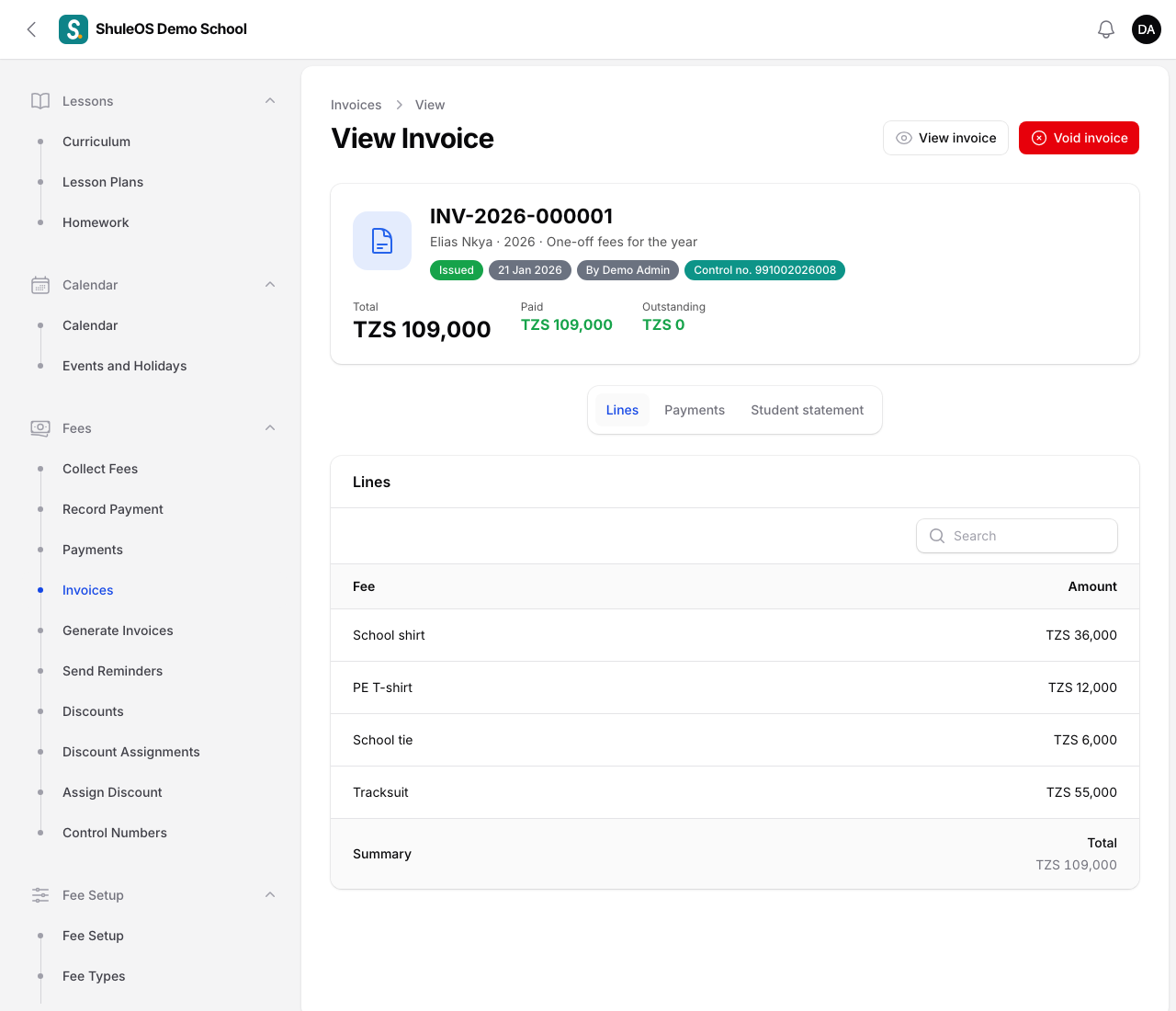
Open an invoice and click View invoice (top right). It opens a PDF with the school letterhead, the student and class, each fee line with any discount, the total, what has been paid, the balance and how to pay. Print it or save it from the browser. A voided invoice shows a red "VOIDED" banner with the reason.
Parents can open the same document from the parent portal: each fee row on the Fees page has an Invoice button beside Receipts. Switch this off in Account → Settings → Parent Portal ("Parents can open and print invoices").
An invoice is fixed once issued
Each line keeps the amount it was issued with. Changing a price later never rewrites a bill that has gone out. To correct an invoice:
- Open it and click Void invoice.
- Give a Reason and confirm. ShuleOS posts a reversing credit for every line. The invoice stays on record, marked Voided, and is never deleted.
- Fix the amount, discount or override, then generate again.
Adjustments
Click New adjustment to post a manual charge or credit straight to a student's account: a scholarship, a fine, or a correction a void does not cover.
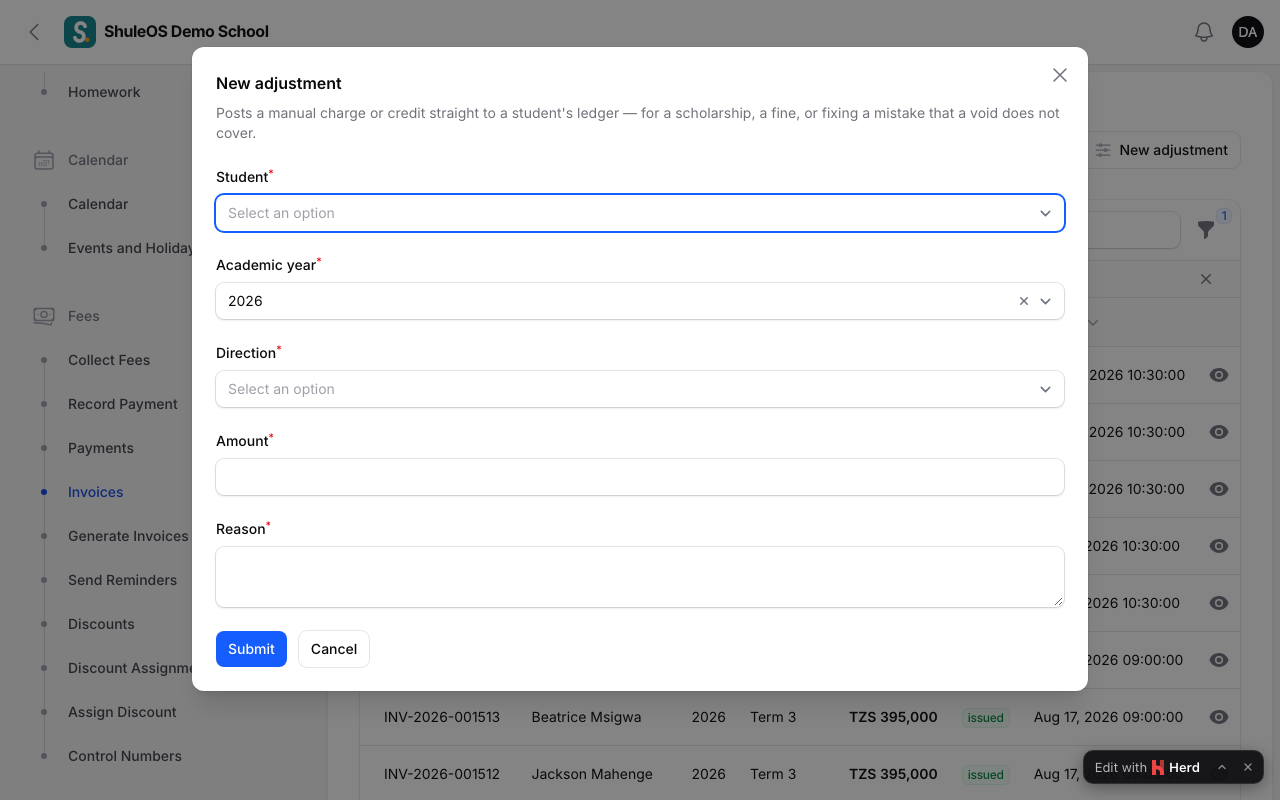
- Choose the Student and the Academic year.
- Choose Charge (increases what the student owes) or Credit (reduces it).
- Enter the amount and a Reason, then confirm. You see "Adjustment posted".
Opening balances
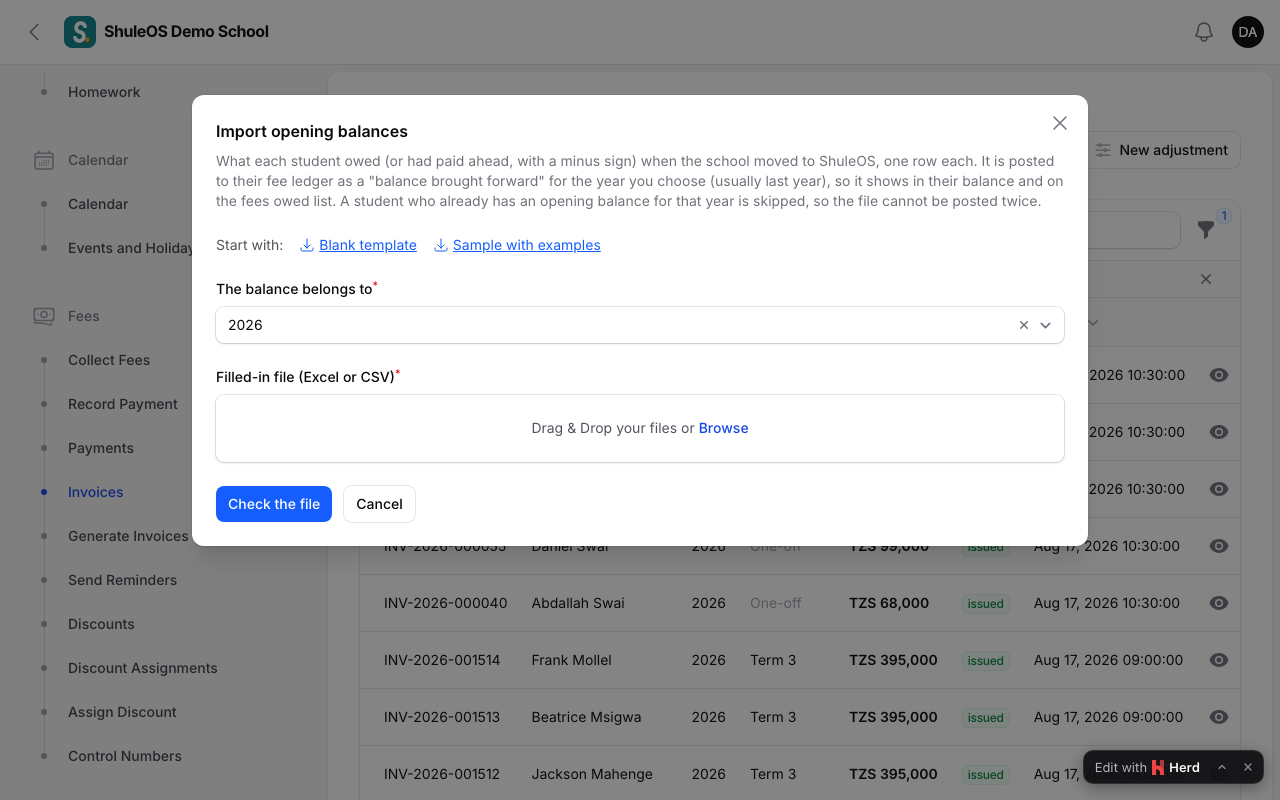
When the school moves to ShuleOS, students may already owe money, or have paid ahead. Click Import opening balances, choose the year the balance belongs to (usually last year), download the template, and list one row per student (use a minus sign for money paid ahead). It is posted as a "balance brought forward". A student who already has an opening balance for that year is skipped. You see "Opening balances posted".
If something goes wrong
| What you see | What it means |
|---|---|
| Choose an academic year first | Choose the year at the top. |
| class(es) not priced yet: skipped | Set amounts for those classes (Fee Amounts). |
| A student was not invoiced | They are exempt, not liable for the period, not Active, or already invoiced. |
| The amount on an invoice is wrong | Void it, fix the cause, and generate again. |
Related guides
- Fee amountsSet how much each fee type costs for each class and installment, copy last year's amounts, and import them from a file.
- Discounts and scholarshipsCreate discounts (sibling, staff child, scholarship), give them to whole classes or single students, and see who has one.
- Collect fees, record payments and print receiptsFind a student, take a payment, see how it is shared across their invoices, print the receipt, and void a payment made by mistake.