
The asset register
List what the school owns with a code, category, room, condition and cost; move assets between rooms and people; and retire or write off what is no longer in use.
The asset register is the school's list of things it owns: desks, computers, projectors, laboratory equipment, kitchen equipment. Each asset has a code, a place, a condition and its history. Assets are never deleted, so what the school once owned always stays on record.
The Assets list
Assets and Facilities → Assets.
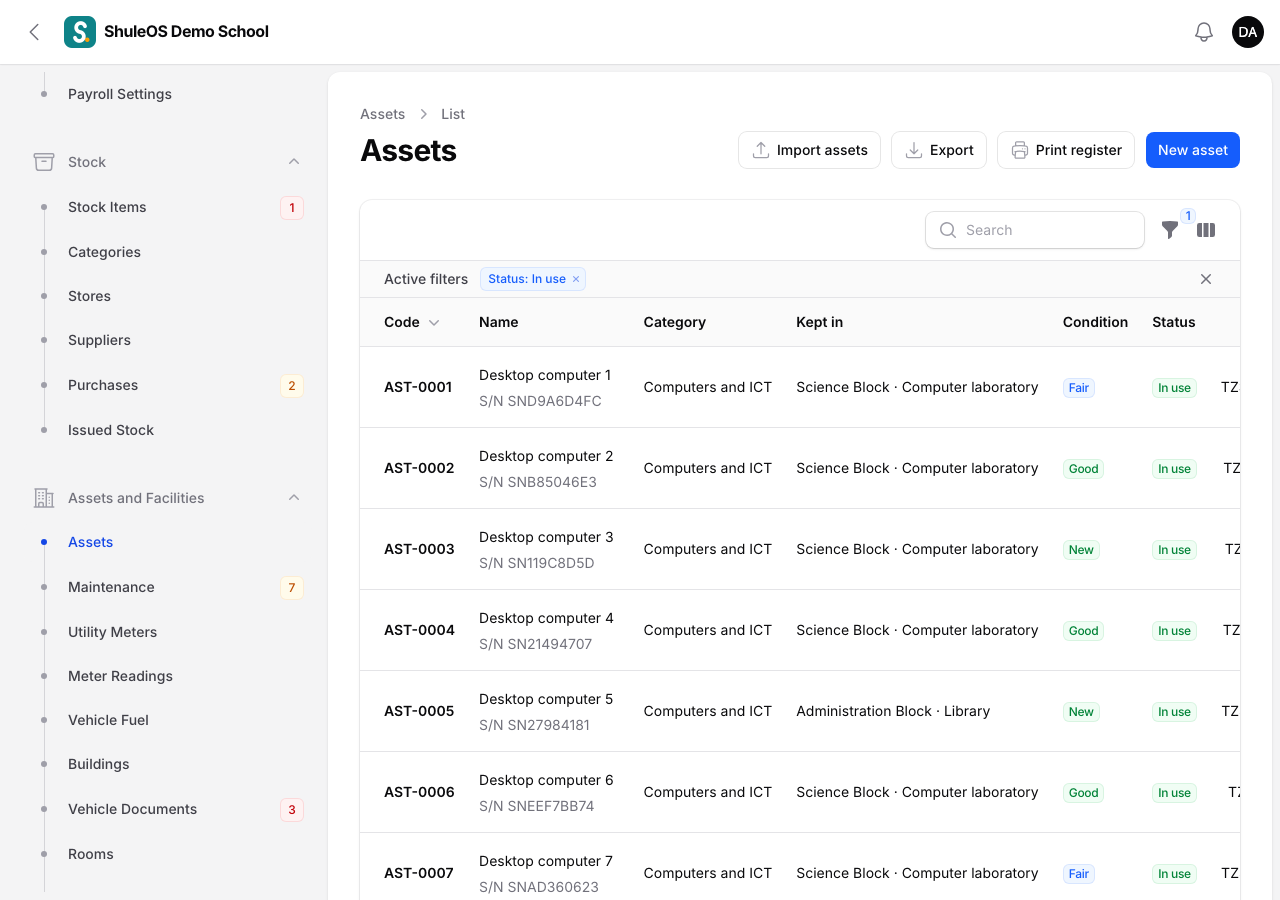
Each row shows the Code, Name, Category, where it is Kept in (and who it is with, if a person), Condition, Status and Cost. Filter by Status, Category, Room, Condition, and Warranty ending soon. Print register, Export and Import assets are on the top bar.
The statuses are In use, In storage, Under repair, Retired and Lost. The conditions are New, Good, Fair, Poor and Damaged.
Add an asset
-
Click New asset.
-
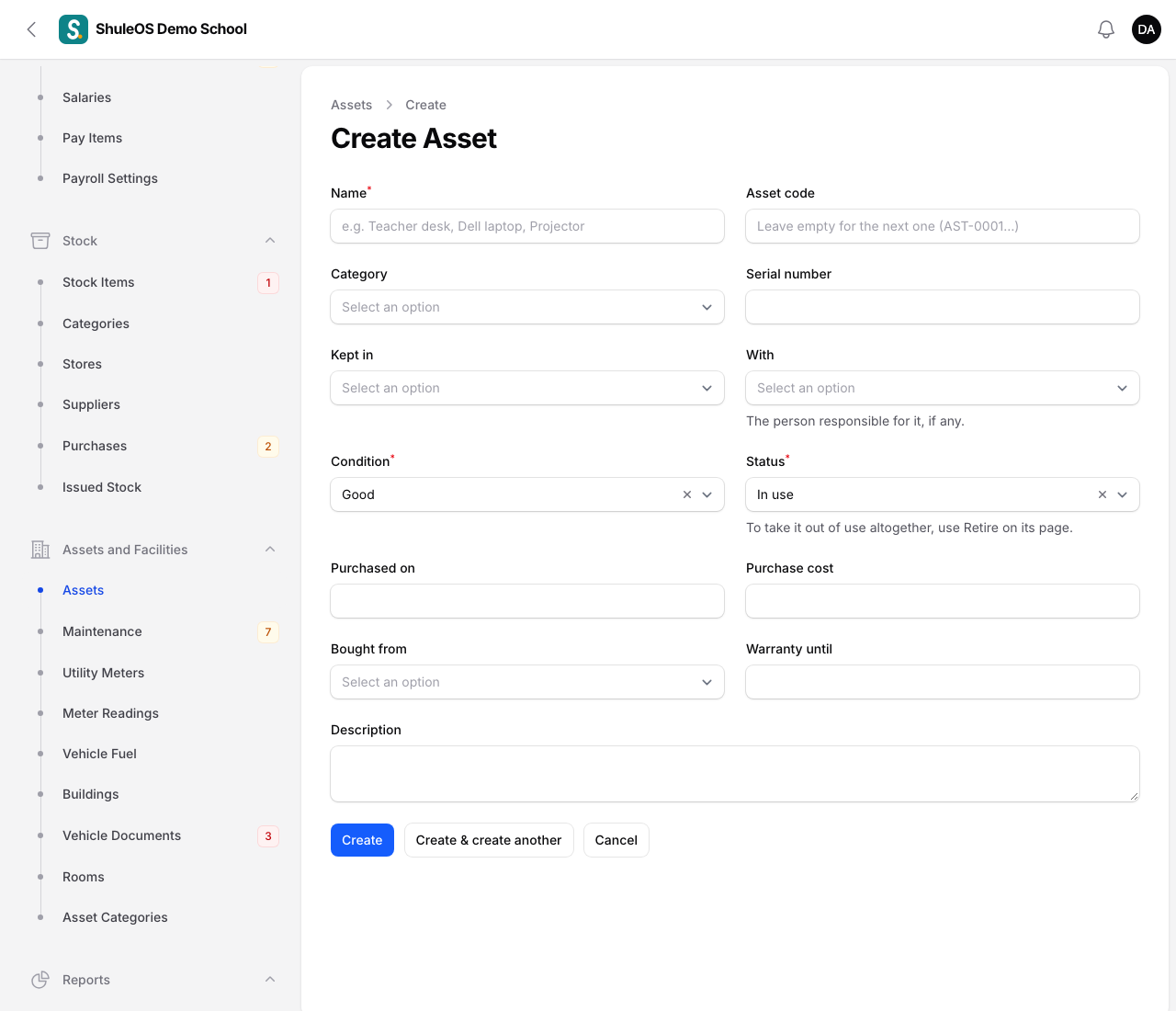
Fill in the form:
| Field | What to enter |
|---|---|
| Name | Required. For example Teacher desk, Dell laptop or Projector. |
| Asset code | Leave it empty and ShuleOS gives the next one (AST-0001, AST-0002…). Or type your own. |
| Category | Pick from your list. |
| Serial number | From the label on the item. |
| Kept in | The room where it is. |
| With | A member of staff who holds it, for something a person carries, such as a laptop. |
| Condition | Required. |
| Status | Required: In use, In storage or Under repair. To take it out of use altogether, use Retire on its page. |
| Purchased on, Purchase cost, Bought from | Where and when it was bought, and for how much. |
| Warranty until | When the warranty ends. The warranty warnings use it (see below). |
| Description | Optional. |
- Click Create.
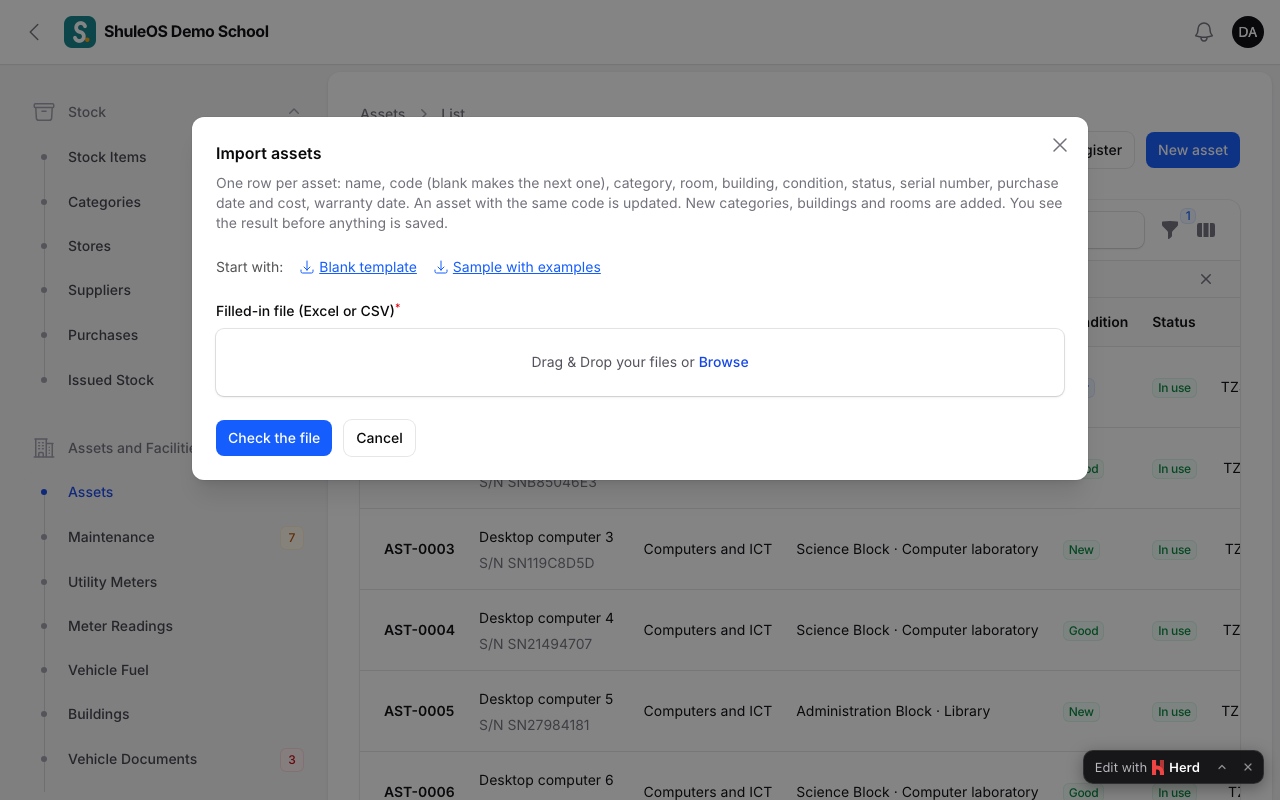
To load many assets at once, click Import assets, download the template, fill it in and check the preview.
An asset's page
Click an asset to see it, with two tabs: Moves (every time it changed room or holder) and Maintenance (problems reported about it and what they cost).

Move an asset
Click Transfer.
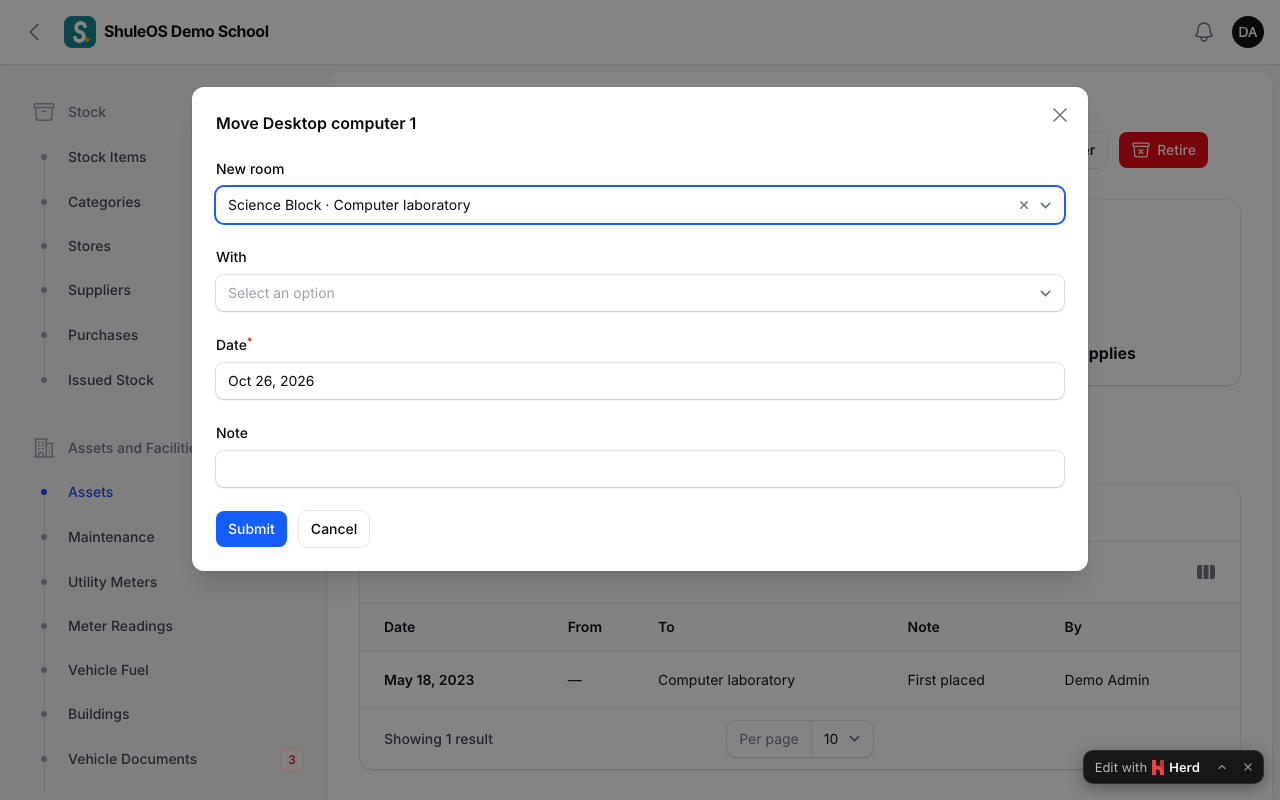
Choose the New room and/or who it is With, the Date and a Note, and confirm. The move is added to the asset's history, so you can always see where it has been.
Retire an asset
When an asset is broken beyond repair, sold or worn out, click Retire.
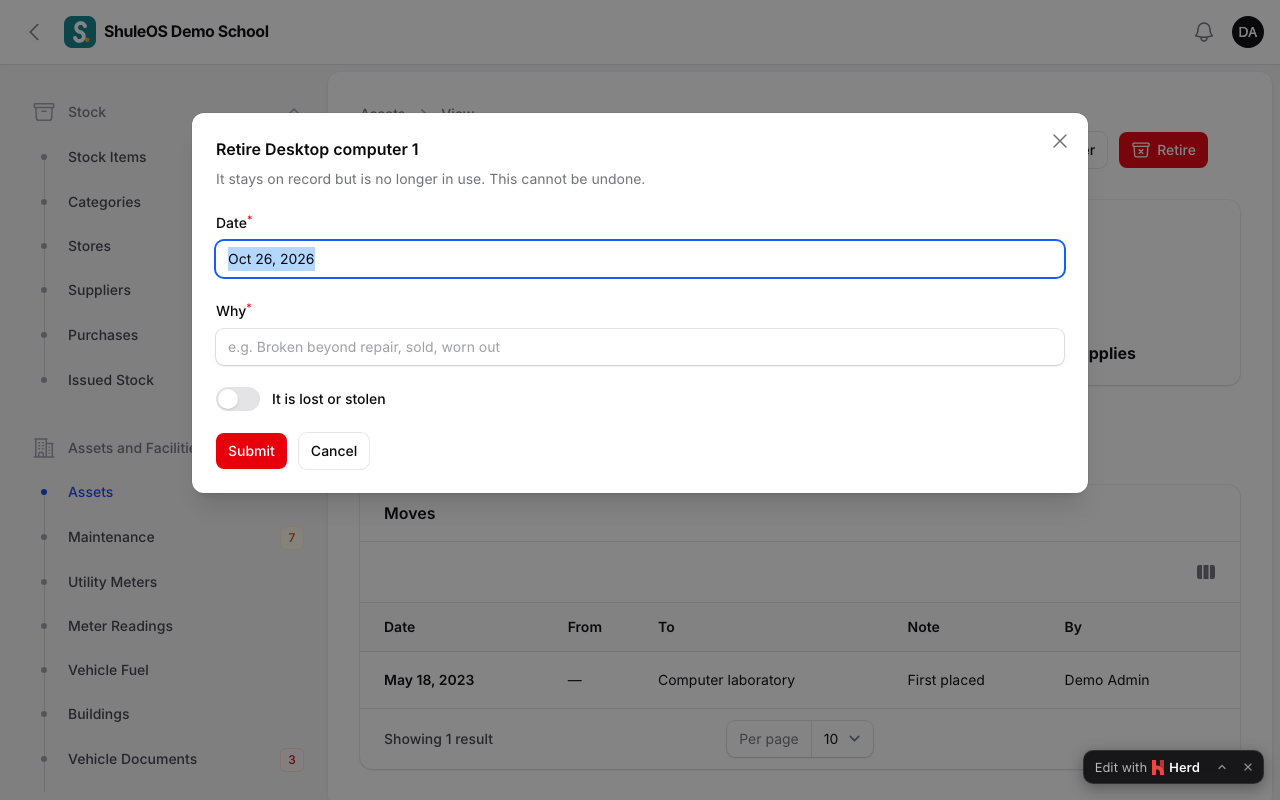
Enter the Date and Why (for example "Broken beyond repair"), and switch on It is lost or stolen if that is the reason. It stays on record but is no longer in use. This cannot be undone, and a retired asset can no longer be edited or moved.
Warranty warnings
The Warranty ending soon filter shows assets whose warranty ends within the next 60 days. The Running out report and the dashboard's Needs your attention list use it too (see Assets and facilities reports).
If something goes wrong
| What you see | What it means and what to do |
|---|---|
| The asset code is refused | Another asset already uses it. Leave the code empty to get the next free one. |
| Edit, Transfer or Retire is missing | The asset is already retired or lost. |
| A room or category is missing from the form | It is inactive. Make it active in its list. |
| You retired an asset by mistake | Retiring cannot be undone. Add the asset again as a new record. |
Related guides
- Assets and facilities setup: buildings, rooms and asset categoriesList the school's buildings and rooms and the groups of assets, so every asset, meter and repair can say where it is.
- Maintenance requestsReport a problem with a room, an asset or a vehicle, follow it until it is fixed, and record what it cost.
- Assets and facilities reportsWhat the school owns and its condition, what repairs cost each month, how much each meter used, and what is about to run out.