
Results and exam reports
See the ranked results of a class, print the result sheet, and read the exam reports: class tabulation, subject performance, class comparison, grade distribution, and top and needs-support lists.
Once marks are entered, two screens show how each class did.
Results: one class, ranked
Open Exams → Results (it is also reached from an exam's page, Results tab).
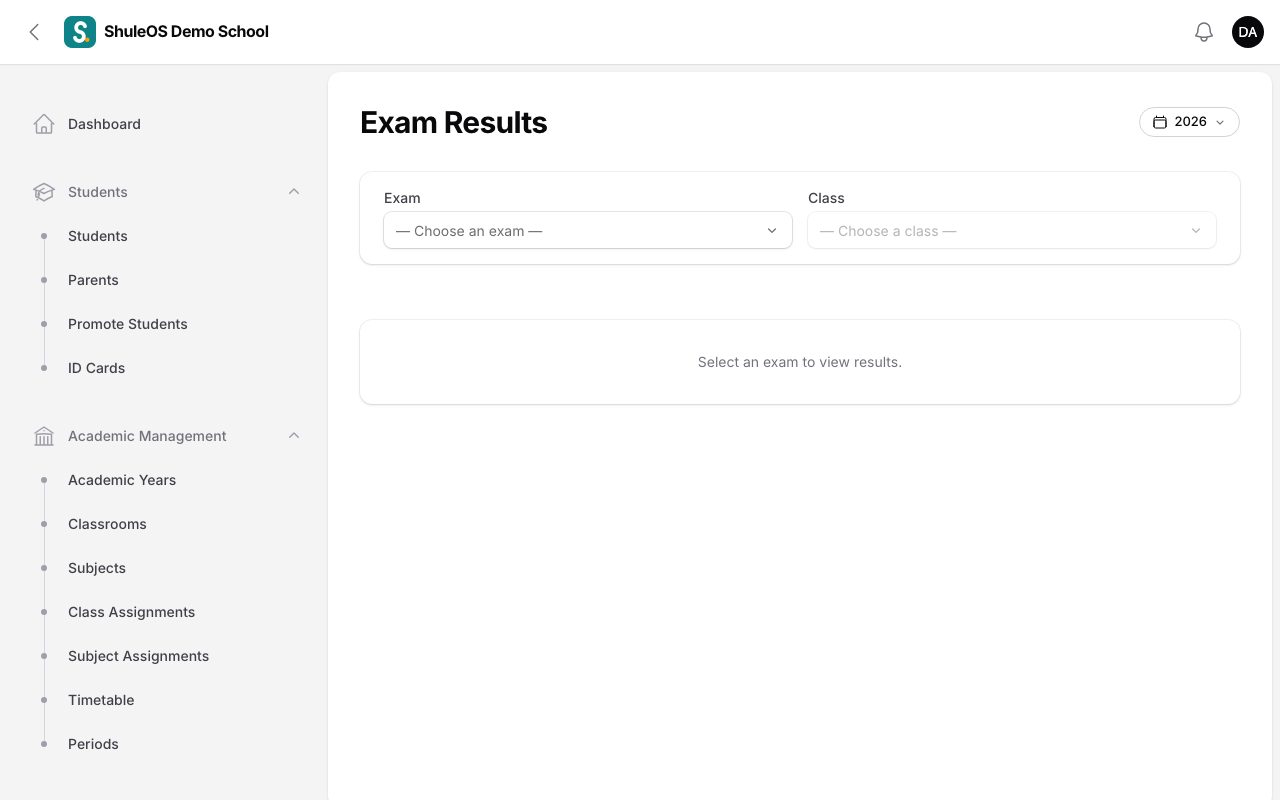
- Choose the exam and the class.
- You see one row for each student, with their marks for every subject, their Average and their Rank in the class. The bottom rows show each subject's average and the class average with its grade.
- Click Print result sheet to open a printable sheet for that class and exam.
Students who were absent or exempt show ABS or N/A and are not ranked.
Exam reports
Open Reports → Exam to analyse results. Choose an Exam or combined report and, where needed, a Class. There are five tabs:

| Tab | What it shows | Use it to |
|---|---|---|
| Class Tabulation | Every student in a class with their marks and position. For a secondary class with points and division switched on (School settings), it also shows each student's Points and Division, ranks by fewest points, and lists how many students are in each division. Works for a single exam or a combined report. | Print the class's full results. |
| Subject Performance | For each subject: its rank, Average, how many Sat, Passed, Failed, the Pass rate, and the Best class and Weakest class. | See which subjects need help. |
| Class Comparison | A grid of classes against subjects with each class's Overall average, and the Strongest and Weakest subject of each class. | Compare classes. |
| Grade Distribution | How many students earned each grade. | See the spread of results. |
| Top & Needs Support | The top 3, 5 or 10 students in the school and in each class (you choose how many), and the students who failed at least a chosen number of subjects. | Reward good work, and plan extra support. |
| Teacher Performance | Each subject teacher ranked by the Average of the classes they teach, with how far they are above or below the school (Vs school), Sat, Passed, Failed and Pass rate. Click a teacher to open each class and subject they teach, shown next to that class's own average. | Spot who needs support and who to learn from. |
Pass and fail use the Pass mark set on the class's grading scheme. If the scheme has no pass mark, the pass figures are not shown.
Teacher Performance uses the teachers set against each subject in the class setup, for the academic year of the exam. A teacher with no marks yet is not listed. Results reflect the students as much as the teaching, so use it to start a conversation, and compare a teacher's classes with the class average, not only with other teachers.
Each tab has a CSV download and a Print button.
If something goes wrong
| What you see | What it means |
|---|---|
| The table is empty | No marks have been entered for that exam and class. See Enter marks. |
| A student has no rank | They were absent or exempt, or have no marks. |
| Pass figures are missing | The class's grading scheme has no pass mark. |
| Teachers cannot see these reports | They see results for their own subjects in the teacher portal, if the school switched on "Exam reports" for teachers. |
Related guides
- Enter marks and follow marks progressEnter each student's marks for one subject in one exam, import them from a file, and see which classes and teachers still have marks to enter.
- Combined reportsJoin several exams into one term report, with each exam counting for a percentage. A single exam needs no setup.