
Fee setup: the order to do it in
Get the school's fees ready for a year: settings, fee types, installments and amounts, with a checklist that shows what is still missing.
Checked on the ShuleOS demo school
Who: Bursar, school admin (anyone allowed to set up fees) 5 min read
Before ShuleOS can bill a single student, it needs to know what you charge, when, and how much for each class. Fee Setup shows how far along you are for a year.
The order
| Step | What to do | Guide |
|---|---|---|
| 1 | Set the currency, receipt numbers, how parents pay, and the rules ShuleOS follows. | Fee settings |
| 2 | Create the fee types (Tuition, Meals, Transport…) and the installments (Term 1, Term 2, Term 3) for the year. | Fee types and installments |
| 3 | Set the amount of each fee type for each class and installment. | Fee amounts |
| 4 | Optional: discounts, and overrides for individual students. | Discounts, Fee overrides |
| 5 | Generate invoices. | Generate invoices |
The Fee Setup checklist
Open Fee Setup → Fee Setup. Choose the Academic year at the top.
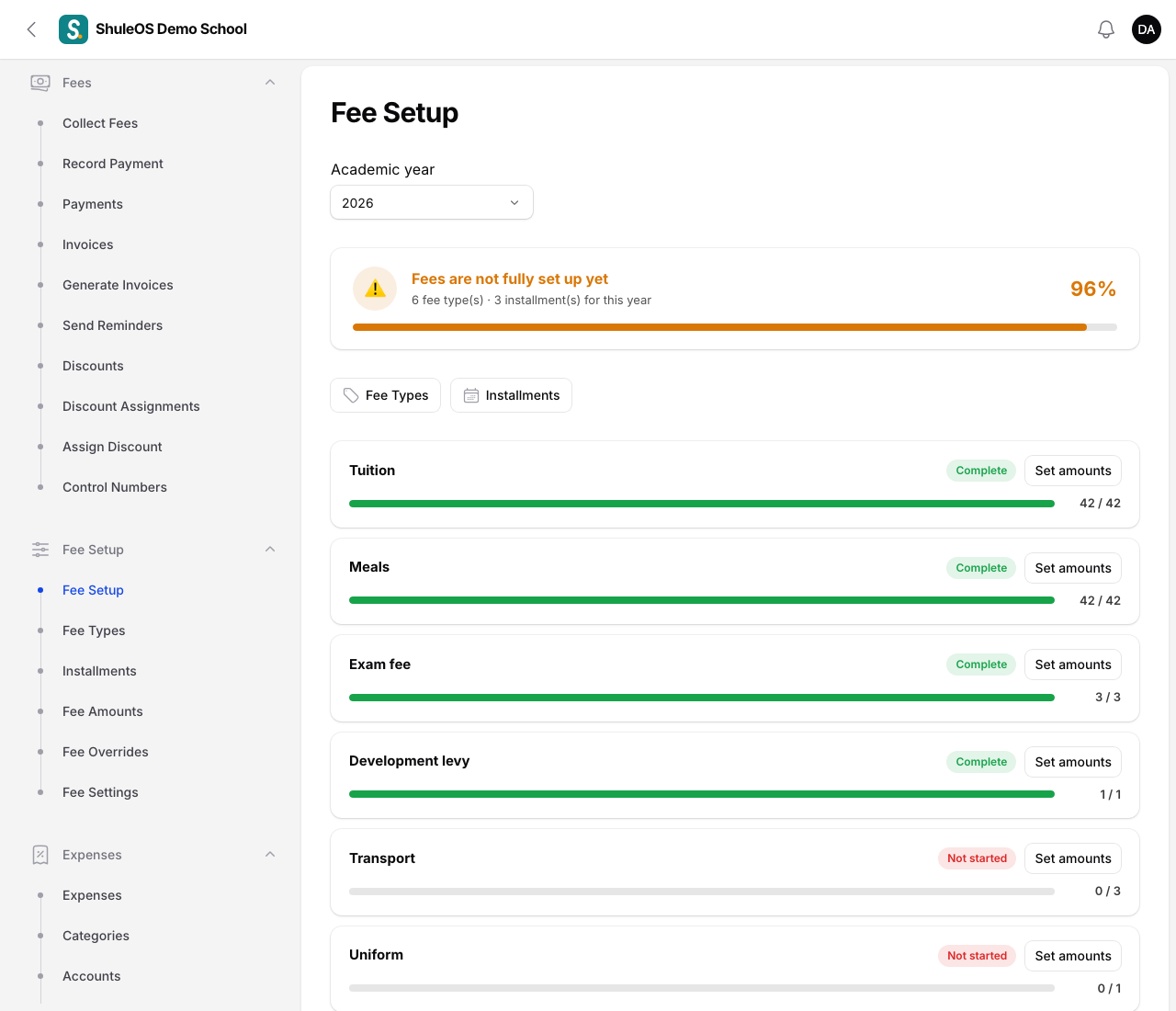
- The banner says Fees are ready for this year (green) or Fees are not fully set up yet (amber or red), with the number of fee types and installments and a percentage.
- Each fee type has its own bar: Complete, In progress or Not started, and how many amounts are set out of how many are needed ("42 / 42"). If some are missing, the classes that still need an amount are named ("Missing: Standard 1, Standard 2…").
- Click Set amounts beside a fee type to go straight to its amount grid, or use the Fee Types and Installments buttons.
If the school has no academic year you see "Create an academic year first, under Academic Management". If there are no fee types you see "Start by adding your fee types, such as Tuition, Registration and Transport."
Do this checklist every new year. Amounts belong to a year. You can copy last year's amounts to the new year (see Fee amounts), then change what has gone up.
Related guides
- Fee settingsChoose the currency, how receipt numbers look, how parents are told to pay, whether your bank gives control numbers, and how payments and late joiners are handled.
- Fee types and installmentsCreate the things you charge for (tuition, meals, transport…) and the installments they are paid in (Term 1, 2 and 3), with their due dates.
- Fee amountsSet how much each fee type costs for each class and installment, copy last year's amounts, and import them from a file.
- Generate invoices, and correct themBill a whole school or chosen classes for an installment or the year's one-off fees, look at invoices, void a wrong one, post adjustments and opening balances.